About Animated Gallery
Scroll Gallery
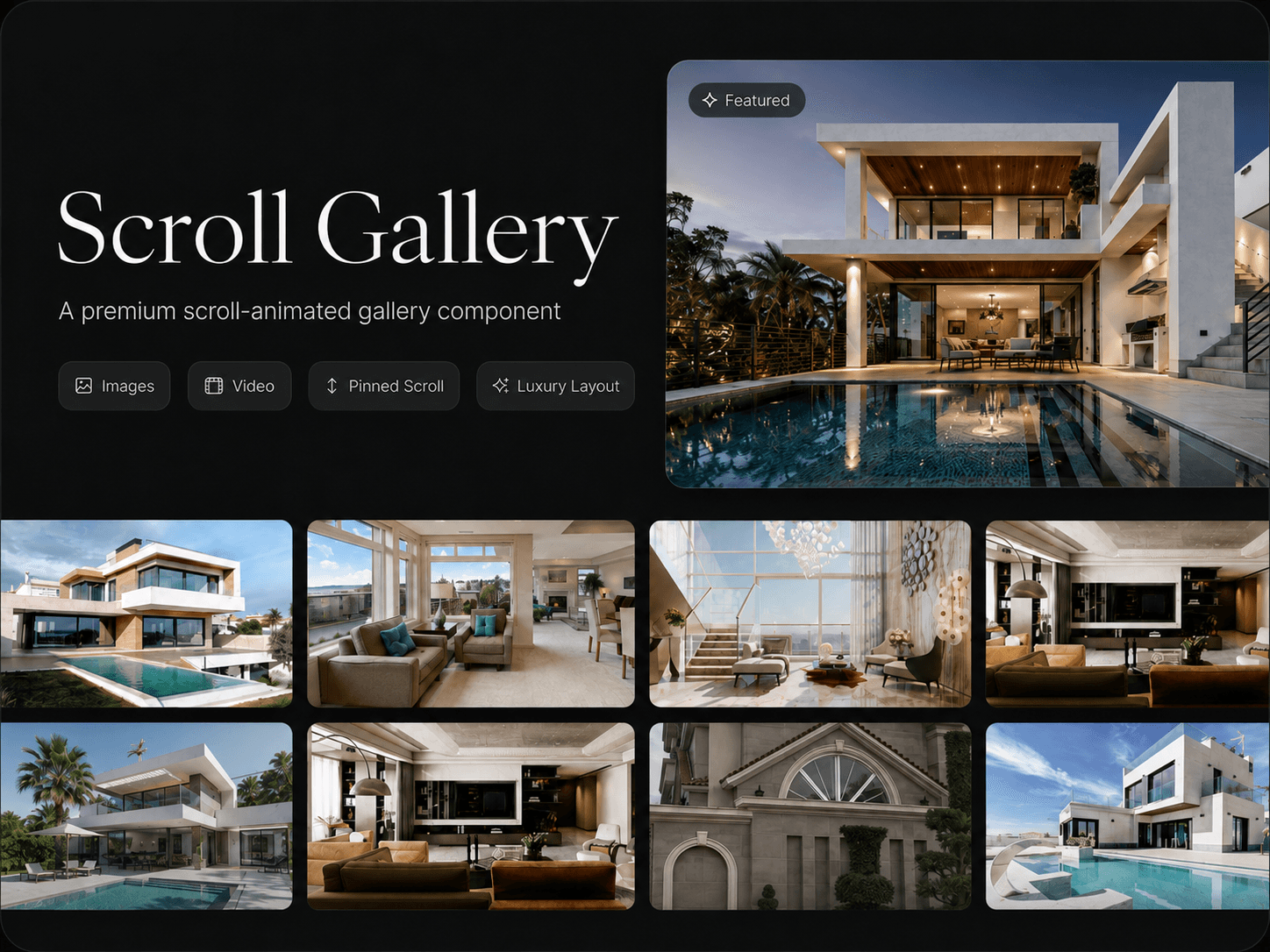
Scroll Gallery turns a simple collection of images into an immersive scroll experience. As visitors move down the page, the gallery stays pinned while the selected image or video smoothly expands into a large featured view.
Made for visual storytelling
It works well for real estate websites, architecture portfolios, photography, product showcases, case studies, travel stories, and projects where visuals deserve more attention than a standard gallery.
What you can customize
Add multiple gallery images
Add a featured video
Use a custom poster image
Control video play timing
Choose animation easing
Adjust stagger timing
Turn video sound on or off
Restart the video on replay
Customize gap and padding
Change corner radius
Adjust pin distance
Change the background color
Everything is controlled from the Framer properties panel, so you can update the media, animation, spacing, playback behaviour, and appearance without editing the code.
How to use
Add Scroll Gallery to your page.
Set the component width to Fill.
Add your gallery images.
Add a video and poster image if needed.
Adjust the animation and layout settings.
Preview your experience before publishing.
Video and scroll controls
Play Threshold controls when the video starts during the scroll animation. A lower value starts it earlier, while a higher value starts it closer to the expanded view.
Pin Distance controls how long the gallery remains pinned. A smaller value creates a shorter, faster transition, while a larger value creates a slower, more cinematic experience.
Recommended settings
Play Threshold: 0.75
Easing: Linear
Stagger: 0
Video Sound: Off
Restart Replay: Off
Gap: 30px
Padding: 30px
Radius: 16px
Pin Distance: 300vh
Background: #0A0A0A
These settings provide a clean and balanced starting point. You can customize the complete gallery directly from Framer without touching the code.