About Custom Tilt Button
3D Tilt Button
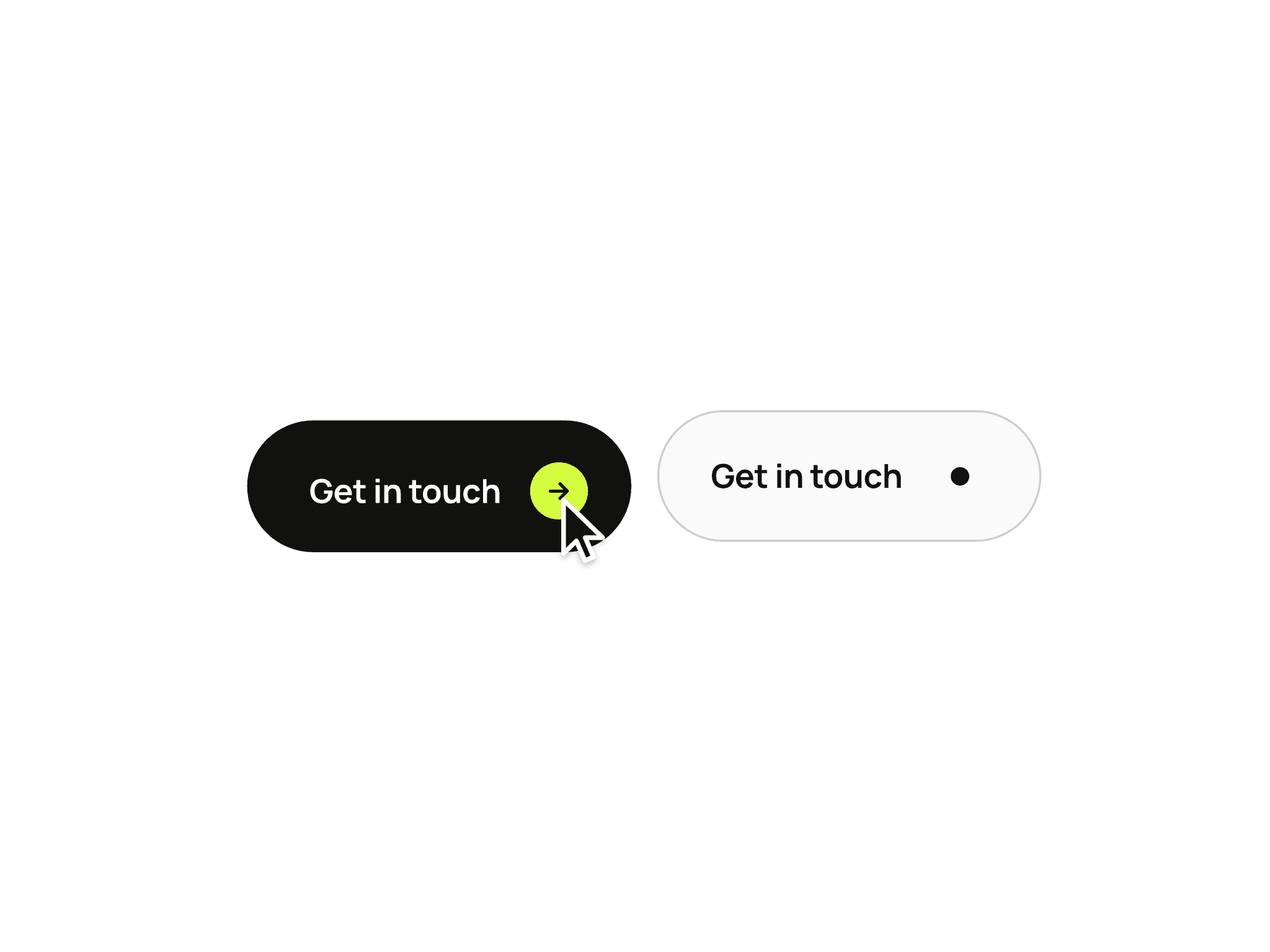
Your standard call-to-action button — but with depth. This component renders a button that tilts in 3D space toward your cursor in real time, creating a subtle but striking sense that the button is alive and watching the user. Built on smooth spring physics, fully customizable from typography to corner smoothing, and ready to drop into any Framer project.
How It Works
The button sits in a 3D perspective space. As your cursor moves, the component tracks its position relative to the button's center and rotates the button along the X and Y axes accordingly. A spring smooths the motion so the tilt never feels mechanical — it lags slightly, settles naturally, and reacts with weight.
Tracking Modes
Choose how the button responds to the cursor:
Global — The button tracks your cursor anywhere on the page, like an eye following you across the screen. The tilt is normalized to viewport size, so the effect stays subtle and elegant even from far away. Best for hero sections and landing pages where the button is the centerpiece.
On Hover — The button only tilts when your cursor is directly over it. The tilt is normalized to the button's own size, creating a stronger, more localized 3D effect. Best for buttons in dense layouts or below-the-fold CTAs where global tracking would feel out of place.
Switch between modes with a single click in the property controls.
Fill: Solid or Gradient
Solid — A single color fill, simple and clean.
Gradient — Two-color linear gradient with full angle control (0–360°). Uses CSS-style angles, so 0° is bottom to top, 90° is left to right. Perfect for premium, vibrant, or branded buttons.
Squircle Corners
Standard border-radius produces circular corners. This component goes further — a Smoothing slider (0 to 1) interpolates between regular rounded corners and a full superellipse squircle, the same kind of shape Apple uses on iOS. Set it to 0 for a classic rounded button, or push it toward 1 for that ultra-smooth, premium iOS feel. Works with any corner radius.
Border
Add a clean stroke around the button with adjustable width (0–20px) and color. The border follows the squircle shape exactly — no awkward mismatches between fill and outline. Sits inside the button bounds so it never overflows, and works seamlessly with gradients, glows, and shadows.
Shadow & Glow
Two separate effects, layered together via SVG drop shadows so they follow the button's exact shape (including squircle corners):
Shadow — Color, X offset, Y offset, and blur. For grounding the button in space.
Glow — Color and blur radius. The glow color also subtly bleeds into the text, so glowing buttons feel cohesive instead of having a glowing background with dead text.
Typography
Full font control via Framer's extended font picker — choose family, weight, size, line height, and letter spacing. Independent text color. The text sits on top of the button shape and respects the 3D tilt naturally, rotating in space along with the button.
Spring Physics
Two controls let you fine-tune how the tilt feels:
Stiffness — Higher values feel more rigid and resistant, lower values feel snappier and more responsive.
Damping — Higher values smooth out the motion, lower values introduce bounce and wobble.
Together they let you dial in anything from a glassy-smooth follow to a playful, springy reaction.
Tilt Controls
Max Tilt — How many degrees the button rotates at maximum cursor distance (0–60°). Default 20° for a tasteful effect.
Perspective — The virtual camera distance to the button (200–2000px). Lower values create a dramatic, almost fisheye 3D effect; higher values feel subtle and flat. Default 800px is a balanced middle ground.
Reset on Leave — When using hover mode, choose whether the button springs back to its resting position when the cursor leaves.
Link
Built-in link control with optional "open in new tab" toggle. The button is a real anchor element, so it's accessible, semantic, and SEO-friendly out of the box.
Canvas-Safe
The cursor tracking is automatically disabled inside Framer's canvas, so the button stays still while you edit it. As soon as you preview or publish, the tilt activates. No more fighting with a constantly-moving button while adjusting padding or radius.
Use Cases
Hero CTAs that feel alive and draw the eye
Pricing page buttons that reward user attention
Premium product landing pages where every detail matters
Portfolio sites where a single CTA needs to stand out
Newsletter signup buttons with extra personality
Quick Tips
For the most natural eye-following effect, use Global tracking with Max Tilt around 15–20° and Perspective around 800px.
For a more playful, in-your-face effect, use On Hover with Max Tilt around 30° and lower Perspective (400–600px).
Combine a soft Glow with a subtle Shadow to make the button feel like it's hovering above the page.
Squircle Smoothing around 0.6 hits the iOS sweet spot — recognizable but not overdone.
For gradient buttons, try Angle 135° for a classic top-left to bottom-right diagonal.
Property Controls
Everything is exposed in the Framer property panel:
Text, Link, New Tab
Fill type (Solid / Gradient), Color, Gradient From / To / Angle
Text Color, Font (extended)
Radius, Smoothing, Padding X / Y
Shadow (color, x, y, blur)
Glow (color, blur)
Border (width, color)
Tracking (Global / On Hover)
Max Tilt, Perspective
Stiffness, Damping
Reset on Leave