About Motionicon
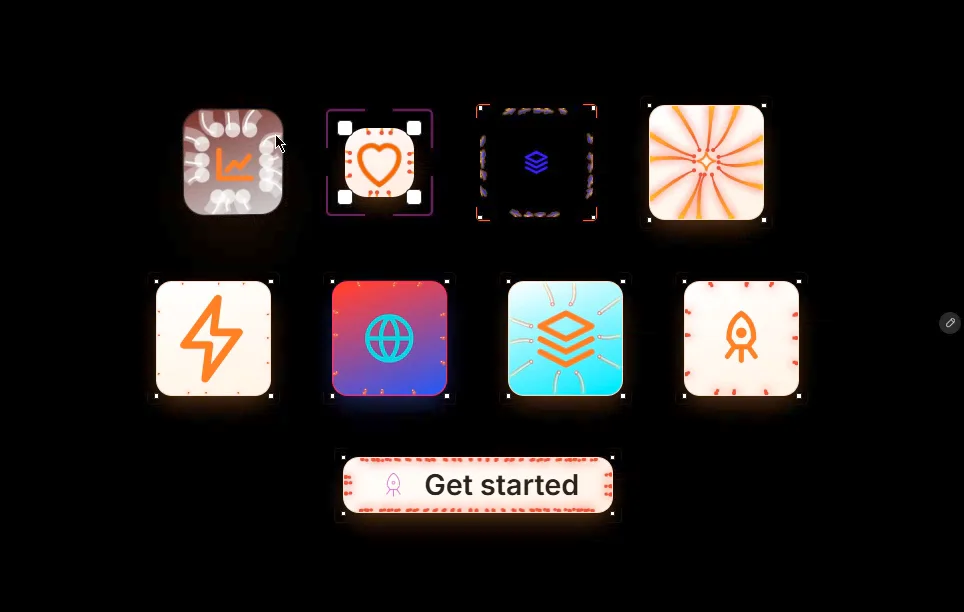
Motionicon turns any icon, vector or button label into a living interaction. Strands grow from the edges of the tile and latch onto your content, starting with the ones closest to the cursor. Move the mouse and the icon follows like a magnet while the tile tilts in 3D. Click and the strands recoil with a shockwave, then latch back on.
Choose from six materials, each drawn in real time: Electric arcs, sticky Venom, fine Silk, flowing Water with droplets, clear Glass tubes, and glowing Neon pulses.
Drop in an icon from Framer’s icon library, connect your own vector or layer, upload an image, or type a label to use it as an animated button. Every color works with your project’s Color Styles, including light and dark mode.
Built for performance: one canvas, no layout shift, pauses when off screen, and respects reduced-motion settings.
Features
6 strand materials: Electric, Venom, Silk, Water, Glass, Neon
4 triggers: Hover, Press, In View, Always
Magnetic icon, 3D tilt, click burst, latch pulse and ripple
Any content: 21 built-in icons, Framer icons, your own vectors or layers, images, or text
Works as a button, with a Link and a Click event
Solid or frosted glass tile, with brackets and selection handles
Full control: count, thickness, reach, speed, glow, colors and radius
Color Styles support for light and dark themes
Responsive, touch-friendly and keyboard accessible
Pauses when off screen, no layout shift
How to use
Drag Synapse Icon onto your canvas and resize it.
Under Content, pick Library, Layer, Image or Text.
Choose a Material under Strands and set your colors.
Pick a Trigger under Interaction.
Preview to see the motion. The canvas shows a still pose.