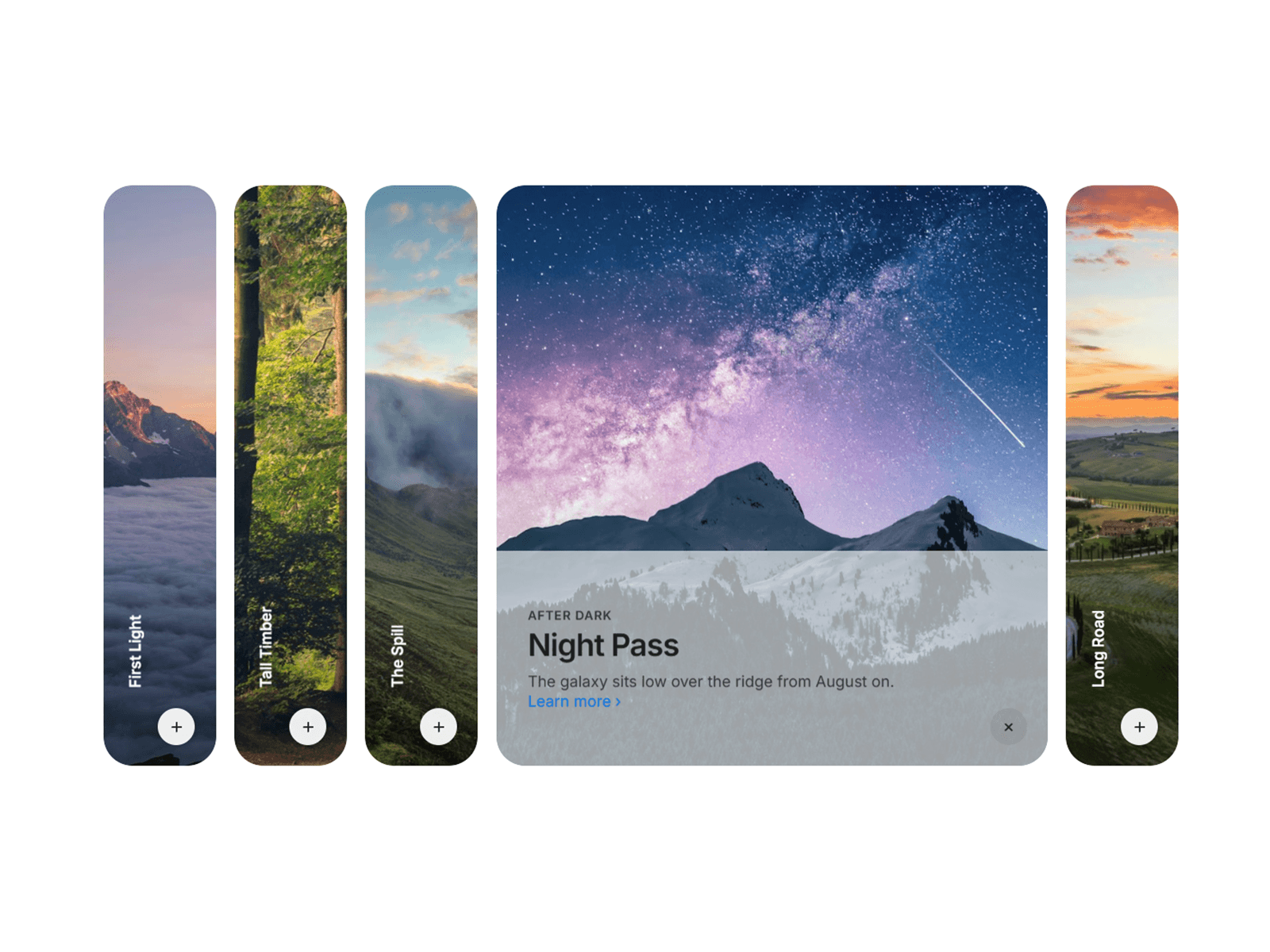
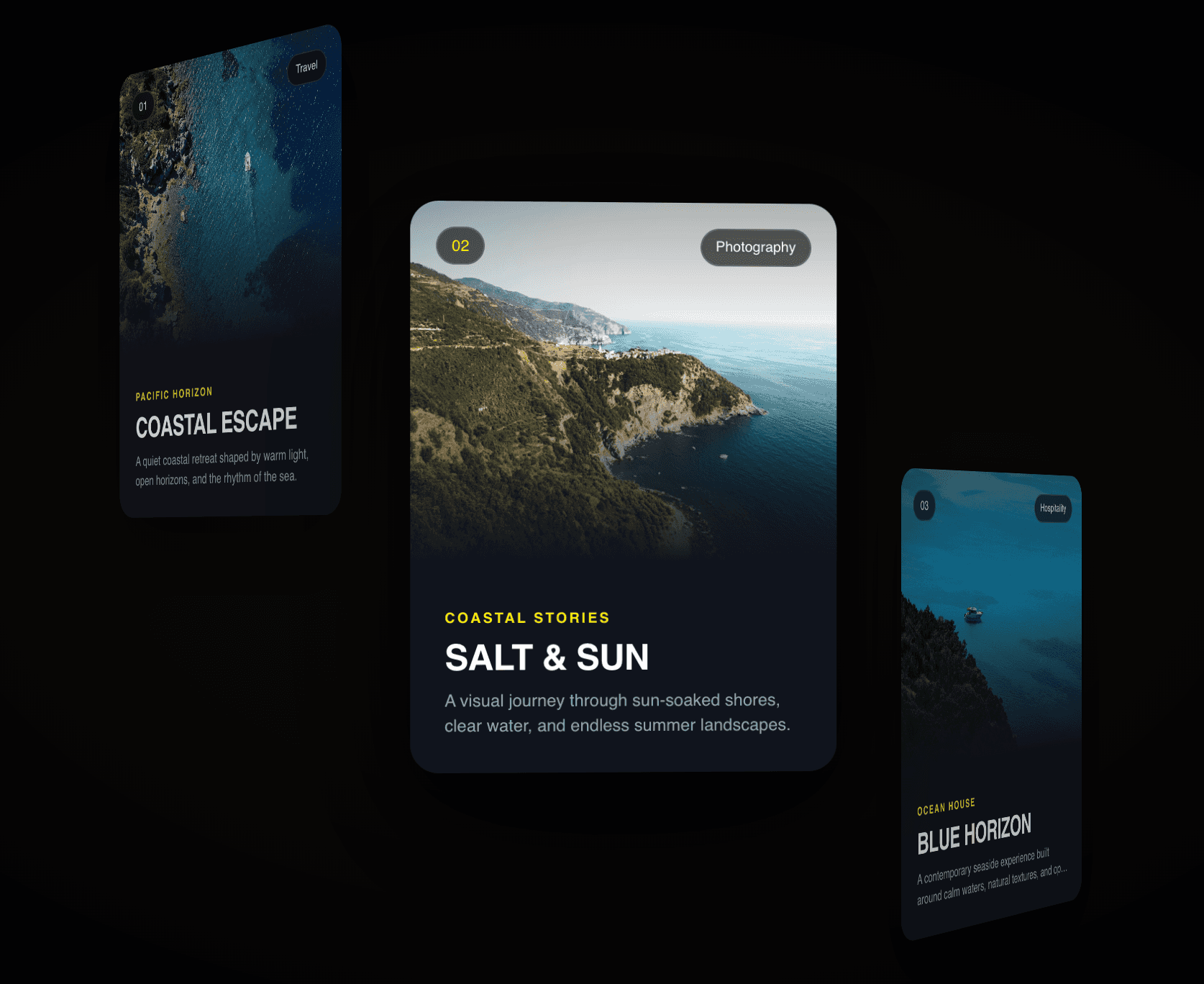
Tilt Card is a fully interactive, deeply customizable card component built for Framer. Each card responds to the user's cursor with a smooth 3D tilt, a shimmer highlight that follows the mouse, and a soft color glow that pulses on hover — all driven by native browser APIs with no external dependencies.
The component ships with three pre-built card styles out of the box — Violet, Rose, and Teal — but every visual property is exposed in the properties panel, so you can make it match any brand in minutes.
Unlimited cards — add or remove cards freely from the properties panel. No cap.
3D tilt interaction with configurable angle, perspective, and return spring
Per-card shimmer layer that tracks the cursor position in real time
Hover glare, mesh gradient layer, noise texture, and colored box shadow — all individually toggleable
Four custom cursor styles per card: Plus, Asterisk, Circle, and Square — plus the Default browser cursor
Cursor follows the mouse with a smooth, weighted lag (adjustable per card)
Logo block that accepts either a text glyph or a custom image — never both simultaneously
Clickable arrow button with a URL link field per card
Fully fluid layout — cards shrink gracefully on small screens and grow vertically to fit long content
Every property grouped into labelled sections with plain-language descriptions so you always know what you're editing
Content — Tag, title, description, footer stats (two per card), and the arrow button link URL.
Logo / Icon — Switch between a text symbol and a custom image. Control the block size and corner radius.
Colors — Accent color, card background, border, mesh gradients (two layers with directional controls), shimmer, glare, title, description, tag, stat values, stat labels, and the footer divider line.
Typography — Font family, size, weight, and line height for the title, tag, description, and stat values independently.
Layout & Shape — Card width (ideal), minimum height, border radius, padding, card gap, and content gap.
Tilt & Interaction — Max tilt degrees, perspective depth, tracking speed, return spring speed, shimmer radius, hover depth lift, and individual toggles for glare, shimmer, mesh, noise, and hover shadow.
Cursor — Cursor style, color, opacity, size, stroke thickness, and lag factor — all set per card.
1. Drop the component onto your canvas Drag Tilt Card from the Assets panel onto your frame or page. Three default cards appear immediately.
2. Select the component and open the properties panel Click the component once to select it. All editable properties appear in the left panel organized into labelled groups.
3. Edit your first card Open the Cards array in the panel. Click into Card 0 to expand its fields. Update the tag, title, description, stat values, and button link to match your content.
4. Change the accent color Inside Card 0, open the Colors group and change Accent Color. The tag, icon border, arrow button, and hover glow all update together.
5. Swap the logo Open the Logo / Icon group. Set Logo Mode to Image and upload your asset, or leave it on Text and type any character or symbol into the Logo Text field.
6. Add a new card Click the + button inside the Cards array to add a new card object. Fill in its fields. The grid updates immediately.
7. Remove a card Click the card object inside the Cards array and delete it. The grid reflows automatically with no empty gaps.
8. Adjust the tilt feel Open the Tilt & Interaction group. Increase Tilt Max Degrees for a more dramatic effect, or lower Tilt Return Speed for a snappier snap-back. Set Tilt Max Degrees to 0 to disable the tilt entirely while keeping all other hover effects.
9. Choose a cursor style Open the Cursor group on any card. Pick from Plus, Asterisk, Circle, Square, or Default. Each card can use a different cursor style. Adjust the Cursor Lag value — lower numbers feel floatier, higher numbers feel snappier.
10. Link the arrow button Inside the Content group, paste a full URL (including https://) into the Button Link field. The arrow button becomes a live link that opens in a new tab.
For best results use DM Serif Display and DM Sans, both available free on Google Fonts. Any font can be substituted from the Typography group.
On mobile the card width shrinks to fill the screen. Card height grows automatically if content is longer than the minimum height — no manual adjustment needed.
Toggling all four interaction layers off (Glare, Shimmer, Mesh, Noise) produces a clean minimal card with tilt only.
The arrow button always restores the default system cursor on hover, regardless of which cursor style the card is set to.