About TourGuide
What it does
TourGuide adds a polished guided product tour to your Framer site. Create multiple onboarding steps, highlight specific page elements with CSS selectors, and guide visitors through key features using a dimmed overlay, focus ring, step card, progress indicator, and next/back controls. It can start automatically on a visitor’s first visit, open manually with a trigger button, or be controlled through an open prop.
Features
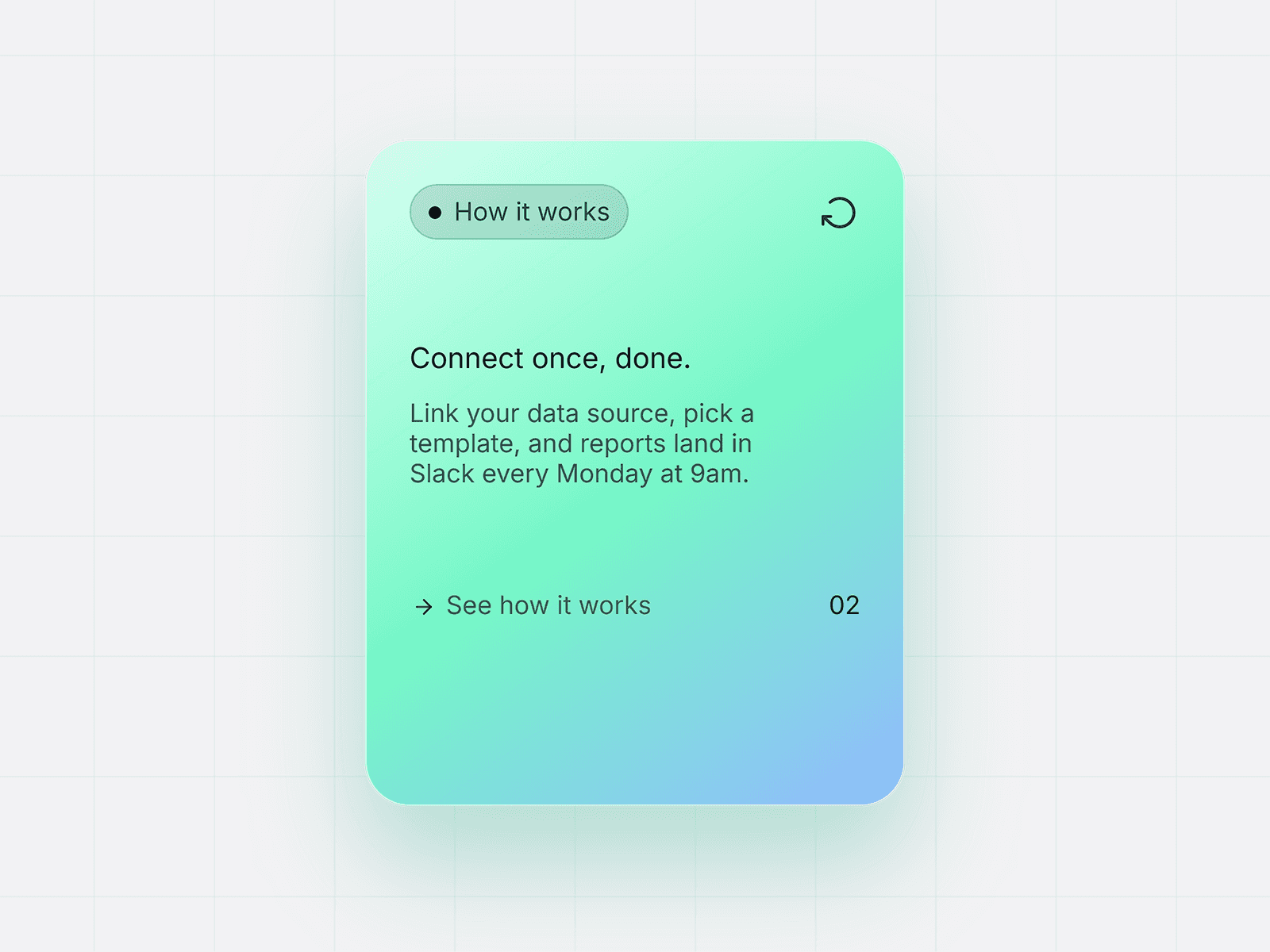
Multi-step product tour with editable steps, titles, descriptions, target selectors, media, and card placement. Full-screen dimmed mask with automatic highlight cutout around any target element. Supports rectangle and circular focus shapes based on the target size. Step card includes counter, skip button, title, description, optional image or video, progress dots, back button, next button, and finish button. Target positioning uses document.querySelector and tracks scroll, resize, visual viewport changes, and target resizing. If a target is off-screen, the component can scroll it into view. Keyboard navigation supports left arrow, right arrow, and Escape. First-visit auto-start uses localStorage, with optional remember-completion behavior. Trigger button can be shown, hidden, or hidden after completion. Responsive behavior docks the card near the bottom on mobile while preserving the highlight and pointer arrow. Full styling controls for font, primary color, primary text color, card color, card text color, mask opacity, highlight padding, and transition duration.
How to use
Add TourGuide to your Framer canvas and define your tour steps in the property panel. For each step, enter a title, description, optional media URL, preferred placement, and an optional CSS selector for the element you want to highlight. Use selectors like #signup, .pricing-card, or [data-tour='feature']. Enable First Visit if you want the tour to launch automatically for new visitors. Enable Remember if the tour should stay dismissed after completion. Customize the button labels, colors, mask strength, highlight padding, transition speed, and trigger button behavior to match your site.
Ideal for
SaaS onboarding, product walkthroughs, dashboard introductions, feature launches, web app tours, AI tool demos, template previews, client portals, documentation sites, landing pages with complex interactions, and any Framer project that needs to guide users through important interface elements step by step.