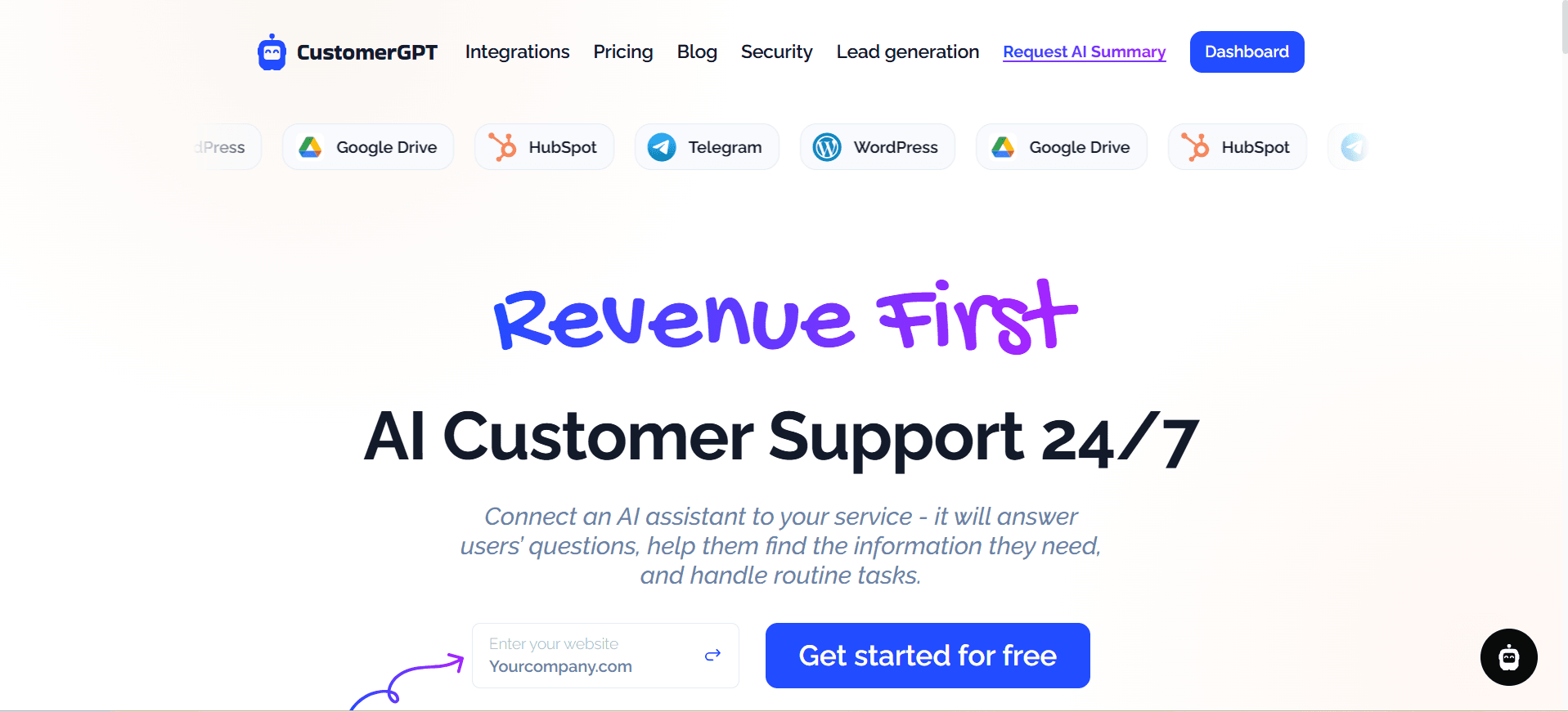
About CustomerGPT
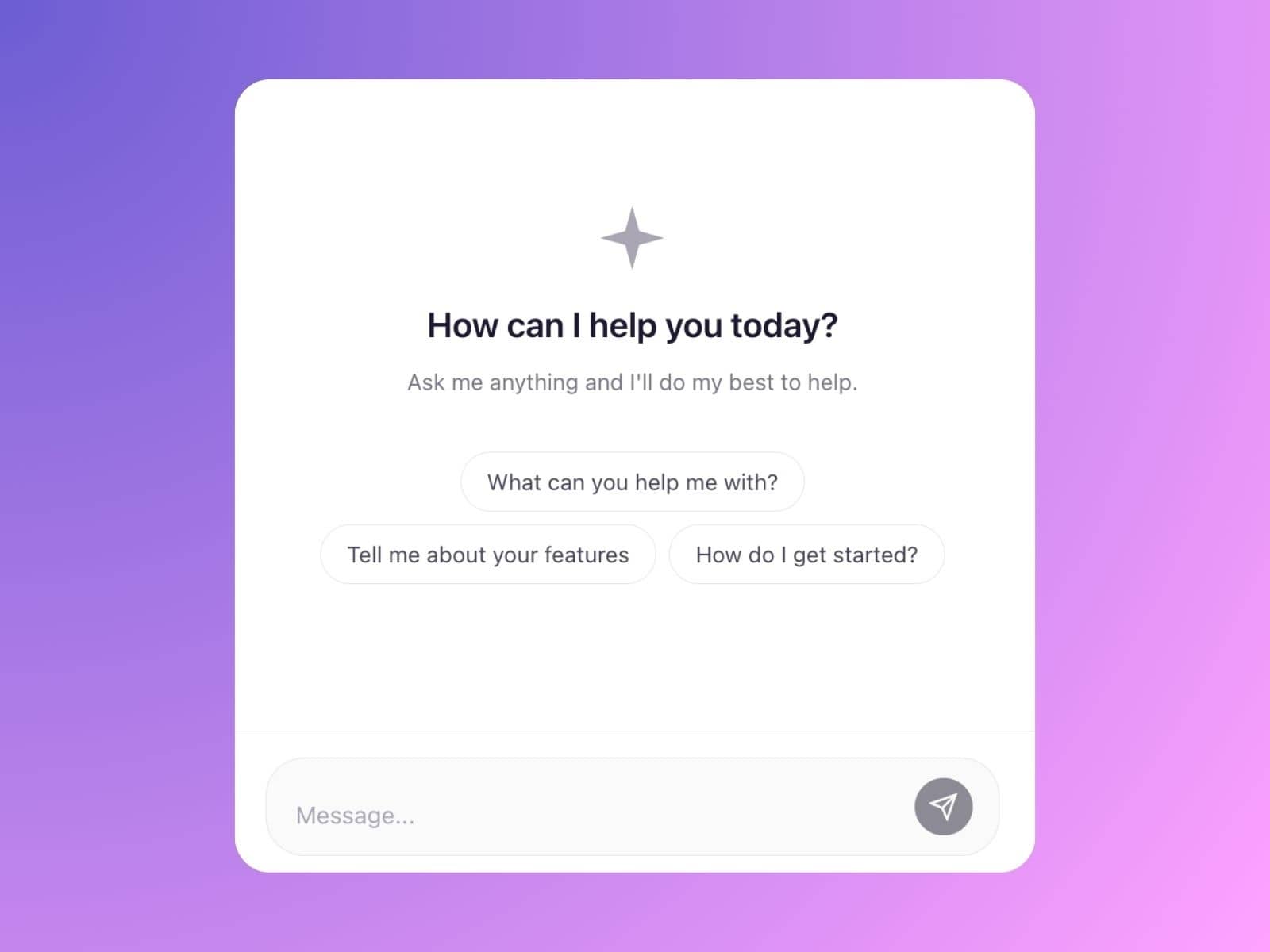
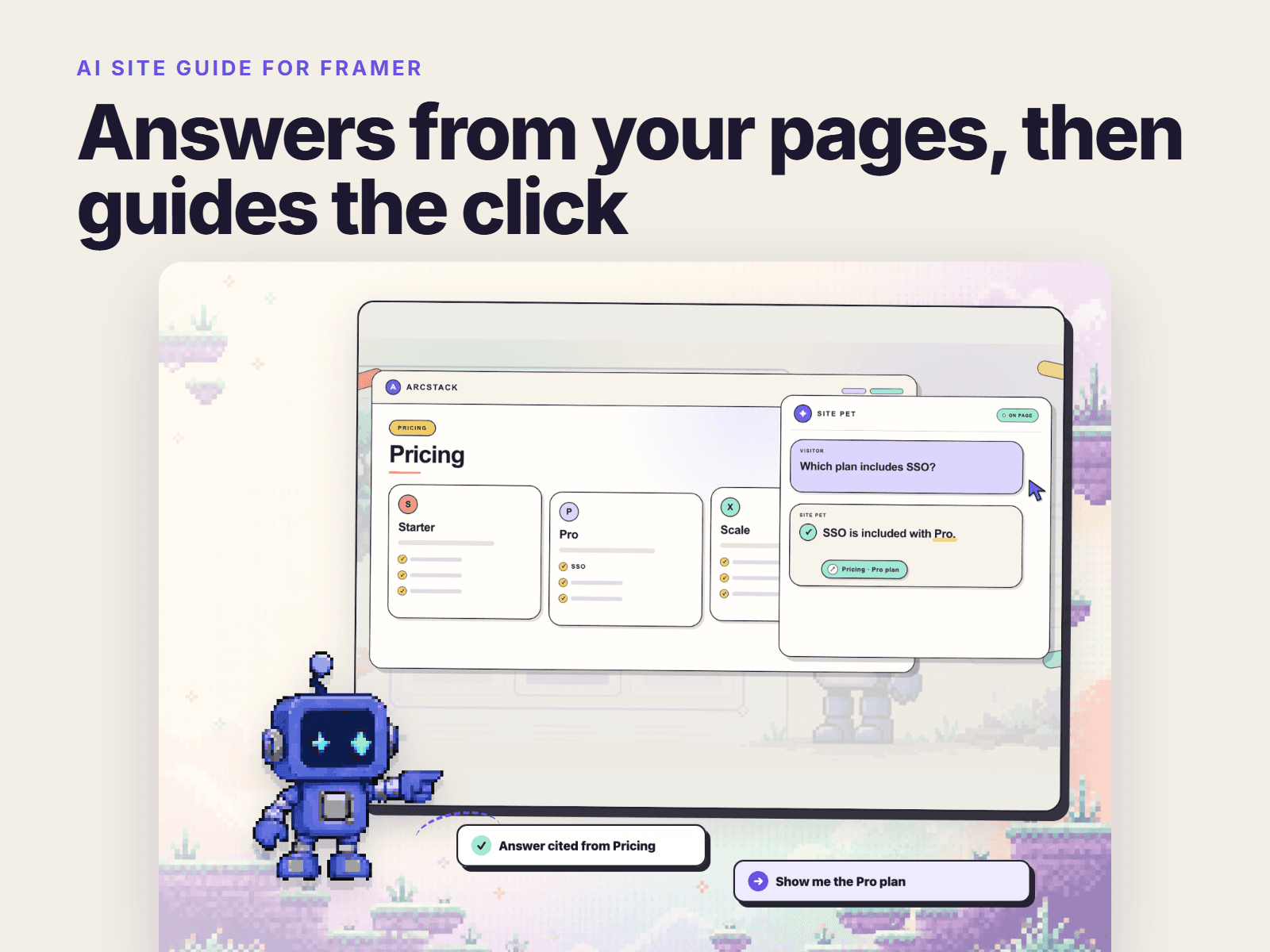
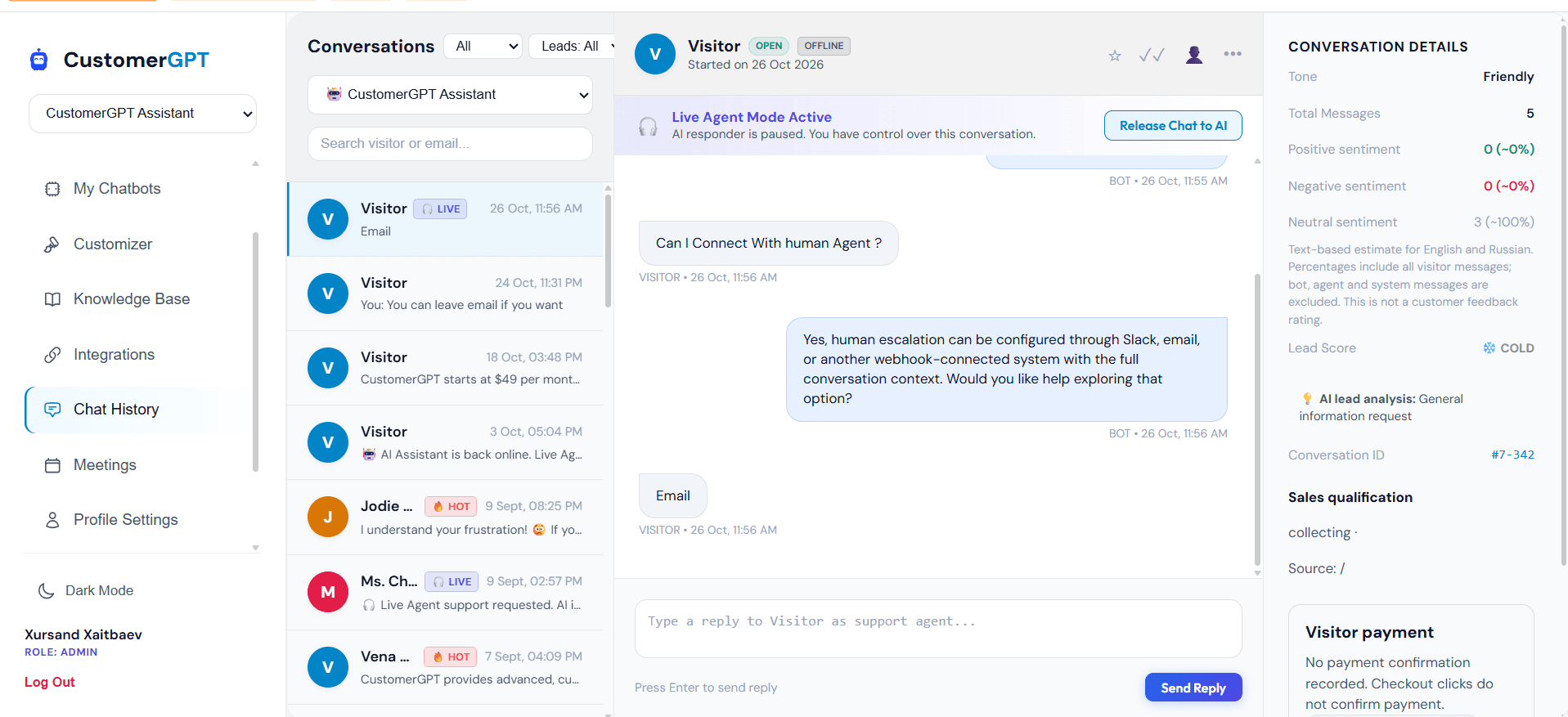
CustomerGPT adds an AI support chat to your Framer site. It answers visitors around the clock from your own content, captures leads and hands the conversation to your team when a person is needed.
How it works
1. Publish your site, open the plugin and click Connect CustomerGPT.
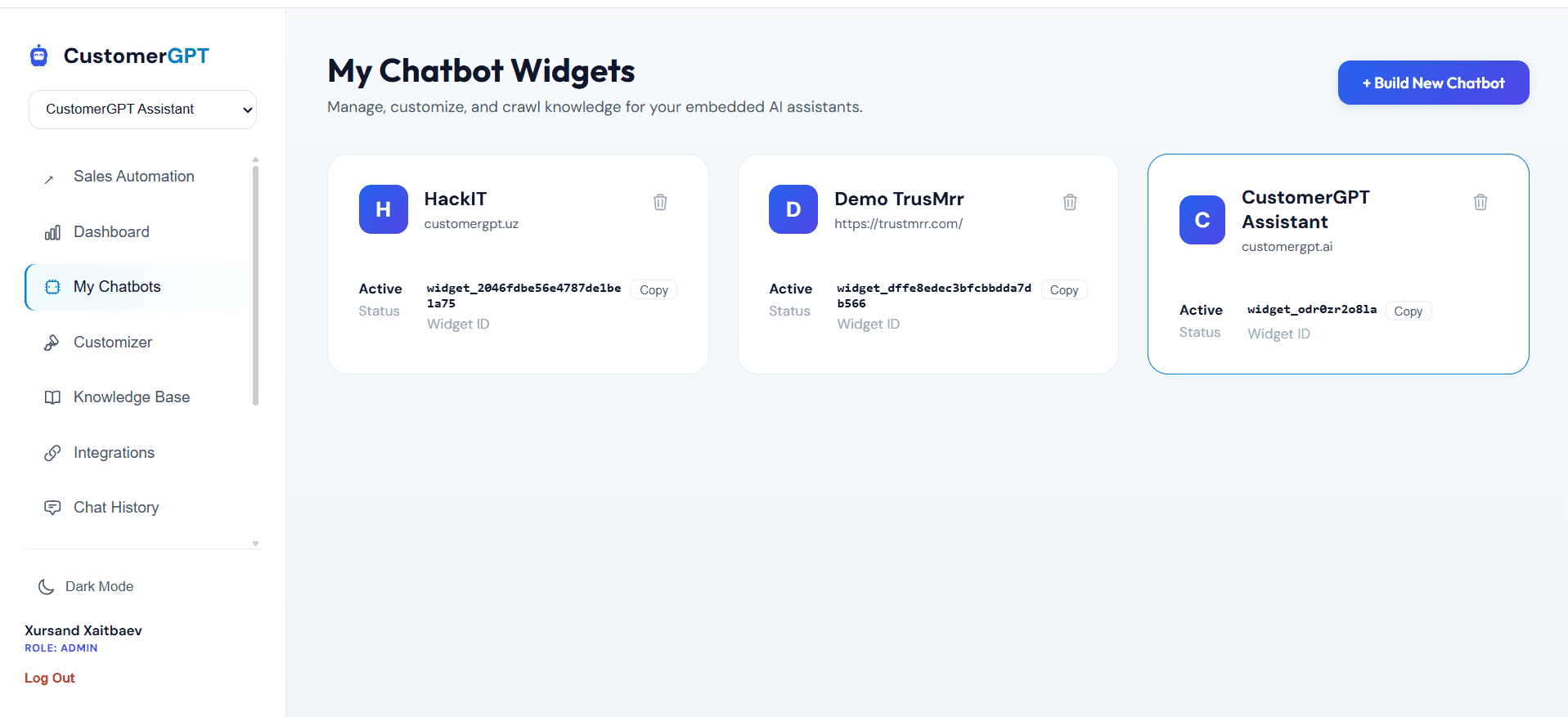
2. In the browser tab that opens, sign in or create a free account, then pick or create a chat widget.
3. CustomerGPT can start learning from your site's pages right away, up to 50 pages, in the background.
4. Back in Framer the chat is added to every page by itself. Publish again to show it to visitors.
Already have a widget? Click "Paste it instead" and paste your Widget ID or the whole embed code.
Features
- Connect in one click: no code to edit and no IDs to copy
- Learns from your published site; add documents, FAQs and other pages in the CustomerGPT Knowledge Base
- Shows on every page of your site
- Choose when the chat loads: right away, after the page has loaded, or after a delay, so it never slows your site down
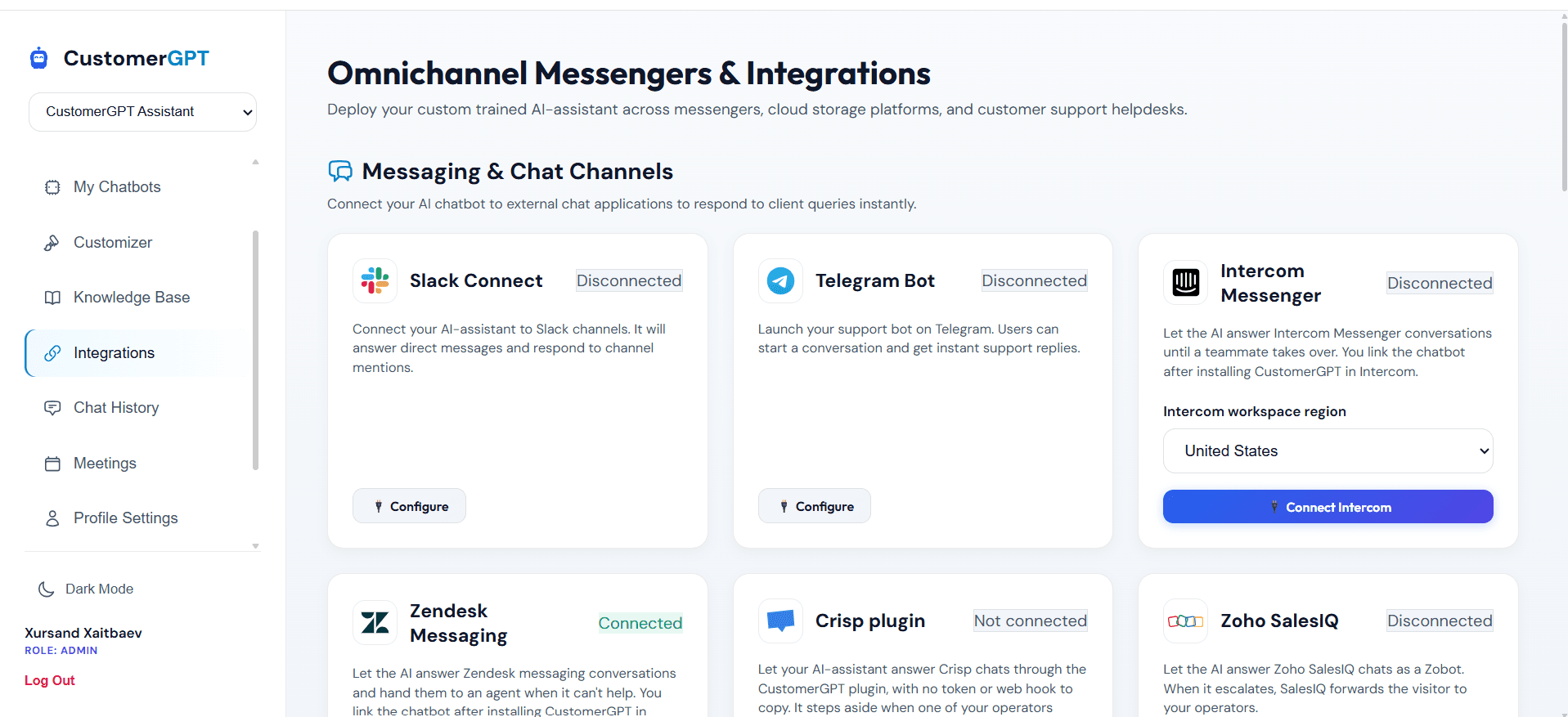
- Answers, colors, welcome message and team handoff are managed in the CustomerGPT dashboard and update on your site without republishing
- Remove the chat at any time with one click
Requirements
A CustomerGPT account, created for free during Connect. Connect needs your site to be published once. Paid plans are billed on customergpt.ai.