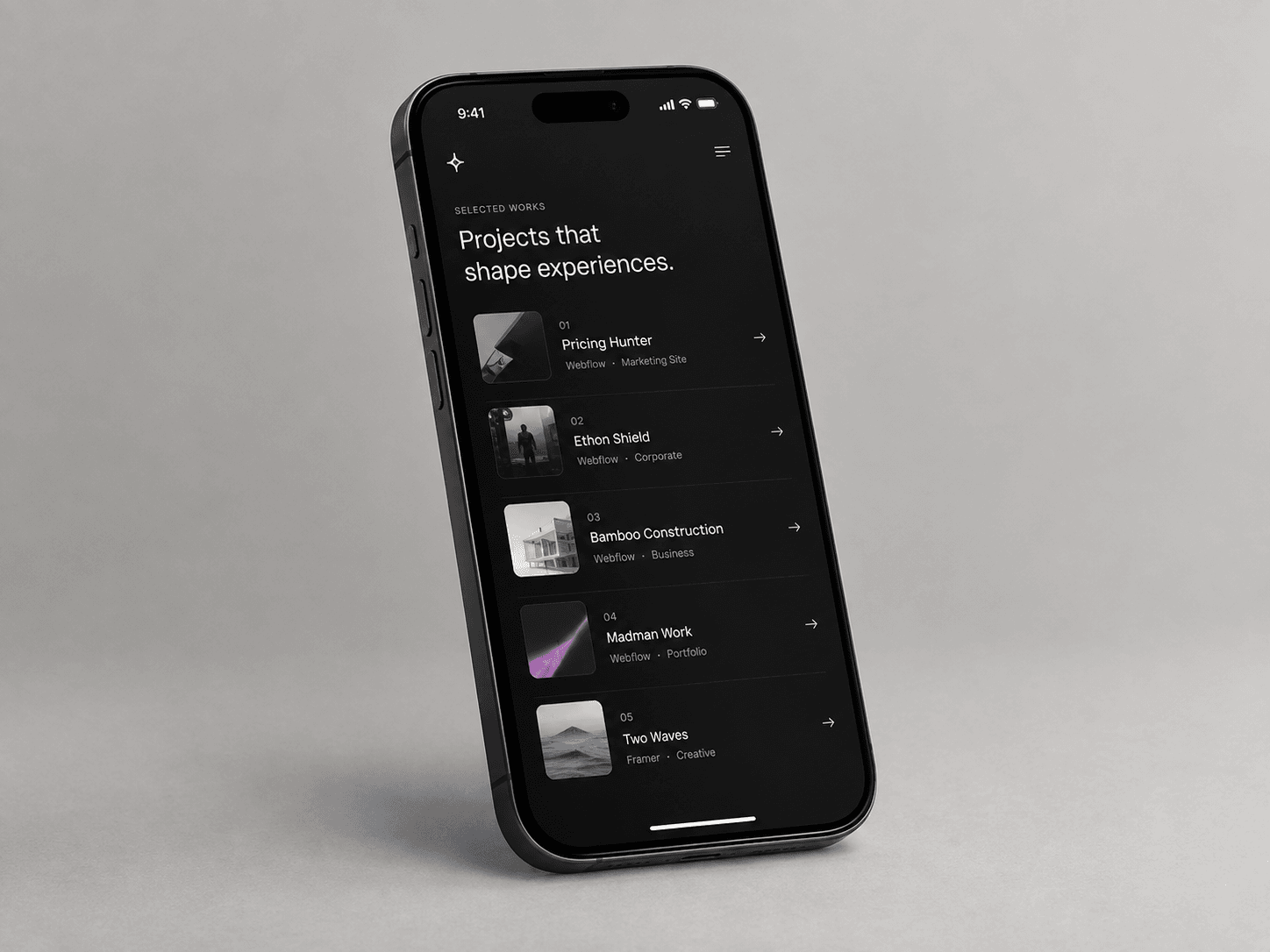
I just shipped a free Framer component: Project Hover List.
It's the case-study-index interaction you've seen on every high-end agency site — hover a project, and a preview image floats next to your cursor and follows it around. Move fast between rows and the image tilts slightly, just like the real thing.
A few details I cared about while building it:
→ Spring-smoothed cursor tracking, not raw mouse coordinates → Velocity-based tilt on the preview image → Fully responsive — on mobile it automatically switches to inline thumbnails instead of trying to "float" an image with no cursor → Respects reduced-motion and renders clean on the Framer Canvas
It's free on the Framer Marketplace — link in comments. Drop your site below if you use it, I'd love to see it in the wild.
## How to Use
1. In Framer, create a new Code Component and paste in the component file.
2. Drag it onto the canvas inside a frame with enough height for your list (roughly 90px per row).
3. Open the Properties panel and edit the Projects array — add a title, category, image, and link for each row.
4. Set Font, Text, Accent, and Divider colors to match your site's design system.
5. Adjust Preview W / Preview H to size the floating image, and Radius for corner rounding.
6. Leave Compact Below at 680px, or raise/lower it depending on where your layout should switch to the mobile thumbnail view.
7. Test in Preview (not Canvas) — the cursor-follow effect only runs in Preview and on the live site.
\#framer #webdesign #uidesign #interactiondesign #nocode