About Gyro Tilt Card
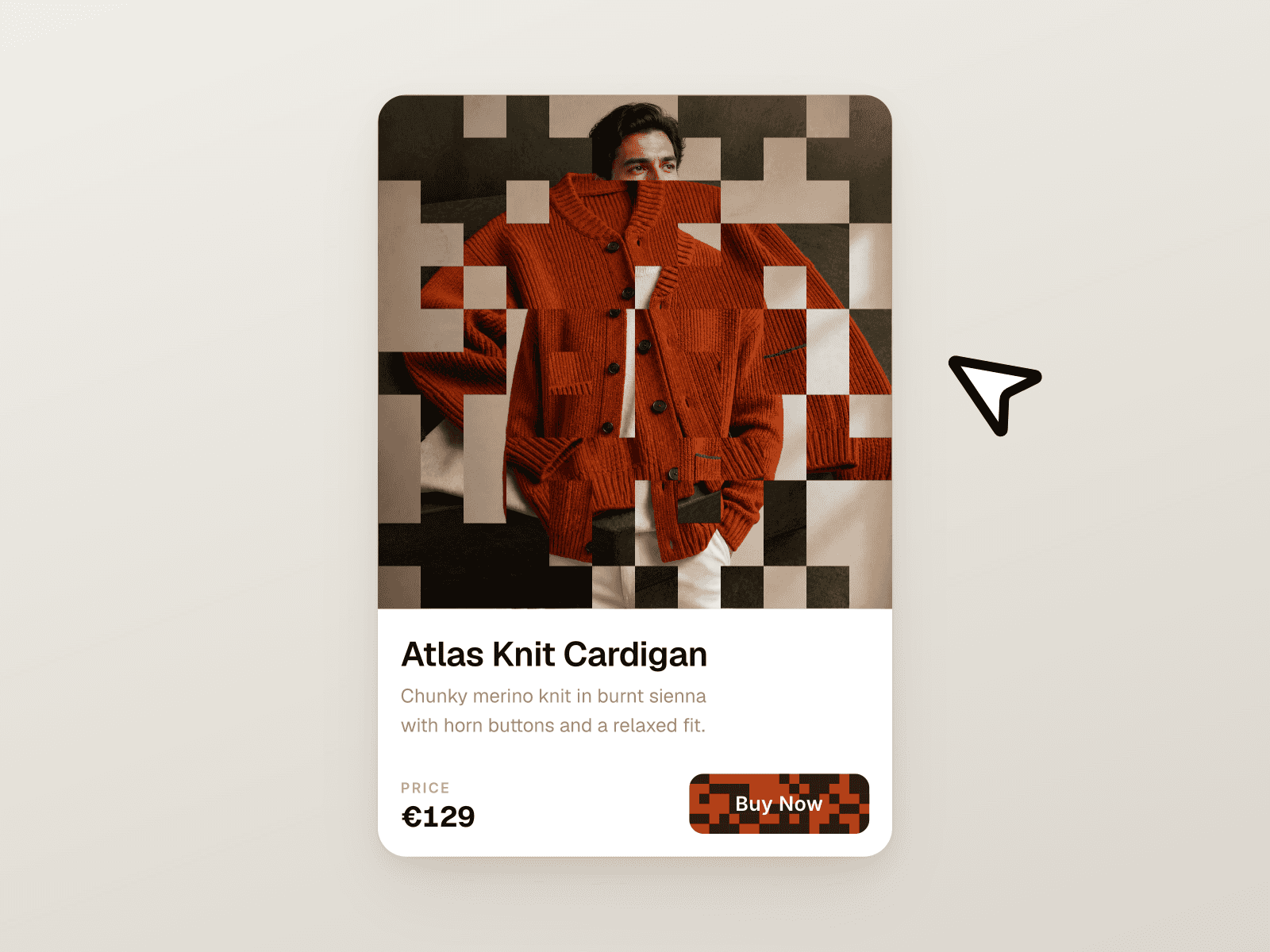
Most "3D tilt card" components only respond to the mouse — which means the entire effect is dead on mobile, where most site traffic actually is. Gyro Tilt Card fixes that: it's a generic wrapper you drop any content into (an image, a product card, a testimonial, a feature card), and it tilts in 3D using whatever input the visitor's device actually has.
What it does:
- Desktop: cursor-position tilt, spring-smoothed so it settles instead of snapping.
- Mobile/tablet: live device-orientation (gyroscope) tilt, with correct portrait/landscape axis remapping.
- iOS 13+: requests motion permission properly, from a real tap, only when required — the prompt appears automatically and disappears once granted.
- Android & other browsers: gyro tilt attaches directly, no permission friction.
- No mouse, no usable gyro: a gentle ambient idle-sway animation keeps the card alive instead of sitting flat and looking broken.
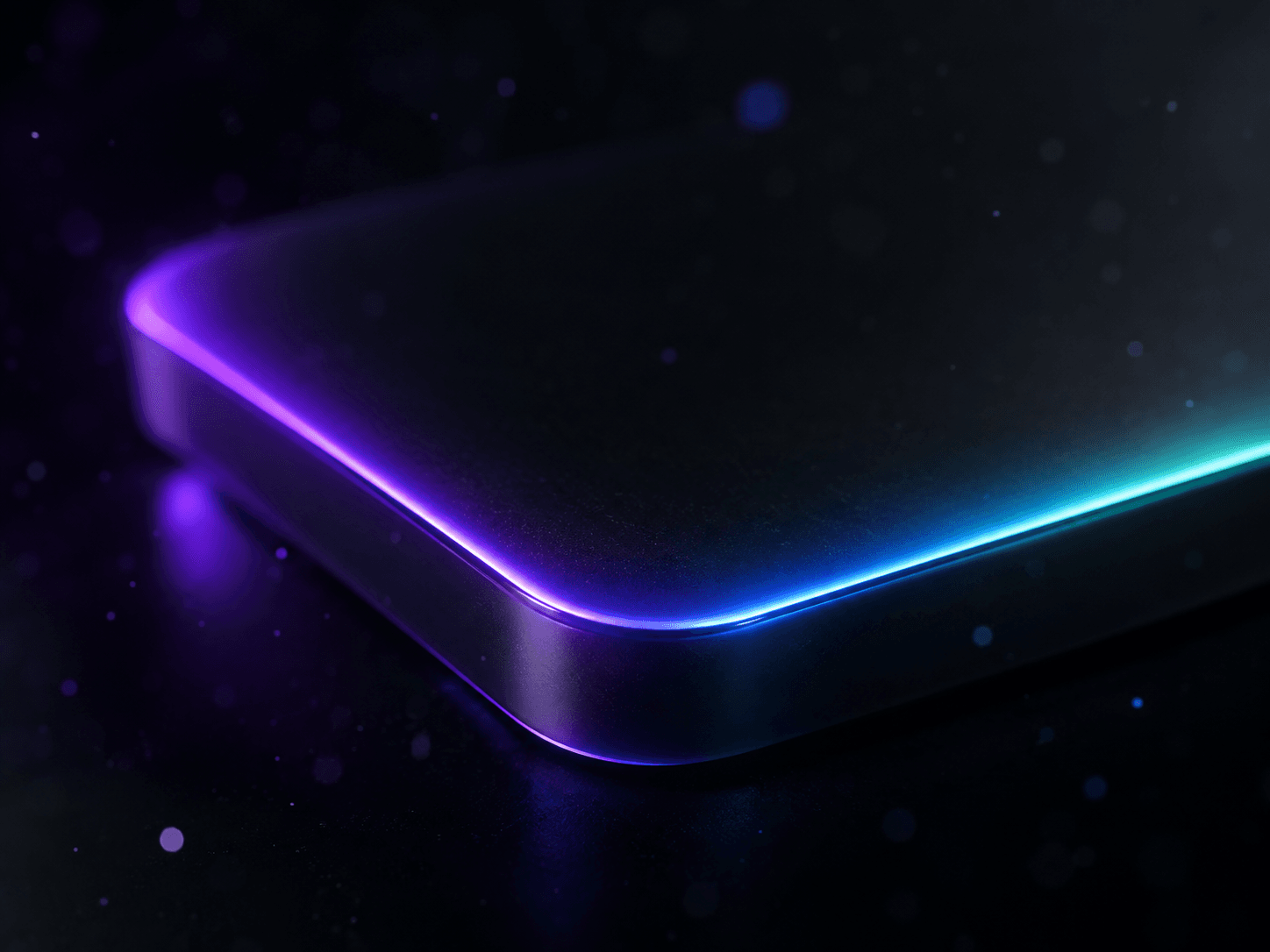
- Idle border-beam: a rotating gradient light traces the card's edge while idle — a current, high-end visual cue — and cross-fades out the instant a mouse hovers, handing off to a cursor-tracking glare + dynamic shadow.
## How to Use
1. In Framer, create a new Code Component and paste in the component file.
2. Drag it onto the canvas and resize it to fit your card or image.
3. Open the Properties panel and set Content to the layer you want tilted — an image, a card frame, a testimonial, anything.
4. Adjust Max Tilt and Perspective to control how dramatic the 3D effect feels.
5. Toggle Glare and Dynamic Shadow on or off, and tune their intensity.
6. Leave Idle Sway Fallback on so the card never looks fully static on unsupported devices.
7. Style the Idle Beam: toggle it on/off, set start/end colors, width, rotation speed, and whether it breathes (subtle scale pulse).
8. Test in Preview on an actual phone — the gyroscope path and the iOS permission prompt only appear on a real device, not in the Framer Canvas or desktop preview.