About Contextual Text
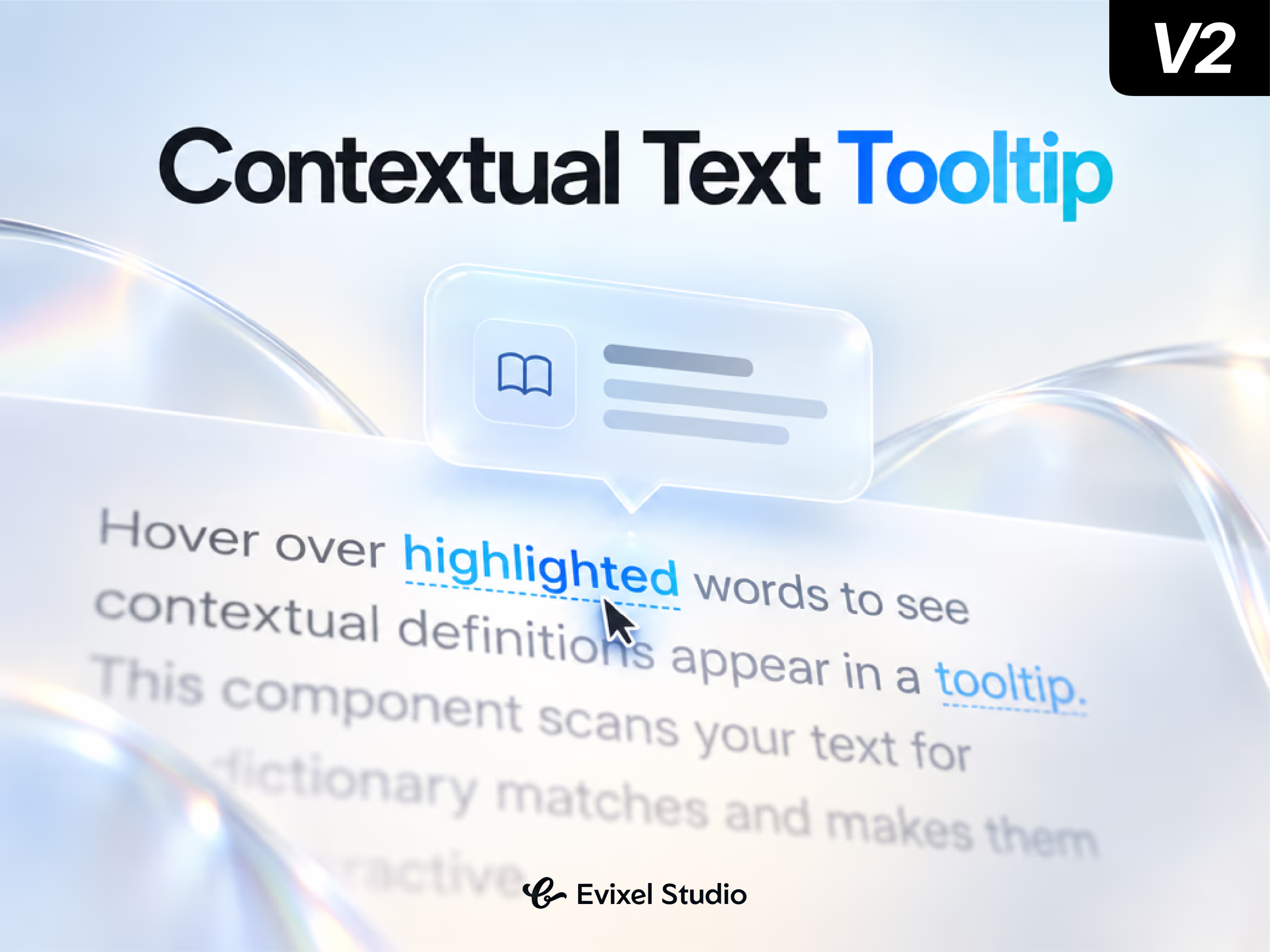
Explain complex terms, acronyms, or references without breaking reading flow. Contextual Text automatically scans your paragraphs for dictionary keywords and highlights them—revealing smooth, glassmorphic tooltips with definitions, links, and cursor-following spring physics.
Key Features
Auto-Matching Dictionary: Scans body copy to automatically highlight keywords or multi-word phrases (matches first or all occurrences, with whole-word and case toggles).
Glassmorphic Tooltips: Frosted-glass popups with background blur, glowing borders, custom drop shadows, and optional pointing arrows.
Smooth Cursor Tracking: Tooltips follow pointer movement along multi-line wrapped words using spring physics.
Rich Context Content: Supports term titles, scrollable definitions, and clickable "Learn more" external links.
Smart Collision Detection: Automatically flips placements (top/bottom) and clamps edges to stay within the viewport.
Accessible & Touch Ready: Full keyboard navigation (Tab to focus, Enter to pin, Esc to dismiss), ARIA attributes, and tap-to-toggle touch support.
Property Controls
Content & Definitions: Body text area plus a dictionary list to add words, definitions, and external URLs.
Matching: Configure occurrence frequency (First Only vs. Every Match), whole-word matching, and case sensitivity.
Highlight: Set highlight color, active hover state, background marker tint, underline style (solid, dashed, dotted, wavy), and cursor.
Tooltip: Control typography, background color, blur intensity, border glow, padding, corner radius, max width, and link labels.
Behavior & Animation: Trigger mode (Hover, Click, Both), cursor-following toggle, offset distance, show/hide delays, and spring transitions.
Quick Start Guide
Drop the component onto your Framer canvas.
Paste your copy into the Content text field.
Add target words, definitions, and optional links in the Definitions list.
Style the highlight underline and tooltip glassmorphism, then preview!