About Drop Cap Text
Overview
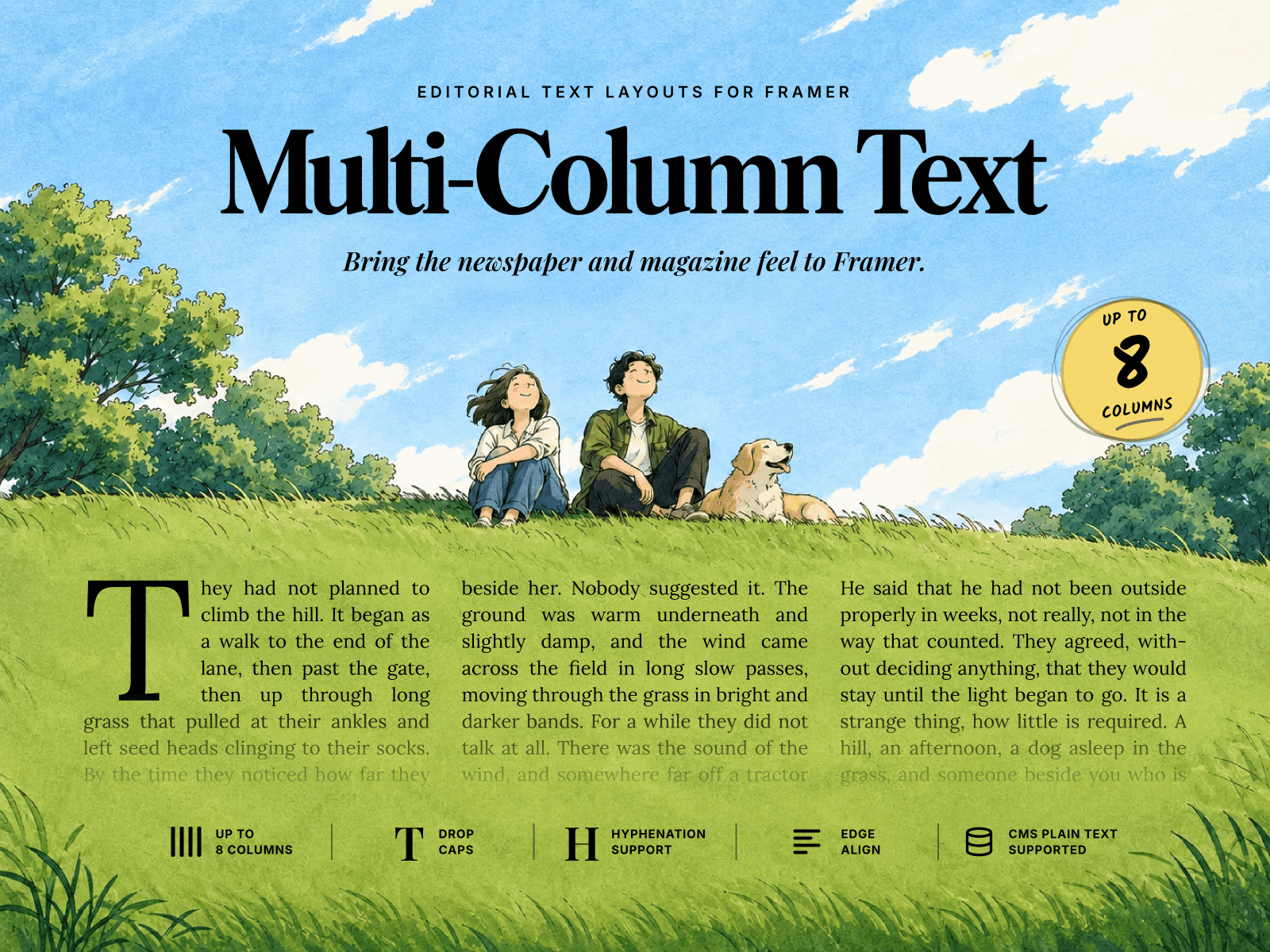
A typographic component built to create refined drop cap layouts. This component doesn’t just replicate the effect - it gives you precise control over how the drop cap interacts with the surrounding text, solving the usual spacing and alignment challenges found in standard implementations.
Instead of struggling to get drop caps “close enough” with traditional tools, this component gives you direct control over:
Horizontal and vertical spacing relationships
Alignment across different font styles
Handling of ornate or oversized forms
The ability to shift from typographic to fully visual drop caps
Modes
The component works in two distinct modes:
Text Mode — uses a styled letter from your paragraph
Image Mode — replaces the letter with a custom visual
Both modes share a core system of spacing and alignment controls, but each unlocks a different level of creative expression.
Text Mode
In Text Mode, the first letter of your paragraph becomes a fully stylable drop cap. This is ideal for clean, scalable typography—especially when working with different fonts, weights, and responsive layouts.
Why it matters
Drop caps built with text are highly sensitive to:
font size and weight
line height
serif vs sans-serif characteristics
baseline alignment
Without control, these often lead to uneven gaps or awkward vertical rhythm.
Key Controls
Cap Typography - Independently style the drop cap—size, weight, spacing—without affecting the paragraph. This lets you create contrast while maintaining consistency.
Cap Line Height - Controls how tightly the drop cap aligns with the surrounding text.This is critical for achieving a clean vertical flow, especially across different fonts.
Cap Gap - Defines the horizontal space between the drop cap and the paragraph.Helps balance density—tight for classic editorial, wider for modern layouts.
Cap Top - Offsets the drop cap vertically.Useful when fonts don’t align naturally, particularly with serif styles that extend beyond standard bounds.
Start Line - Pushes the paragraph downward without moving the drop cap.This creates intentional misalignment where the text begins slightly lower—adding a more designed, editorial feel.
Indent - To create that editorial, horizontal intentional misalignment.
Clipping - Allows ornate font styles/images to show fully without being cropped off.
Image Mode
In Image Mode, the drop cap is replaced with a custom image. This opens up a more expressive direction—ornate initials, illustrations, branded visuals, or completely abstract forms.
Why it matters
Standard drop caps are limited to typography. Image Mode removes that constraint, but introduces new challenges:
maintaining alignment with text
controlling spacing around irregular shapes
avoiding clipping or awkward scaling
This component provides the structure to make image-based drop caps feel intentional rather than decorative.
Key Controls
Cap Image - Upload any custom visual to act as the drop cap.Perfect for decorative initials or brand-led compositions.
Image Size (Width & Height) - Defines the visual footprint of the drop cap. Critical for ensuring the image integrates proportionally with the text.
Image Fit
Cover for immersive fills
Contain for preserving the full artwork. Lets you control how the image behaves within its bounds.
Image Radius - Adjust corner styling, depending on the aesthetic.
Cap Gap - Maintains proper spacing between the image and text. Especially important when working with detailed or irregular visuals.
Cap Top - Fine-tunes vertical alignment so the image sits naturally within the text flow.
Start Line - Offsets the paragraph independently, allowing more experimental compositions where the image dominates the entry.