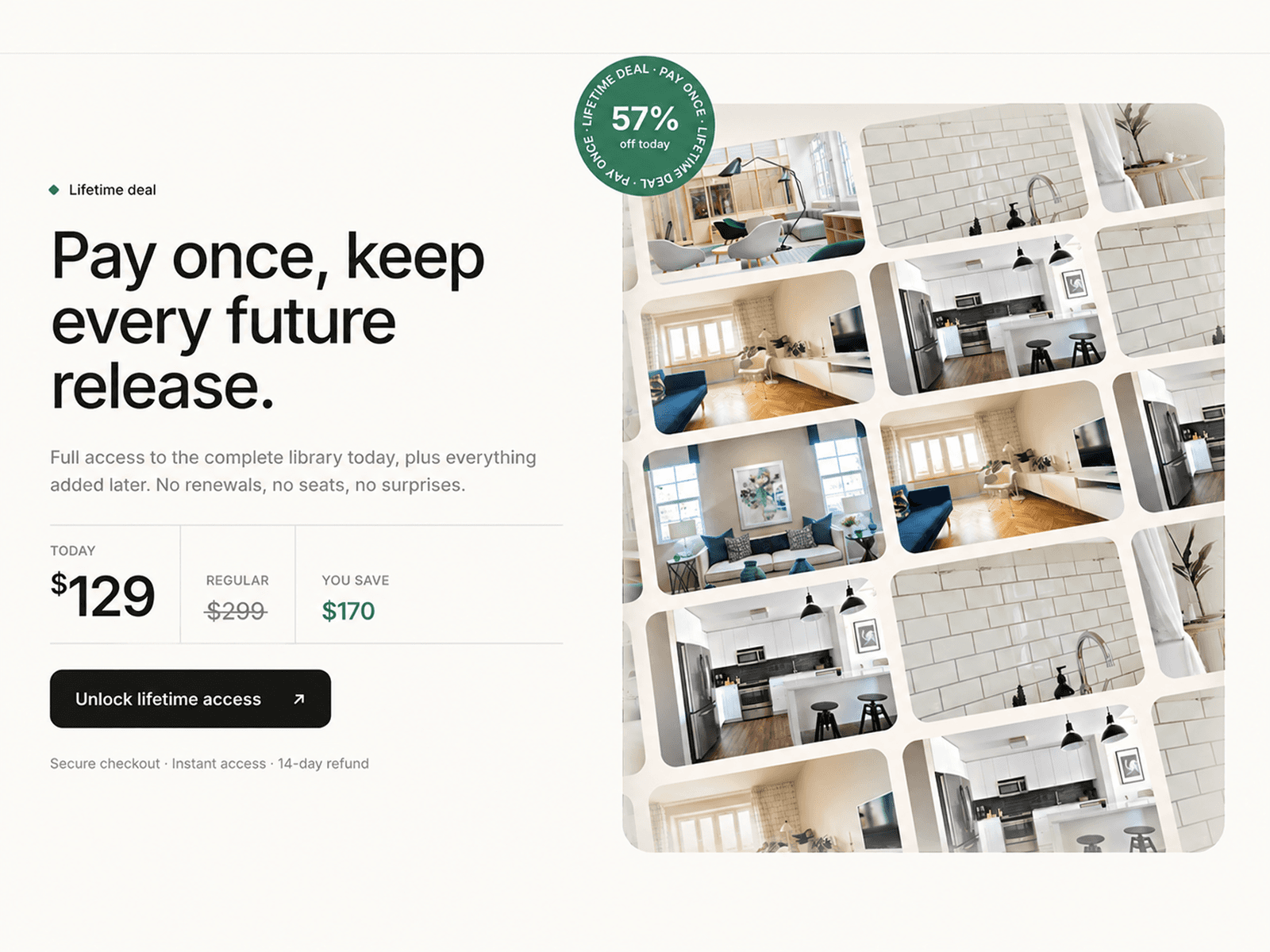
About Fisheye FX
How to use
Drop the component onto your canvas
Add your image in the panel
Tune Distortion, Lens size, and the effects to taste
Image & framing
Image — the photo you want to warp
Fit — Cover (fill the circle) or Contain (show the whole image)
Lens & Distortion
Distortion — strength of the fisheye bulge, from subtle wide-angle to extreme
Zoom — how far in or out the image sits inside the lens
Chromatic — amount of RGB color split along the edges
Lens mask — Circle (round lens) or Full (warp the entire frame)
Lens size — diameter of the circle
Edge soft — feather/softness of the circle's edge
Focal X / Focal Y — shift the image to frame your subject
Corner — corner radius (Full mode only)
Style
Background — color behind the circle (transparent by default)
Glass ring — show or hide the rim around the lens
Ring color / width — style the rim
Ring glow — add a soft glow to the rim
Effects
Grain / Grain amt — film-grain texture and its intensity
Scanlines / Scan amt — retro scanline / VHS overlay and its intensity
Motion
Cursor follow / Follow amt — image drifts with the pointer
Bulge follows / Bulge amt — the distortion center tracks the cursor
Auto float / Float speed — gentle idle movement and its speed
Tips
Looks best with a square-ish image and a centered subject
Transparent by default — add a Frame behind for any color, gradient, image, or video
Compatibility
Runs on WebGL — works across all modern browsers
Falls back to a small message (never a broken layout) where WebGL isn't supported
On touch devices, cursor effects pause; Auto float still runs
Performance
GPU fragment shader — light and smooth at any size
Pauses animation off screen and in background tabs