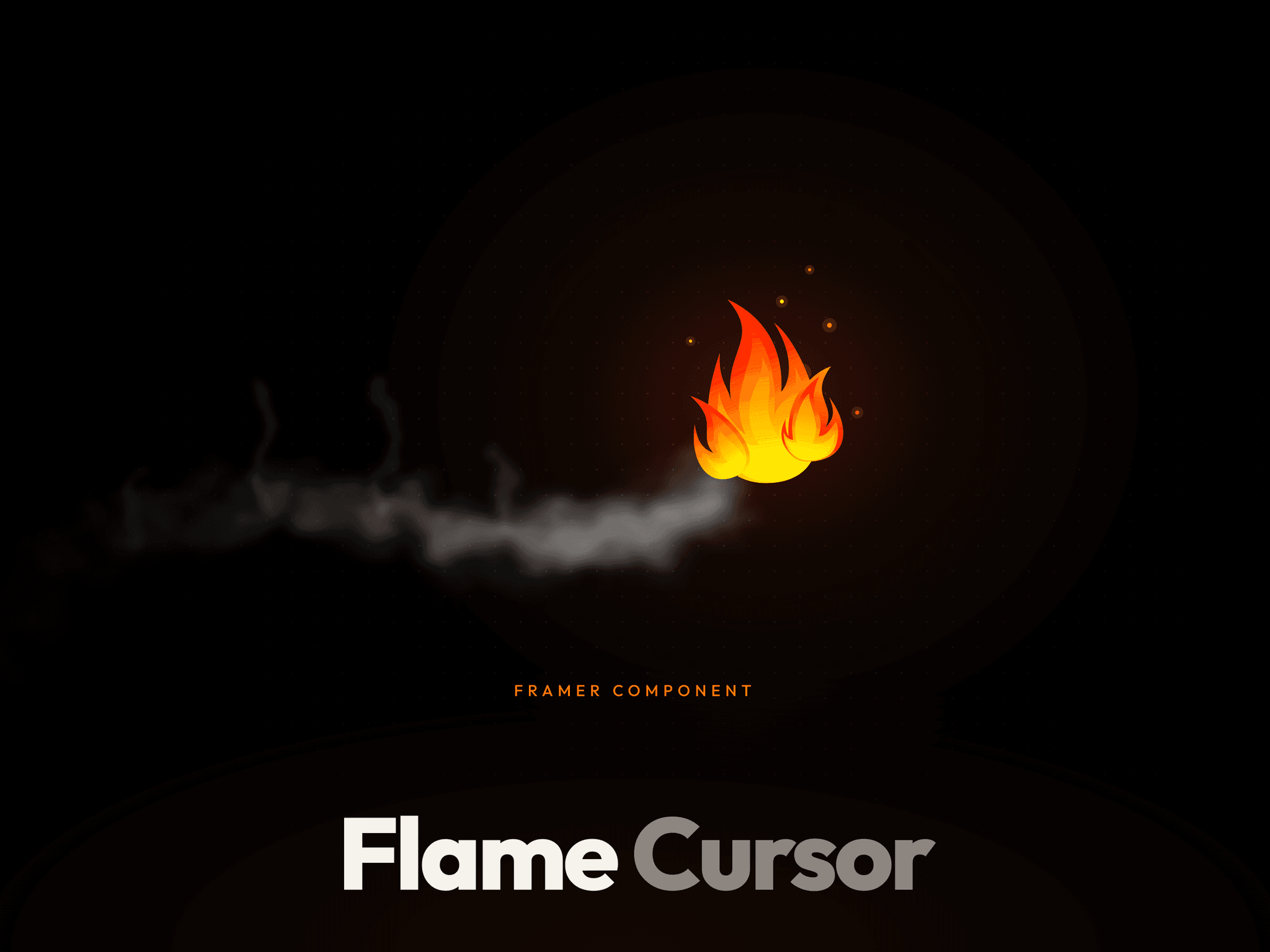
About Flame Cursor
Turn your visitor's cursor into a living flame.
I drew this flame for a taqueria's website and people kept asking about it, so I packaged it up. It flickers, sways at the tip, leans into the wind when you move the mouse, glows warm and leaves a soft trail of smoke. Click and it squeezes down, then pops back.
Features
Works with Framer's built-in Cursor setting on any page, frame or layout template
Stays linked, so you get every update I release
Leans into the wind when moving sideways
Glow that matches your flame colors
Optional smoke trail with its own amount and color
Squeezes while the mouse is pressed
Same speed on every screen, including 120Hz
Pauses off screen and respects reduced motion
Self-contained: no global styles, scripts or images
Settings Scale, Height, Width, Base color, Tip color, Wiggle, Wiggle speed, Wind tilt, Glow, Smoke, Smoke amount, Smoke color, Click shrink, Pressed.
How to use
Paste the component onto your canvas.
Right-click it and choose Create Component (name it something like "My Flame Cursor").
Optional click squeeze: in your new component, add a Pressed state, select the flame inside and turn on Pressed.
Select a page, frame or layout template. Under Cursor, click +, choose your component and keep Replace selected.
To change colors or size, open your component and adjust the flame's settings.
Preview and move your mouse.
Why Create Component? Framer's Cursor menu only lists components that belong to your project. Wrapping the flame puts it on that list while keeping it linked, so you still get updates.