About Gooey Liquid Button
Gooey Liquid Button
Smooth Gooey Hover Button for Framer
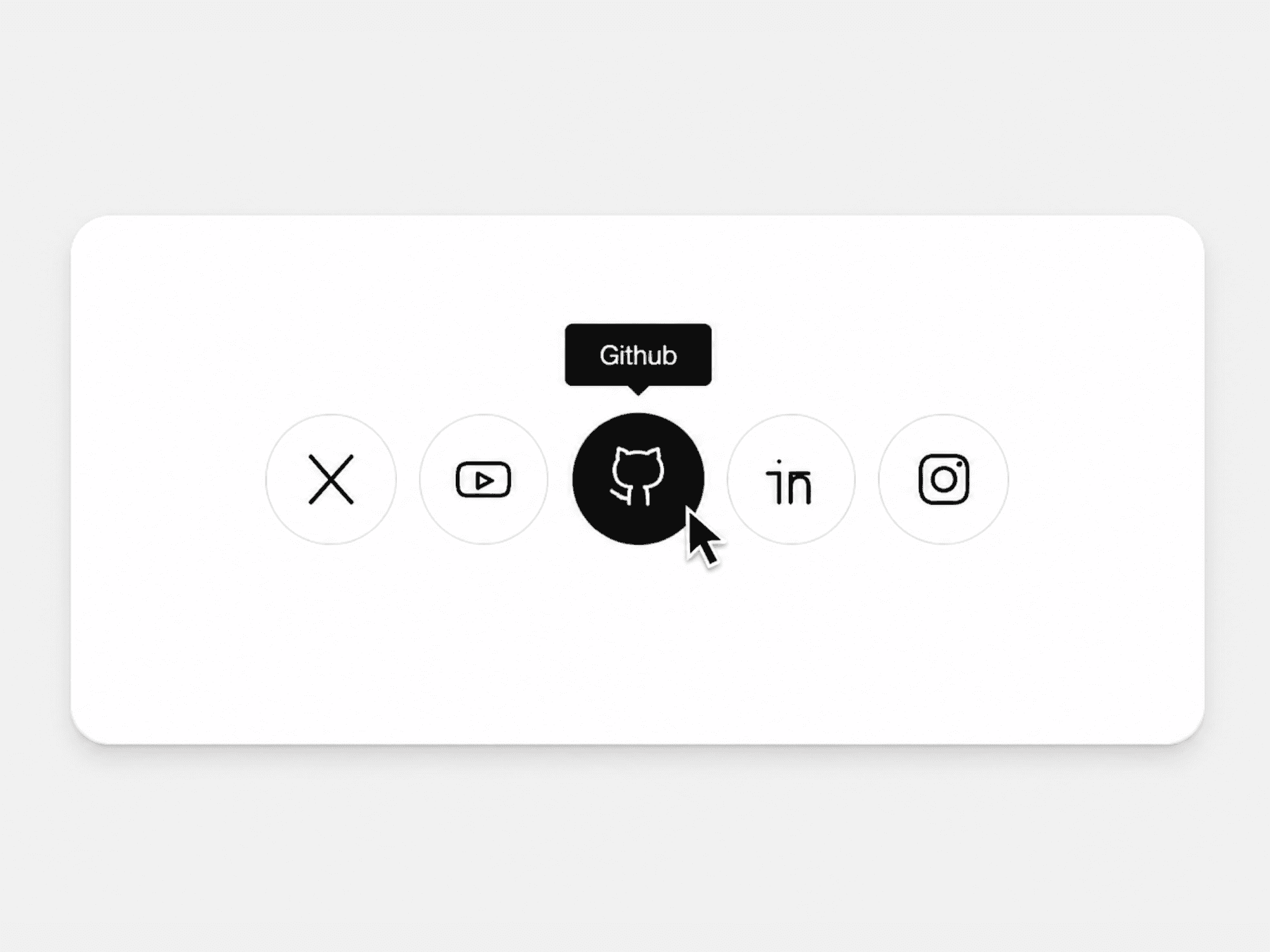
Create playful liquid hover interactions directly inside Framer. This component blends the button label and icon using an SVG-powered gooey filter and separates them smoothly on hover.
Introduction
Watch the full tutorial and walkthrough here:
Overview
Gooey Liquid Button is a fully customizable Framer Code Component designed to add fluid hover interactions to your UI without writing animation code.
Using SVG filter technology, the icon and label visually merge at rest and smoothly separate on hover, creating a soft liquid motion effect.
The component integrates the Material Symbols icon library, giving you access to thousands of icons without importing external assets.
All visual parameters — including spacing, typography, icon appearance, and animation easing — can be adjusted directly from the Framer property panel.
Because the effect is SVG-based, the liquid blend works seamlessly on any background and remains crisp at any scale.
No external libraries, no plugins, and no setup required.
Key Features
Gooey liquid melt effect powered by SVG filters
Works on any background thanks to SVG rendering
Access to the Material Symbols icon library
Smooth icon separation animation on hover
Customizable typography, colors, and layout
Built-in easing presets and custom cubic-bezier animation support
Fully configurable through Framer property controls
Clean, production-ready implementation
Controls
What's Included
1 Main Code Component (GooeyLiquidButton)
Full Property Controls Panel
Future updates included
You can update anytime through:
Assets → Components inside Framer.
How to Use
Install the component from the Framer Marketplace
Insert the component from Assets → Components
Enter your button label text
Add a Material Symbols icon name
Adjust Default Gap to create the gooey overlap
Set Hover Gap to control the separation distance
Customize colors, typography, and animation
No additional setup required.
Best Practices
Use a negative Default Gap to create a stronger gooey merge
Use a positive Hover Gap for smooth icon separation
Rounded border radius enhances the liquid effect
Try different Material Symbols icons to match your design
Avoid extremely large gap values to maintain visual consistency
Refund Policy
Due to the digital nature of this product and immediate access after purchase, refunds are generally not provided.
If you encounter technical issues or believe something is not working as described, please contact me directly. I'm happy to help resolve any problems promptly.
Support
If you need help or have questions:
Contact: cobopso@gmail.comResponse time: 24–48 hours
I actively maintain and improve this component based on user feedback.