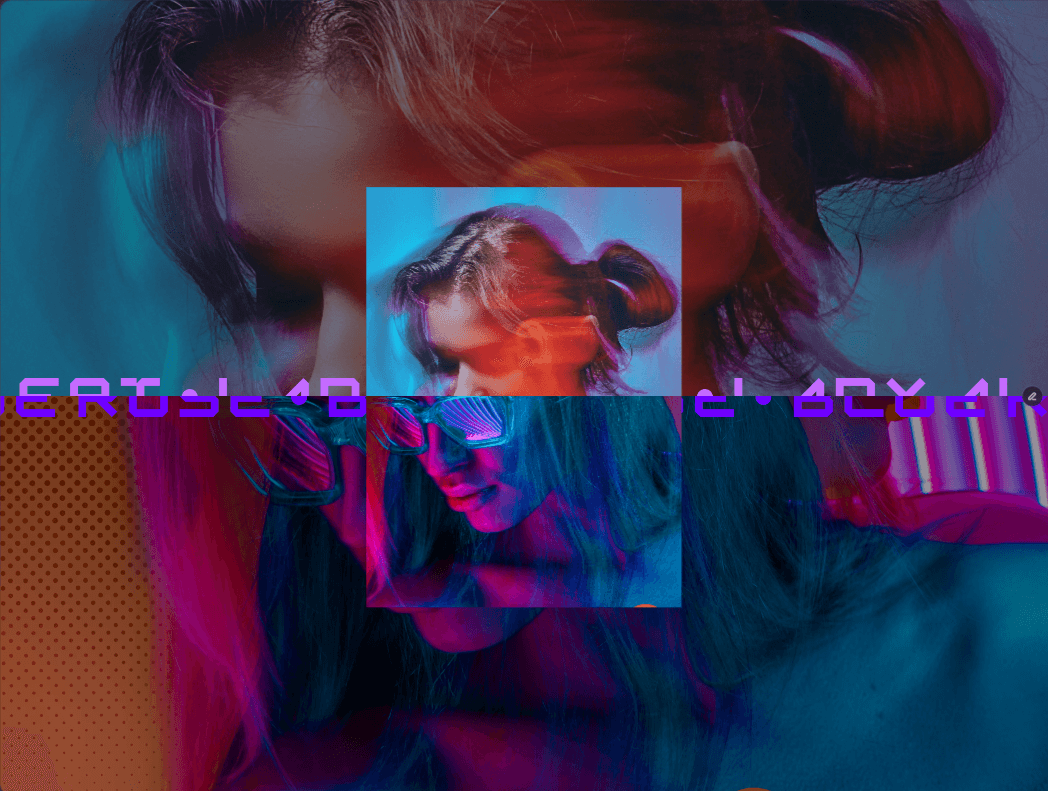
About Holographic Glitch
Holographic Image Glitch adds an analog TV-style shimmer to any image. It stacks animated scanlines, soft film noise, and a subtle RGB split that can follow the cursor for depth and motion. Use a multitude of different customization options to dial in the effect perfectly.
How to use
Drop the component on your canvas and set your image.
Choose a Distortion Type (Offset is the cleanest starting point).
Tweak Glitch Intensity and Scanline settings for the look you want.
Use Spring for lively, reactive motion or Tween for steady, cinematic moves.
Turn Follow Cursor off for static headers or mobile-first sections.
Tips
Default multiply (Color 1) + screen (Color 2) gives a classic chromatic split.
Lower Intensity for subtle depth; raise it for a bold, torn-screen vibe.
For best performance on large heroes, prefer Offset or moderate Wave/Ripple values.
What you can control
Image & Layout
Image (responsive)
Border Radius
Follow Cursor (on/off)
Scanlines
Opacity, Color, Blend Mode
Speed (how fast the lines move)
Thickness (line size)
Noise
Opacity (how visible the grain is)
Glitch
Intensity (how far the RGB layers separate)
Speed (overall motion pace)
Easing (how the motion accelerates)
Transition: Spring (stiffness, damping, mass, bounce) or Tween (duration)
Two color tints + individual blend modes
Distortion
Type: Offset, Wave, Ripple, Pixelate
Wave: Frequency & Amplitude
Ripple: Strength
Pixelate: Amount
Notes
Works at any size and respects border radius.
In static thumbnails/exports, it falls back to the clean image for crisp snapshots.