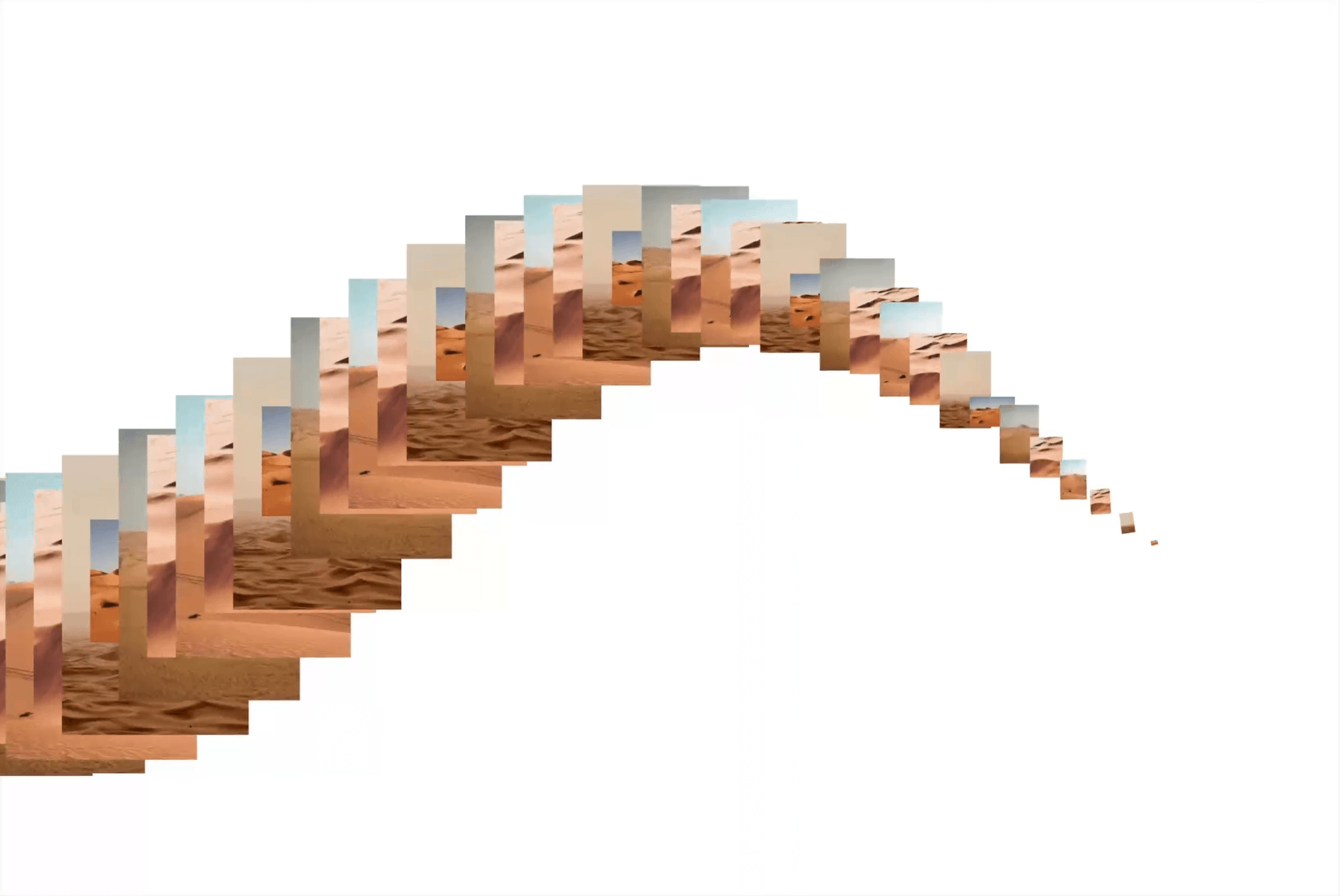
About InfiniteCurveGallery
InfiniteCurveGallery turns any set of images into an endless gallery flowing along a curve. Each image is placed and scaled in sequence along a sine wave or a circle, animating in depth to create a kinetic collage.
✨ Key Features
Curve-Driven Layout – Place images along a sine wave or a rotating circle, with full control over the path shape.
Infinite Loop or Finite Count – Run it forever, or set an exact number of repeats that stay on screen.
Fine-Tuned Animation Controls – Adjust count, image width, duration, easing, amplitude, frequency, radius and shape speed right from the props.
Reversible Motion – Negative shape speed flips the whole animation direction.
Scroll-Driven Motion – Sync the gallery with scroll position using GSAP-like start/end triggers and sticky/pinned sections for immersive, narrative storytelling.
🔧 Props / Controls
Images: Add the images that flow through the gallery
Count: Number of images spread along the curve
Width: Image size as a percentage of the container width
Duration: Loop speed of each image's entrance
Ease: Easing curve of the entrance animation
Shape: Choose the path, Sinus wave or Circle
Amplitude: Height of the sine wave (Sinus)
Frequency: Number of wave oscillations across the width (Sinus)
Radius: Size of the circle as a percentage of the largest screen side (Circle)
Shape Speed: Speed the images travel along the curve, negative values reverse the direction
Play: Run the animation infinitely, or set a fixed number of repeats
Repeats: Number of full passes before the animation stops (Count mode)
Scroll Driven: Drive the animation with the user's scroll position (Count mode)
Start / End: GSAP-style scroll triggers to define where the animation begins and ends (Scroll Driven)
Track Parent: Read scroll from the parent section for sticky / pinned layouts (Scroll Driven)
Mouse Interaction: Bring the hovered image to the front
Debug Line: Draw the curve on the canvas to visualize the path
Line Color: Color of the debug line