About Password Meter
Framer has no password field. Its native form inputs are Text, Checkbox, Radio and Select — so a sign-up or reset page either ships without one, or gets rebuilt outside Framer. This is the field set Framer is missing.
Everything happens in the browser. The component checks the password locally and never transmits anything, anywhere. There is no endpoint to configure and no request to inspect.
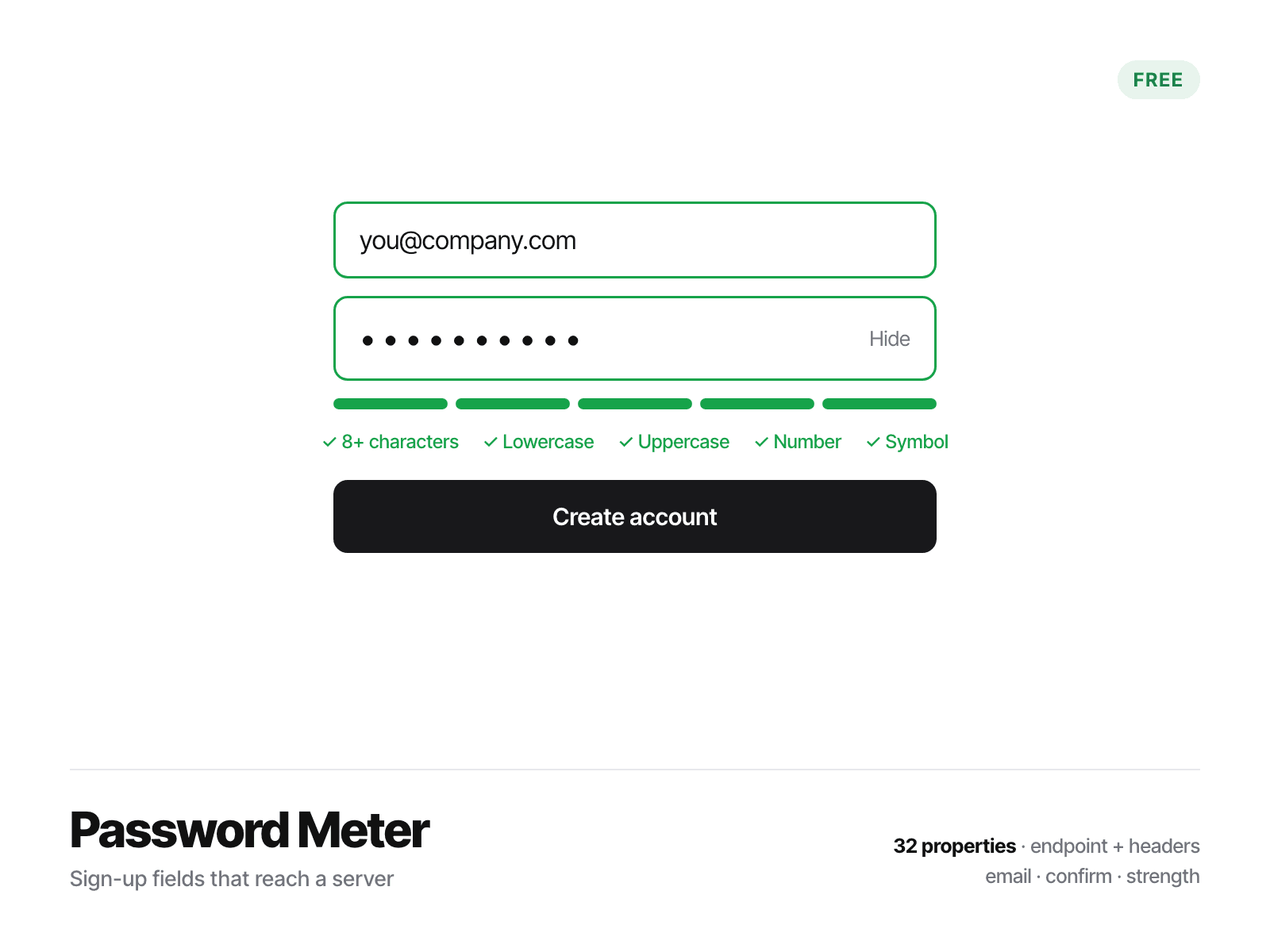
The strength meter. Five checks run on every keystroke: length, lowercase, uppercase, number, symbol. The bar fills, the colour shifts, the checklist ticks off. Set how many must pass before the password counts as accepted.
Drop it into a form you already have. Every field carries a real name, so a Framer form submits it with everything else. Nothing to wire up.
Or use it on its own. Turn on the submit button and it validates the fields locally, then fires On submit so you can wire it to whatever the page should do next.
It says what is missing, once. Empty email, invalid email, weak password, mismatched confirmation — one message at a time, and only after they try to submit.
Matches your design. Labels, colours, bar height, spacing, radius, type size and every colour in the field set are canvas properties.
27 properties, all on the canvas: ID field (Email · Username · Phone) · ID hint · ID name · Password hint · Password name · Confirm field · Confirm hint · Mismatch message · Require · Show/hide · Checklist · Submit button · Submit label · Error · On submit · Labels · Colors · Bar · Gap · Radius · Size · Text · Muted · Field · Border · Accent
Properties you are not using hide themselves — turn the ID field off and its three settings go away.
⚠️ A note on real accounts: a password collected through a Framer form lands in your form inbox in readable text. For real accounts, take the submission outside Framer.
Get all four in one place, plus a note when a new one lands: https://bold-wheel-055406.framer.app/pack