About PDF to FlipBook
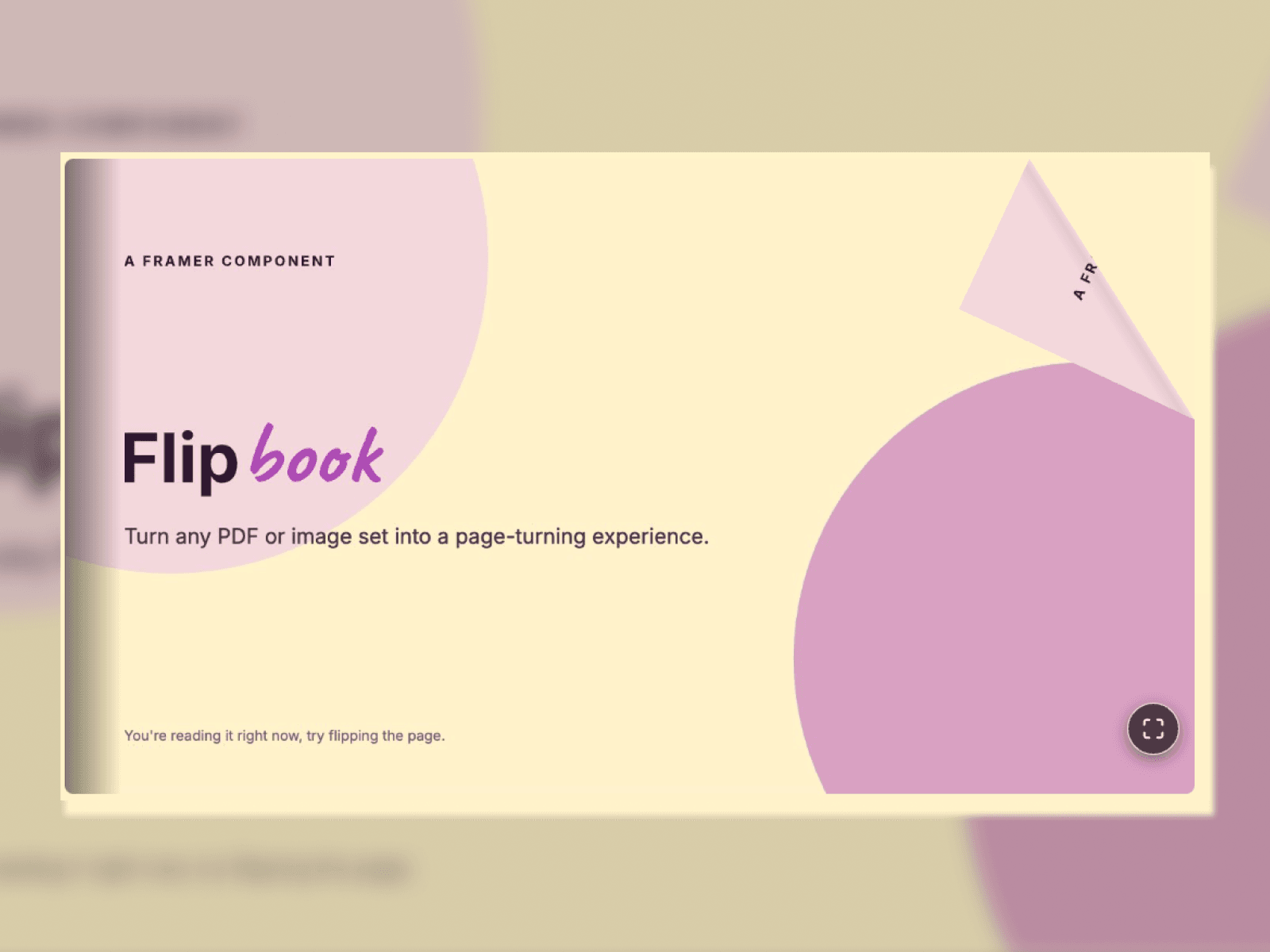
Flipbook turns a PDF or set of images into an interactive, page-turning book directly on your Framer site. Pages curl and lift as they turn, with drag, swipe, and click interactions for a realistic reading experience.
Use it for pitch decks, portfolios, catalogs, magazines, lookbooks, or any document you want visitors to browse instead of scroll.
Content Types
Images — Upload pages directly for instant loading.
PDF — Upload a PDF and Flipbook automatically converts each page into an image when the page first loads. Larger PDFs may take slightly longer to appear.
Display Modes
Presentation — One page at a time. Choose Fill Frame or Custom Width.
Magazine — Two-page spread, like an open book.
Customization
Control everything directly from Framer’s properties panel: background color, page shadows, corner radius, arrow color and size, progress bar, page numbers, flip speed, and autoplay. You can also add a clickable logo button to any corner. No code required.
How to Use
Add the component to your Framer page and set its frame size.
Choose Images or PDF as your content type.
Select Presentation or Magazine display mode.
Customize colors, navigation controls, and page settings.
Optionally enable the logo button and add a link.
Set flip speed and autoplay if desired.
Test the interaction using clicks, drags, or swipes. Arrow buttons and the progress bar can also be used for navigation.
For questions or support, contact contact@gazenova.com.