About RevealSliderPro
What Is This?
Before & After Slider Pro lets you place two images side by side and let visitors interact with them — sliding, swiping, or dragging to compare the difference. Perfect for showcasing photo edits, design transformations, website redesigns, product changes, or any "before vs after" story you want to tell.
No code needed. Drop it into your Framer project, upload your images, and it works instantly.
3 Slider Modes — Pick the Feel You Want
Every mode has a completely different look and interaction style. You can switch between them right inside the component using the built-in tab switcher, or lock it to one mode from the Property Panel.
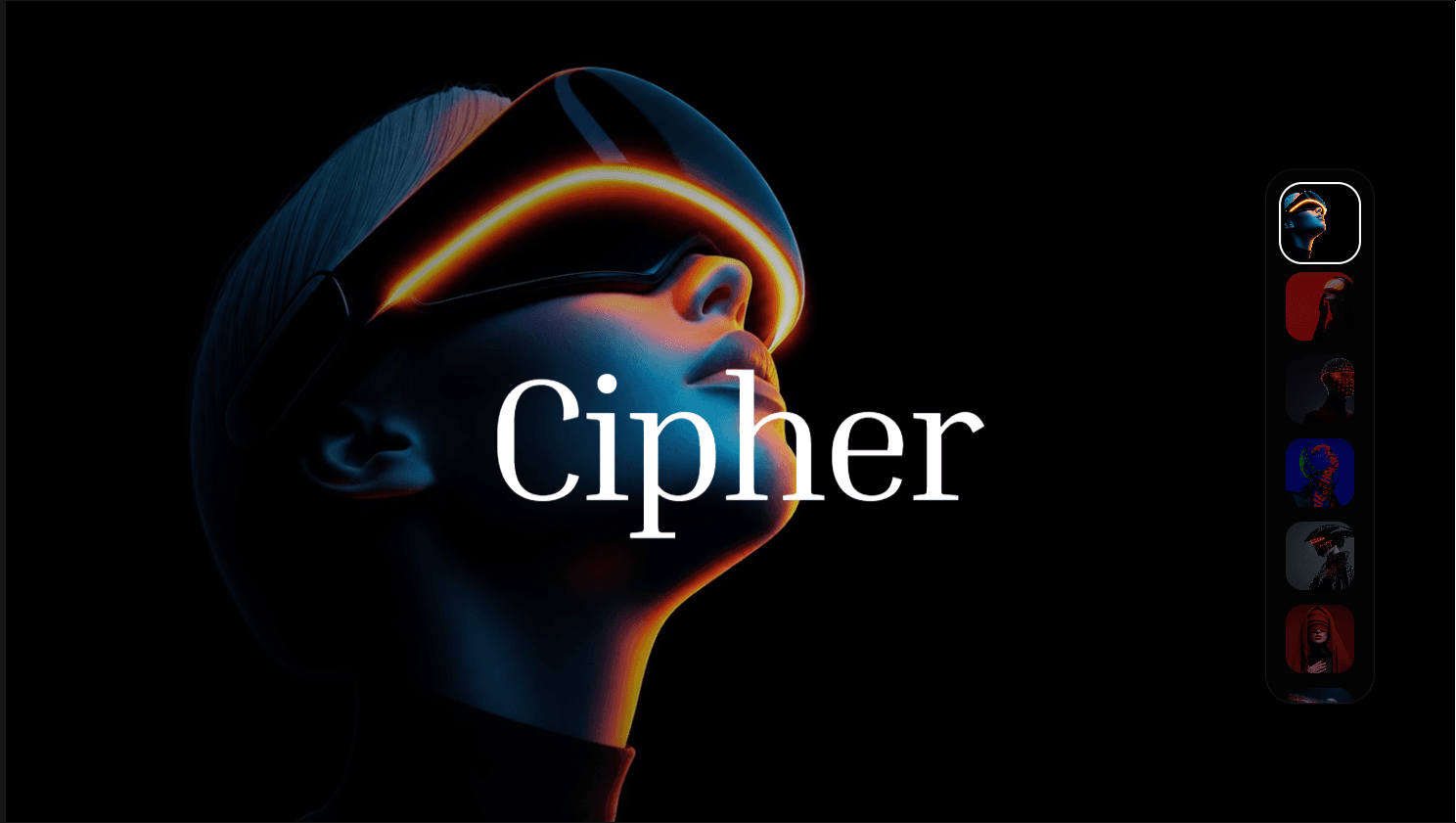
3a. Unveil Mode:
Best for: Photo retouching, color grading, skin editing, room makeovers.
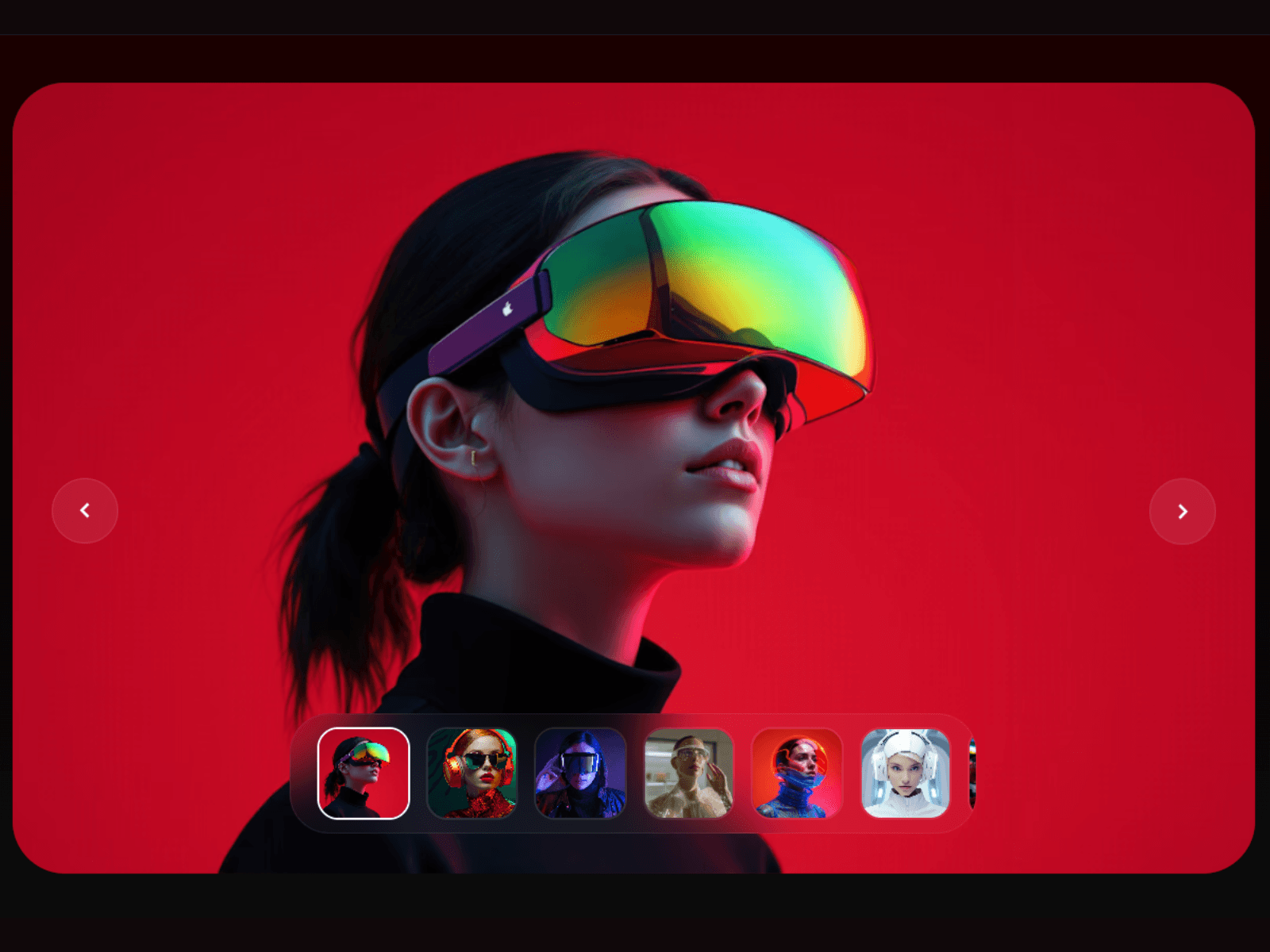
3b. Swipe Mode:
Best for: Website redesigns, UI before/after, app screen comparisons.
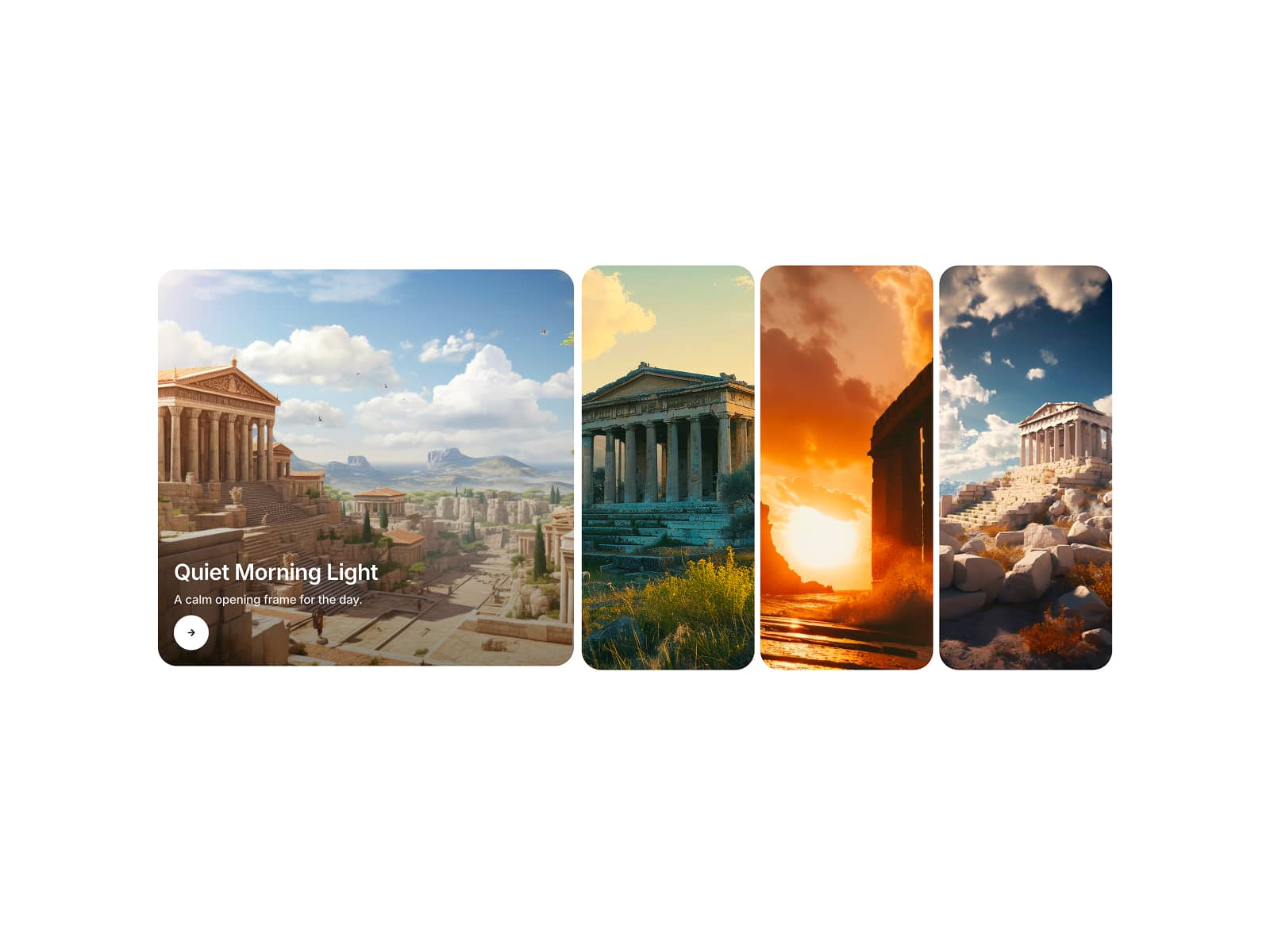
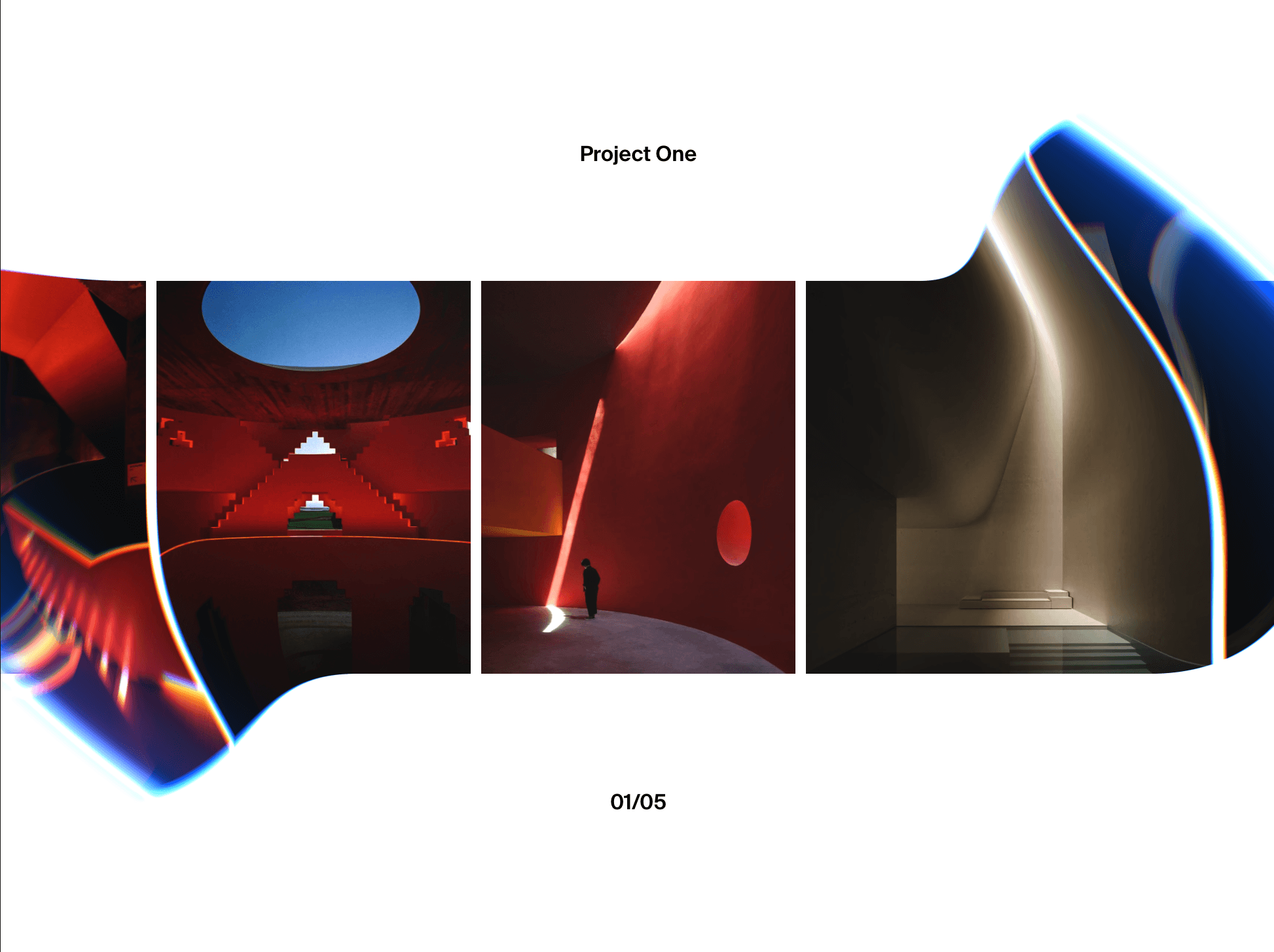
3c. Fixed Mask Mode:
Best for: Product packaging changes, illustration reveals, architectural before/after.
Key Features
Interaction & Feel
Smooth spring animation when position resets
Handle scales down when grabbed for a satisfying tactile feel
Subtle hover zoom on the image for a polished, premium look
Custom cursor changes to col-resize on hover and grabbing while dragging
Full mobile & touch support — works perfectly on phones and tablets
Labels (AFTER / BEFORE)
Show or hide the labels independently
Customize text, font size, font weight, padding, offset position
Labels fade in/out smoothly as you drag so they never overlap the handle
Full color control for text and background
Handle & Line
Change handle circle size, color, and line width
Arrow icon color is separately controllable
Gradient divider line fades at the top and bottom for a refined look
Handle animates on hover and drag
Fully Responsive
Works on all screen sizes
Adapts to any fixed width and height you set in Framer
How to Use
Copy the component into your Framer project from the Assets panel
Drag it onto your canvas
In the Property Panel on the right, upload your Left Image (After) and Right Image (Before)
Choose your preferred Mode — Unveil, Swipe, or Fixed Mask
Customize labels, handle color, tab style to match your design
Done — publish and share
Refund Policy
This is a digital product. Because the remix link gives you immediate access to the full component, no refunds, returns, or exchanges are offered once the purchase is completed or the remix link has been accessed. Please review the preview carefully before purchasing.