About Reading Timeline
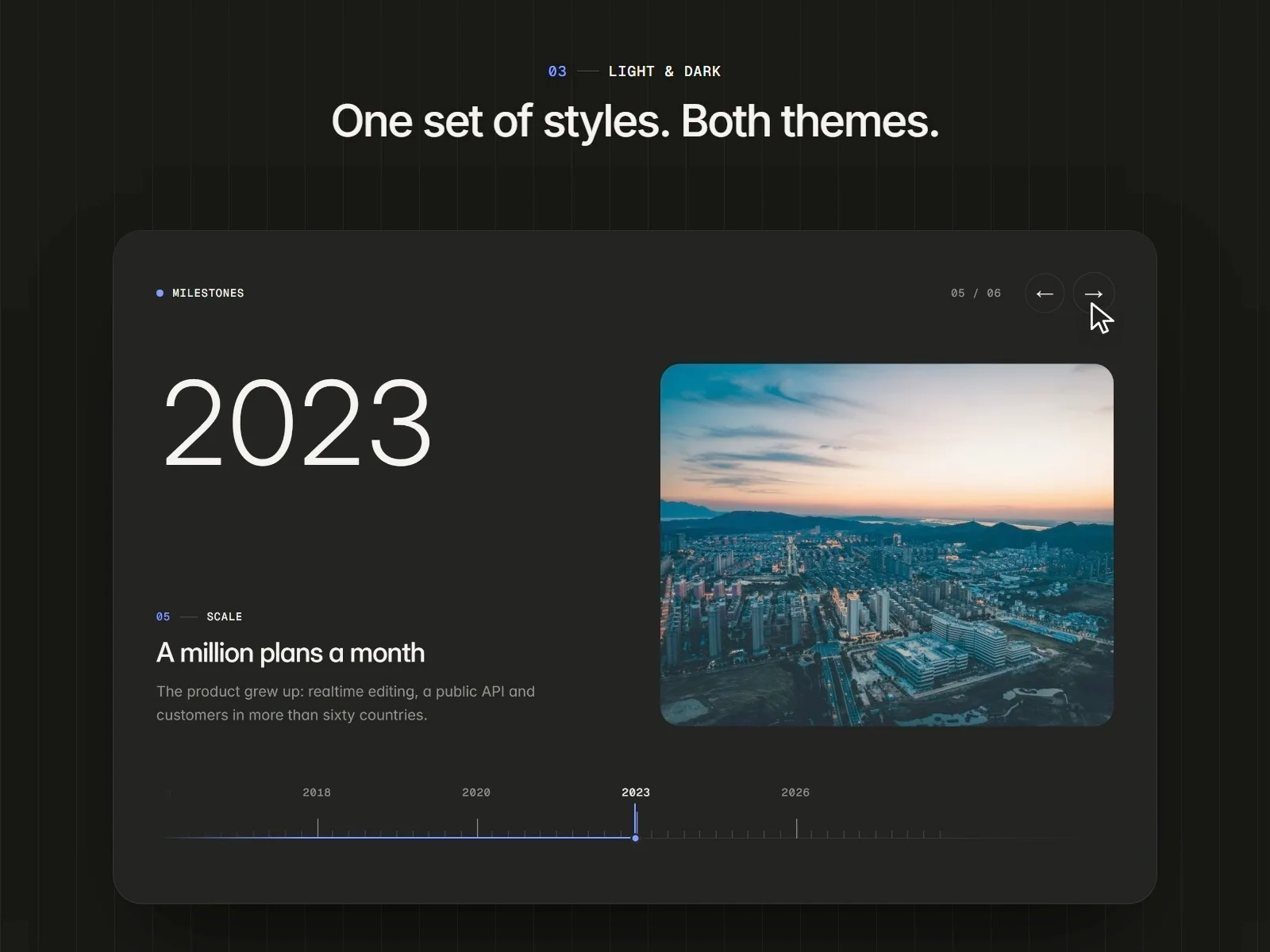
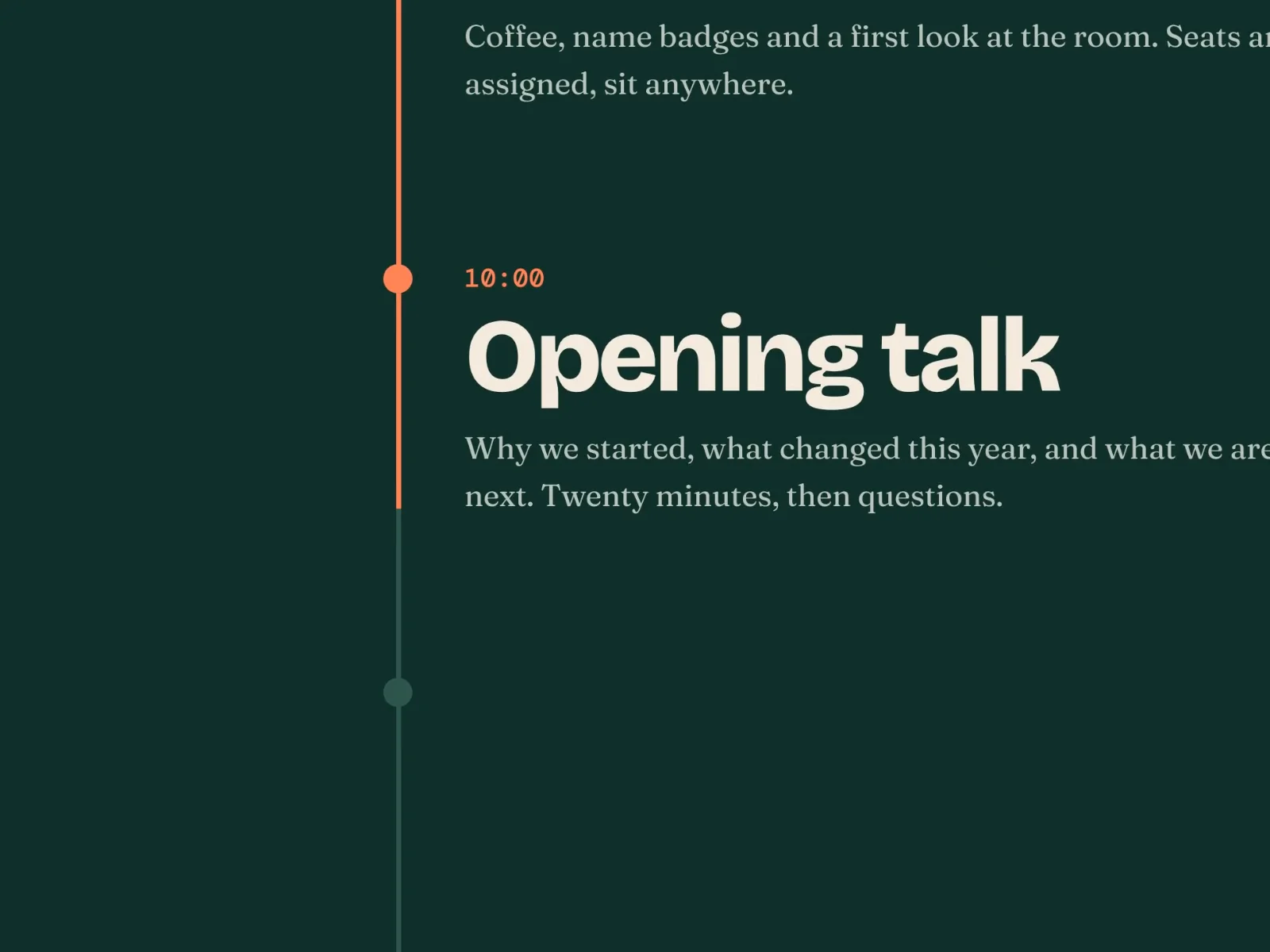
Scroll Timeline draws a line down your steps and fills it as the reader scrolls. Each step appears as it comes on screen, and its marker lights up the moment the line reaches it. Made for process sections, roadmaps, changelogs, CVs and event schedules.
Features
• Fills with the scroll. The head of the line follows the reader (Fill At), while steps appear a little earlier (Reveal At), so the screen below the reader never sits empty. Or let it fill step by step.
• Steps from the CMS. Bind Steps to a CMS List field and map Label, Title and Text. One CMS item, one timeline.
• Three layouts. Inline, Split and Stacked, set per breakpoint.
• Markers. Dot, Ring or no marker, with optional numbers (01, 02, 03…) — in a circle or on their own.
• Rows that line up. Label, title and text share one top line with the marker level with the label, or switch to one baseline. The label column fits the longest label automatically.
• Anchors. Every step gets an anchor from its title (#design-system), with an offset for sticky headers.
• Reduced motion. Respects the system setting: steps show at once and only the line follows the scroll.
• Light and semantic. One scroll listener, an ordered list with real headings, and text that is already in the page HTML.
• Yours to style. Fonts, colours, spacing, line width, marker size and the reveal transition.
Setup
1. Add Timeline to your page. It fills the width of its container.
2. Write your steps in Steps, or bind Steps to a CMS List field.
3. Pick a layout for each breakpoint. Stacked works best on phones.
Good to know
• Fill At and Reveal At are in % of the screen height. Defaults: 50% and 75%.
• Step text is plain text. A line break starts a new paragraph.