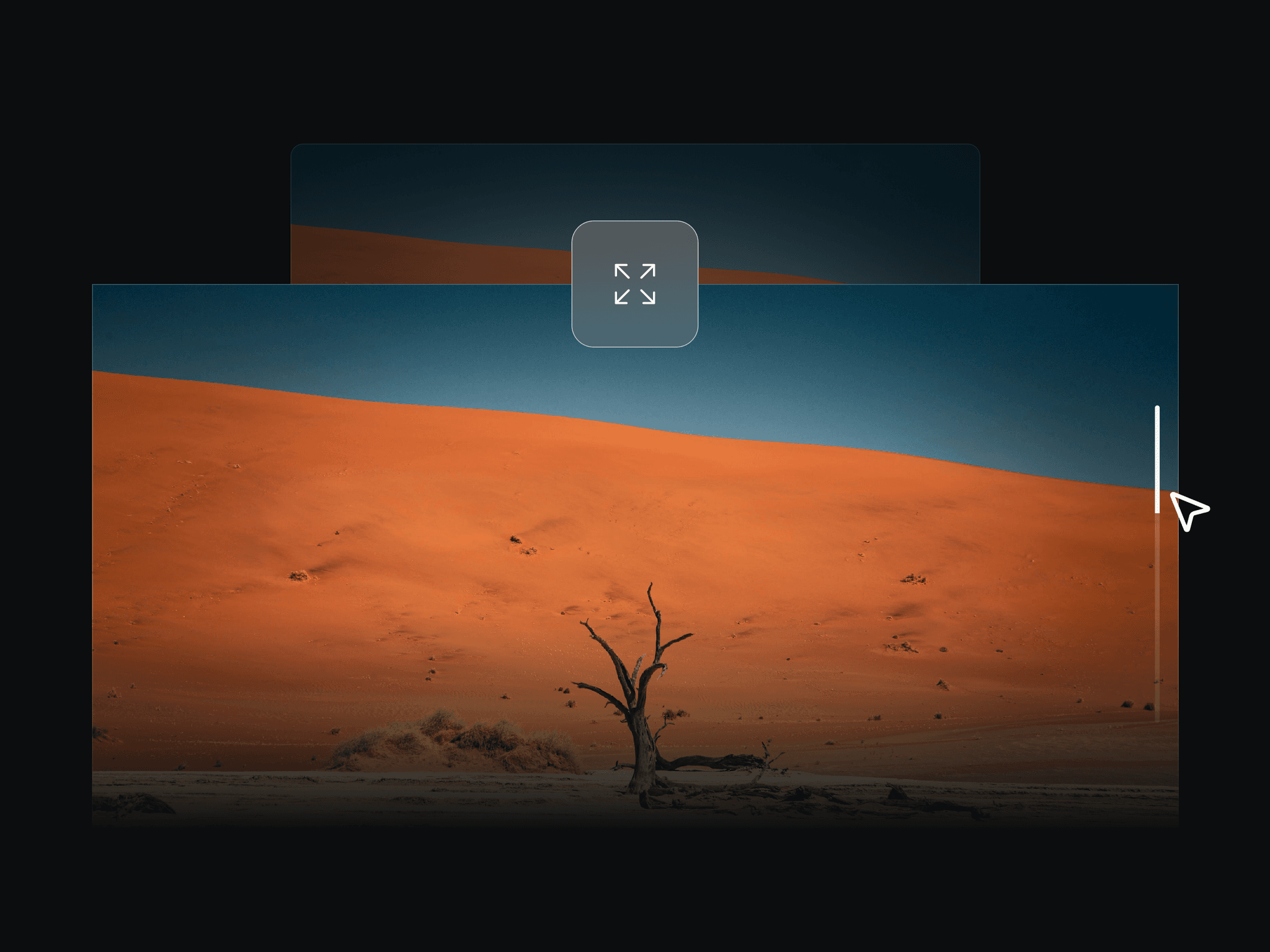
About Scroll Expand Media
Intro
Turn ordinary media into an immersive scroll moment. Start with a framed image or connected Framer canvas, then expand it toward the viewport as the story unfolds—without relying on brittle layout tricks.
How it works
The component grows from explicit starting dimensions toward a padded or edge-to-edge viewport state. In stacks, its expansion can naturally push sibling content aside, making the motion feel connected to the composition instead of layered on top of it.
Features
MEDIA — Image or one connected canvas slot, with original-size alignment or viewport-cover scaling.
TRIGGER — Scrub expansion directly with scroll, or autoplay when a chosen section enters the viewport.
SIZE — Set the initial width and height, then choose edge-to-edge or padded viewport expansion.
CORNERS — Use one radius or tune each corner; keep it fixed or animate it smoothly toward zero.
MOTION — For autoplay, tune easing, custom duration, spring timing, bounce, delay, viewport position, and replay.
Quick setup
Add an image or connect one canvas element.
Give the target page section a unique element ID.
Paste that exact ID into Scroll Section ID.
Choose On Scroll for direct scrubbing or Autoplay for a timed reveal.
Tune starting size, viewport padding, and corner behavior—then test every breakpoint.