About ScrollMaskReveal
How it works
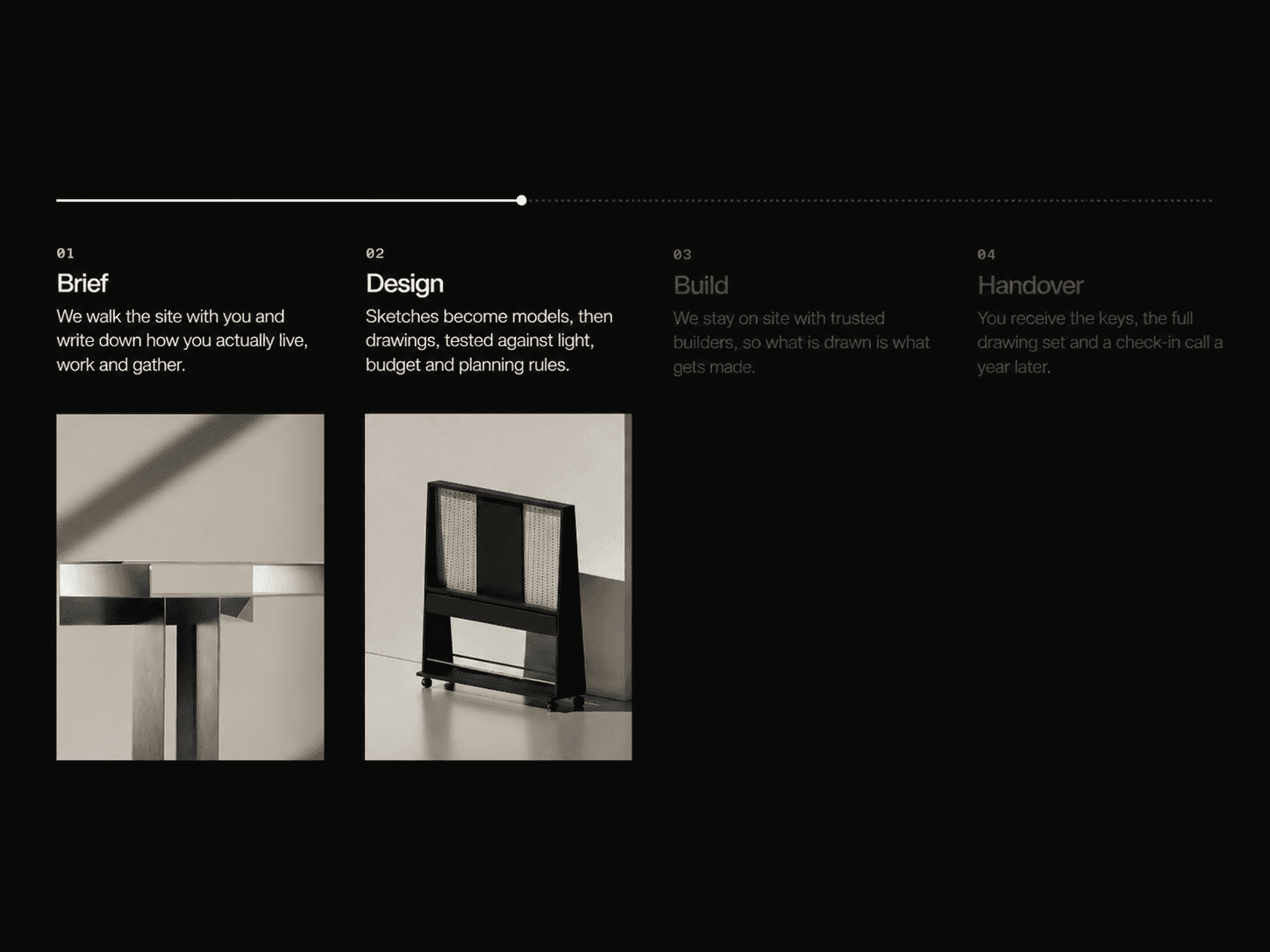
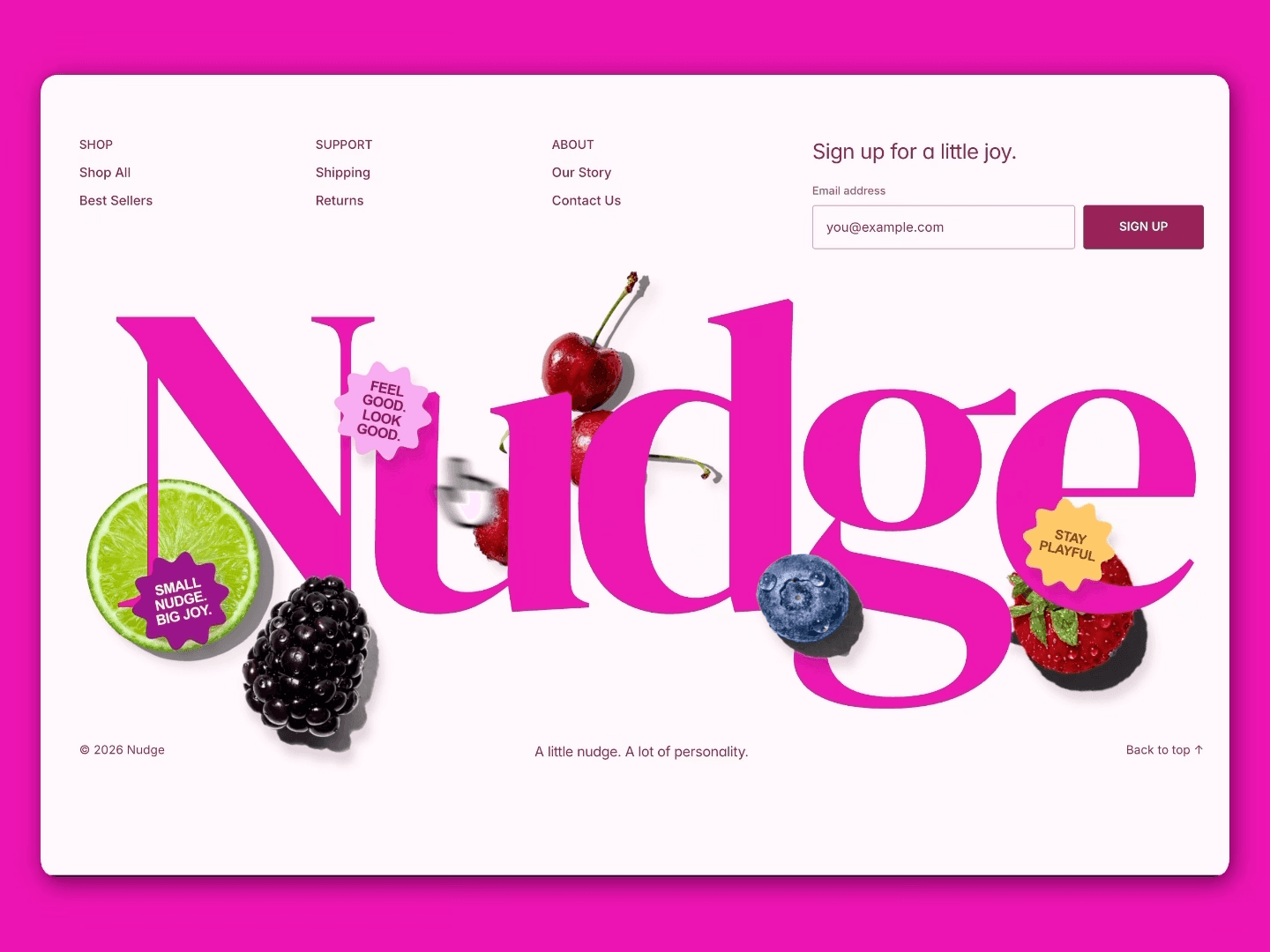
The component pins itself to the screen while you scroll. Each image you add sits stacked on top of the previous one, hidden behind a mask. As you scroll down, that mask peels away — from bottom to top, top to bottom, or side to side — revealing the next image underneath. Once all images have been revealed, the section releases and the page scrolls normally again.
Setting it up
Start by uploading your Main Image — this is what visitors see first. Then upload Mask 1 Image, which is the first image to be revealed on scroll. If you need more transitions, hit Add Mask Image as many times as you like (up to 10). Each added image can be removed individually if you change your mind.
Properties
Main Image — the default starting image
Mask 1 Image — the first image revealed on scroll
Add Mask Image — adds more images to the sequence, each with a remove option
Reveal Direction — choose Bottom→Up, Top→Down, Left→Right, or Right→Left
Scroll Speed — controls how much scrolling it takes to complete each transition
Smoothing — lower values feel silky and slow, higher values feel snappy and immediate
Corner Radius — rounds the corners of the image frame
Good to know
All images are centered and fully visible at all times; nothing gets cropped. The component works best when placed inside a full-width section on your page.