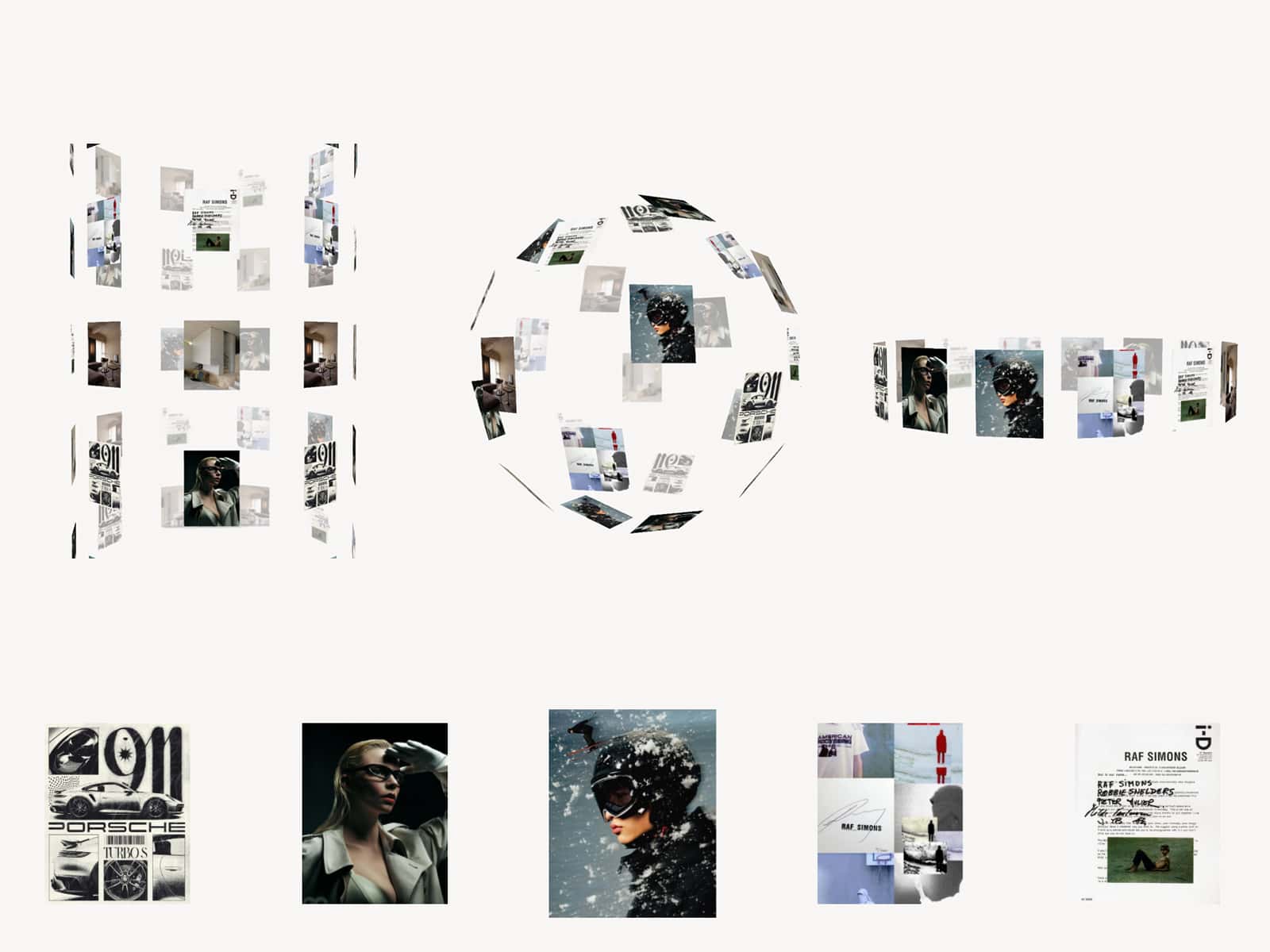
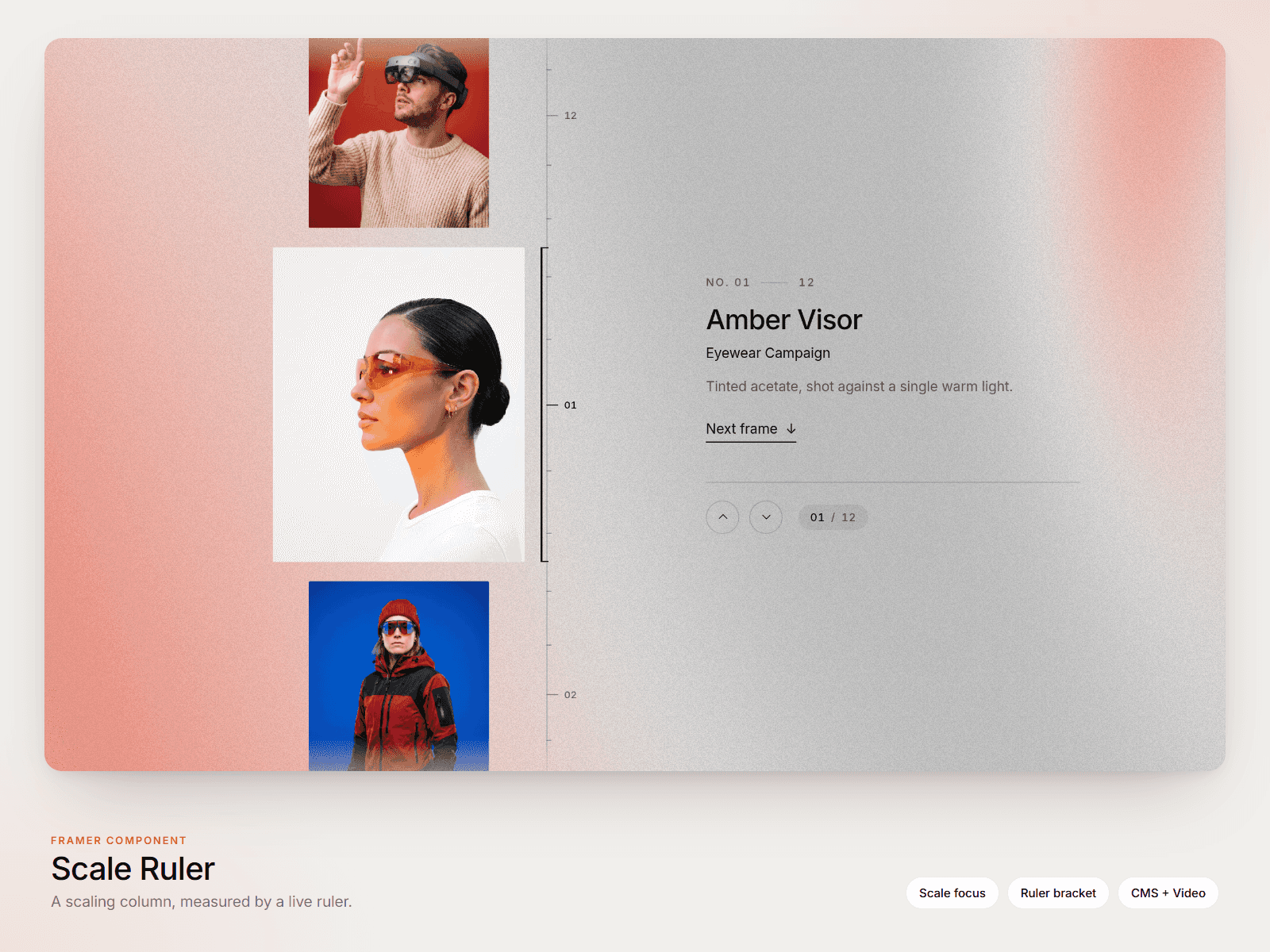
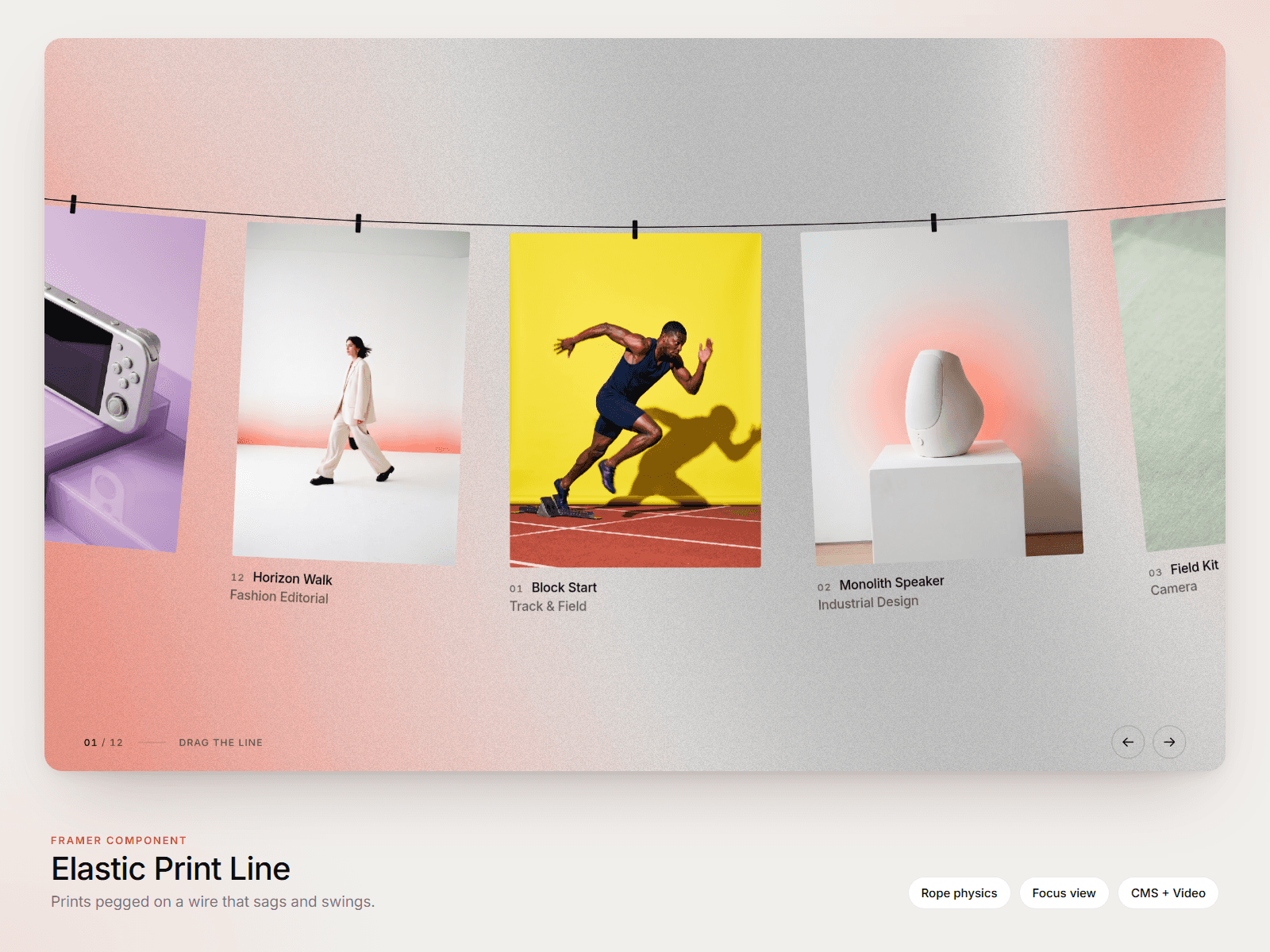
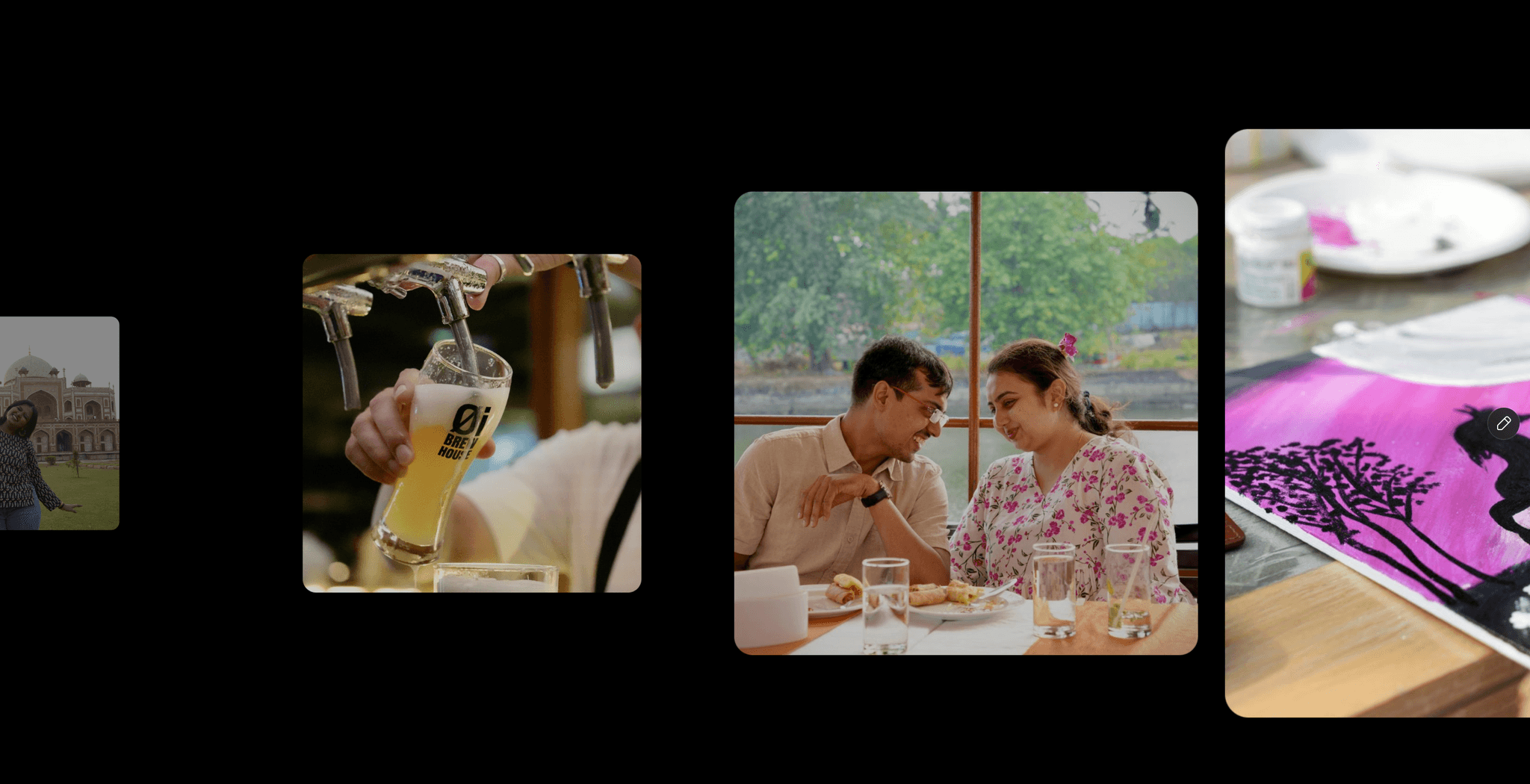
ScalingGallery is a horizontal gallery for Framer where each item's size is a function of its position across the viewport. Items enter from the left at a configurable minimum scale, grow as they travel right, slide off the right edge, and recycle back to the left in an infinite loop. Built for editorial layouts, portfolio reels, hero sections, and anywhere a static image grid feels too quiet.
Use cases
· Editorial homepages where you want imagery to lead the page
· Portfolio reels for studios, photographers, designers, agencies
· Streetwear and fashion lookbook strips
· Product galleries for premium brands
· Section dividers on long landing pages
How the scale works
Every item lives at a horizontal position between zero (left edge) and the container width (right edge). Its scale is a linear interpolation of that position: items at the far left render at Min Scale, items at the far right render at Max Scale, and everything in between is calculated smoothly per frame. When an item passes the right edge it teleports back to the far left in the same frame so the loop never breaks visually.
Items
Drop any number of images into the Items array. Each item supports:
· A responsive image (Framer's standard image control with srcSet)
· An optional title
· An optional link with new-tab control
If you pass fewer items than the gallery needs to fill the viewport plus its largest possible visual width, the component duplicates them internally so the loop is always continuous. A single image works too.
Layout
· Item Aspect: width-to-height ratio of each item at scale 1. Lower values give taller portrait items, higher values give wider landscape items.
· Pixel Gap: extra horizontal space between slot positions. Increase for an airy spread, decrease for a denser strip.
· Max Visible Items: roughly how many items fit across the viewport at any moment. Lower values give bigger items with more breathing room.
Scale and motion
· Min Scale: how small items render at the left. Use 0.05 for a dramatic shrink, 0.4 for a subtle one.
· Max Scale: how large items render at the right. Values above 1 push items beyond their natural size for a hero feel.
· Lerp Factor: how softly the gallery follows scroll input. Lower values feel buttery and floaty, higher values feel responsive and snappy.
· Scroll Speed: how much each unit of wheel input moves the gallery.
Input
The component listens to mouse wheel, trackpad, click-and-drag, and touch swipe. Drag and wheel share the same target offset, so combining them feels natural. Click events on items are suppressed if the user dragged more than five pixels, so links never fire accidentally.
Visual effects
· Parallax Intensity: shifts the image inside each item horizontally based on that item's current scale. Smaller items drift, larger items center. Set to 0 to disable.
· Hover Scale: how much the inner image zooms on hover.
· Hover Parallax: how much the inner image shifts on hover, independent from the scale-driven parallax.
Hover is CSS-only and does not interfere with the runtime animation.
Title
Each item can show a title tag overlay.
· Show Title: toggle visibility.
· Title Mode: place the title inside the item, above, or below.
· Alignment: horizontal (left, center, right) and vertical (top, middle, bottom).
· Offset, Padding, Gap, Radius: spacing and shape.
· Font, Color, Background: typography and color controls.
· Show Dot, Dot Color, Dot Size: optional decorative dot before the title.
The title tag is counter-scaled so it stays at its designed size regardless of how large or small the parent item is on screen.
Intro animation
When the component mounts, items grow from scale 0 to their target scale on a cubic ease-out curve. Intro Duration controls how long the reveal lasts. Intro Offset adds an optional starting horizontal offset if you want the gallery to drift in alongside the scale reveal.
Mobile
On screens 767 pixels wide or smaller, the component falls back to a simpler stacked layout. Heavy transforms are skipped so scrolling stays responsive on lower-end devices.
Static rendering
Fully compatible with Framer's static renderer. SEO crawlers, social card previews, and the Framer preview environment all see a clean fallback layout with no scripts or animations.
Tips
· Editorial feel: keep Min Scale low (0.05 to 0.15) and Max Scale above 1.
· Product showcase: set both scales closer together (0.6 to 1.1) and increase Pixel Gap.
· Parallax Intensity between 4 and 10 reads naturally on most images. Above 15 starts to feel heavy.
· If drag feels sticky, lower Lerp Factor. If it feels too loose, raise it.
Performance
The render loop runs once per animation frame and only mutates inline styles for transform, opacity, and z-index. Each item uses a single img element with native lazy loading. No canvas, no WebGL, no external dependencies beyond Framer and React.