About Whirl Slideshow
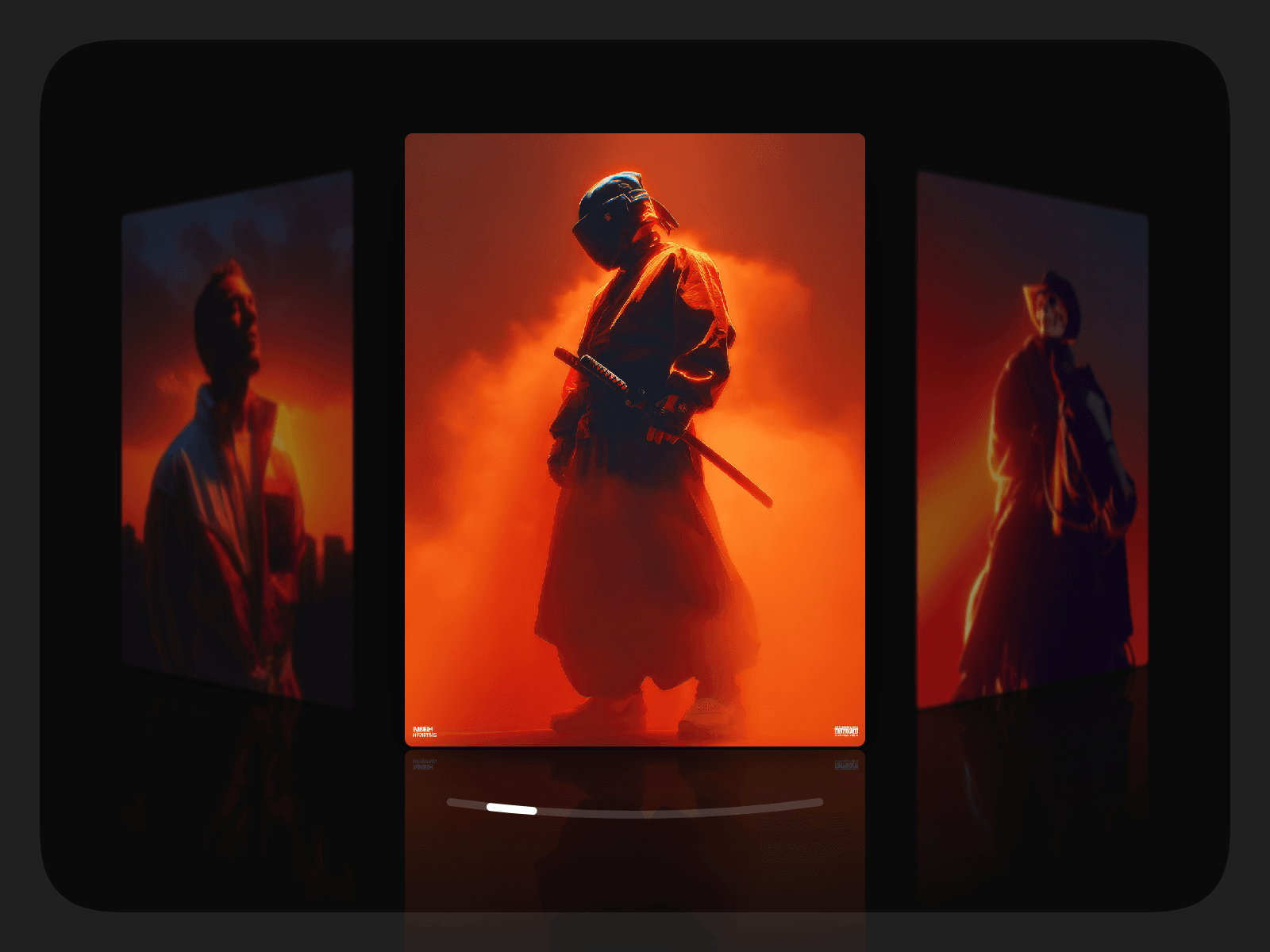
Whirl Slideshow arranges your media in a convex 3D ring. The active card sits at the front, and far cards tilt away, fade and blur. A curved indicator below the ring lets people scrub through the slides. Everything runs on a custom spring engine, so drags, flicks and autoplay feel fluid. Use manual images and videos, or connect a CMS Collection List.
Features
Images, videos and CMS Collection Lists in one component
Drag, flick, click-to-focus, keyboard, trackpad swipe and scroll-to-spin
Curved, line, dots or numbers indicator that you can drag, plus optional arrows
Autoplay with loop, pause on hover and “finish video before advancing”
Depth effects: far-card fade, blur, scale, and fade to black or white
Reflection or floor glow, parallax and cursor tilt
Expand-to-lightbox and a sound button for the active video
Lazy loading, and separate settings for tablet and mobile
Customization options
Content: source, media list, CMS list and start item
Playback: autoplay, interval, loop, video behaviour and sound button
Card: aspect ratio, size, corner radius and shadow
3D Ring: horizontal, vertical or tilted layout, plus angle, spacing, depth and visible cards
Far Cards: opacity, scale, fade colour and blur
Effects: reflection or glow, parallax and cursor tilt
Motion: gentle, smooth, snappy, bouncy or a custom spring
Indicator: style, width, curve, thumb, colours, font and arrows
Interaction: drag, keyboard, trackpad, scroll-to-spin and expand
Loading and responsive: lazy load, preload, and tablet and mobile overrides
Usage
Add Whirl Slideshow to your canvas and resize it.
In Media, add images or videos. Or switch Source to CMS and drop a Collection List into “CMS List”.
Pick a card ratio and size, then adjust the 3D Ring angle and spacing.
Choose a motion feel and an indicator style.
Turn on any effects you want, such as blur, reflection or parallax.
Open Preview to try dragging, swiping and clicking.