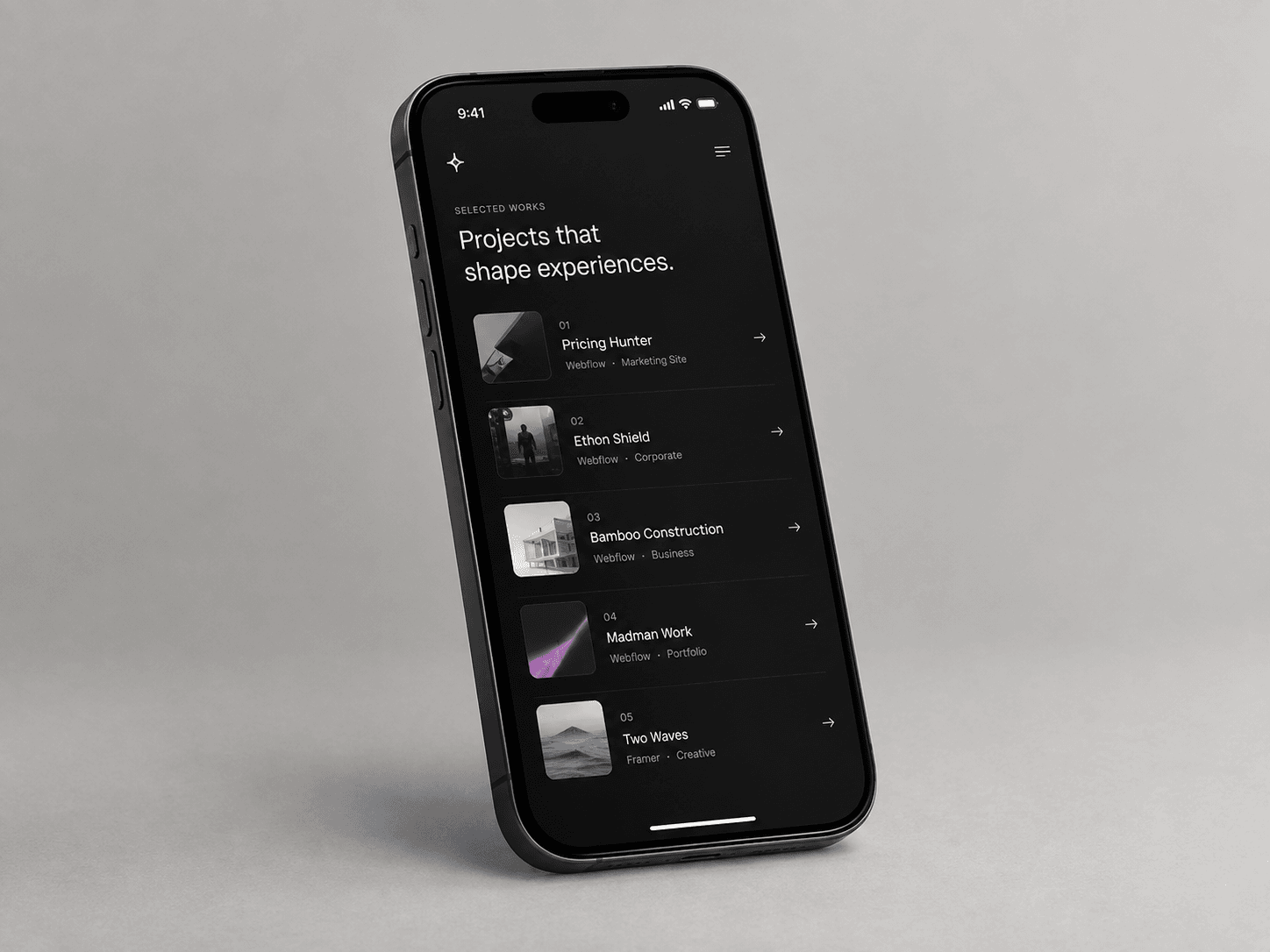
About Project Hover List
Project Hover List recreates the classic agency case-study index interaction — the numbered project list where a preview image follows your cursor — as a fully data-driven Framer code component, not a static demo.
What it does:
- Hovering a row floats a live image preview next to the cursor, spring-smoothed so it settles instead of snapping.
- Fast cursor movement adds a subtle velocity-based skew to the preview, the same micro-detail used on high-end portfolio sites.
- Non-hovered rows dim to create focus, and each row draws its own underline on hover.
- Images crossfade when moving quickly between rows instead of flashing.
- On mobile or any touch device, the cursor-follow preview is replaced with a clean inline thumbnail per row — detected automatically via container width and pointer type, no manual toggle needed.
- Respects prefers-reduced-motion and renders a clean static frame on the Framer Canvas and in exports.
Fully editable via Property Controls: project list (title, category, image, link per row), font, text/accent/divider colors, preview image size, corner radius, and the mobile breakpoint.
## How to Use
1. In Framer, create a new Code Component and paste in the component file.
2. Drag it onto the canvas inside a frame with enough height for your list (roughly 90px per row).
3. Open the Properties panel and edit the Projects array — add a title, category, image, and link for each row.
4. Set Font, Text, Accent, and Divider colors to match your site's design system.
5. Adjust Preview W / Preview H to size the floating image, and Radius for corner rounding.
6. Leave Compact Below at 680px, or raise/lower it depending on where your layout should switch to the mobile thumbnail view.
7. Test in Preview (not Canvas) — the cursor-follow effect only runs in Preview and on the live site.