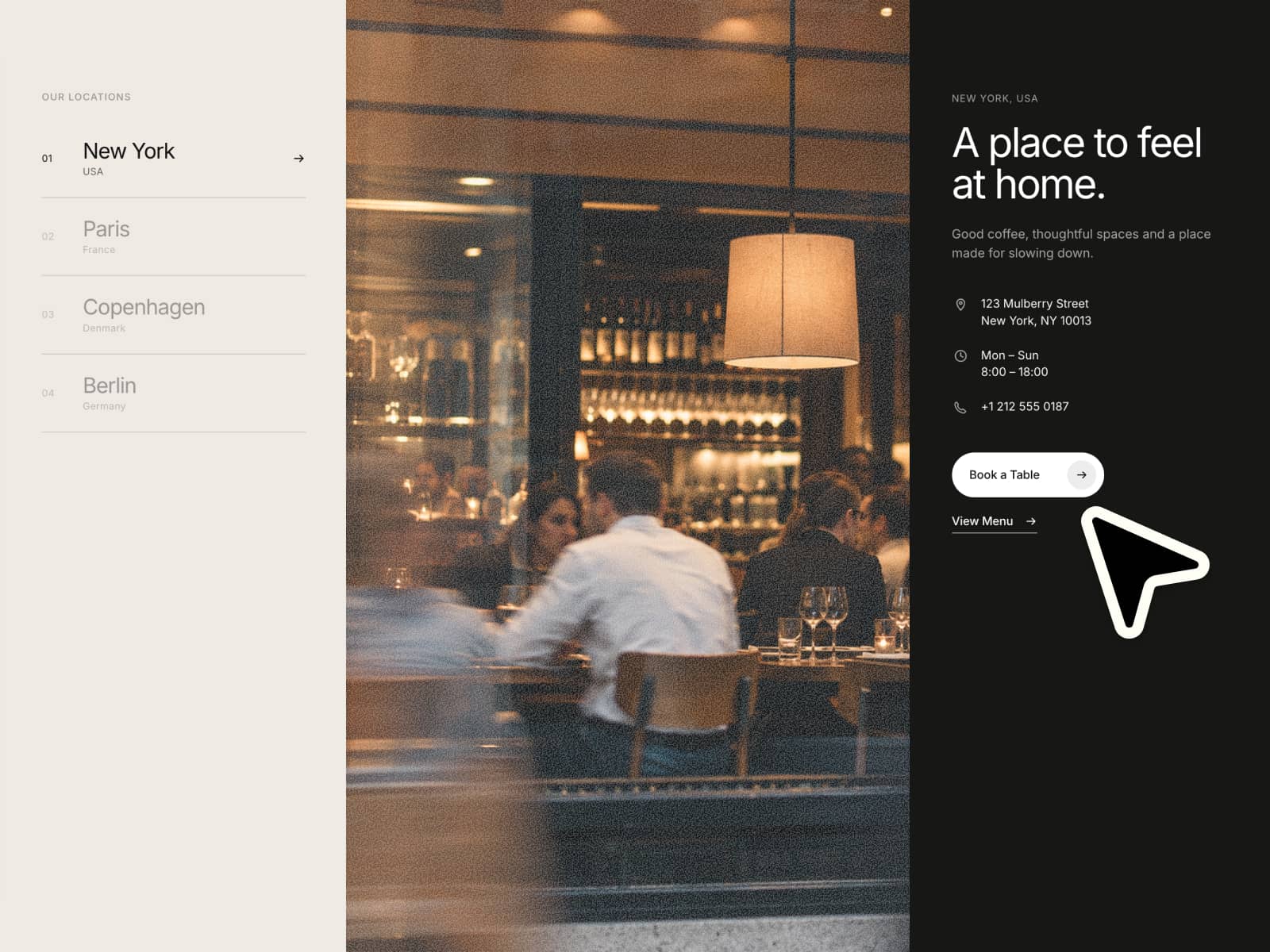
About FluidMediaReveal
FluidMediaReveal turns any image or video into an interactive “reveal” layer. Your pointer movement drives a real‑time fluid simulation that sets transparency, unveiling media where motion occurs. It’s full‑bleed, GPU‑accelerated, and sits transparently over your layout for dramatic, on‑brand reveals.
What You’ll Get
Instant, motion‑driven reveal that feels tactile and premium
Works with images or video, with graceful low‑power fallback
Transparent overlay that preserves your underlying design
Customize in Minutes
Visual: auto‑fit to container; use it as a transparent overlay above backgrounds or content
Behavior: tune dpr, dissipation, forceBias, radius, and contrast for intensity and fade
Layout: control renderer maxDpr; choose pointer eventSource (canvas/window); optional fallback while loading
Controls
mediaType — Input type: video or image. Default: image
image — Image URL when mediaType=image
video — Video URL when mediaType=video
poster — Poster image used in low‑power/autoplay‑blocked cases
loop — Loop playback for video. Default: true
contrast — Reveal contrast (alpha emphasis). Default: 1.0
dpr — Internal sim resolution scale (perf vs quality). Default: 0.2
dissipation — Trail fade speed; higher = faster decay. Default: 0.99
forceBias — Pointer force multiplier (reveal strength). Default: 20
radius — Interaction radius (reveal size). Default: 50
maxDpr — Renderer pixel ratio cap. Default: 2
eventSource — Pointer source: canvas or window. Default: canvas
fallback — Optional React node shown until ready
Perfect For
Hero headers, launch promos, and campaign takeovers
Masked transitions and dramatic media reveals
Portfolios and experimental landing sections
Why It Converts
Motion‑based reveal grabs attention immediately
Transparent layer keeps message and layout readable
Brand‑fit tuning via intensity, radius, and contrast
Built for Framer—no code required
Quick Start
Drop FluidMediaReveal on the canvas and size the container
Set mediaType and provide image or video (plus poster for video)
Tune contrast, then adjust dpr, dissipation, forceBias, radius
Optionally set maxDpr and eventSource; preview and publish