About Folio Flow
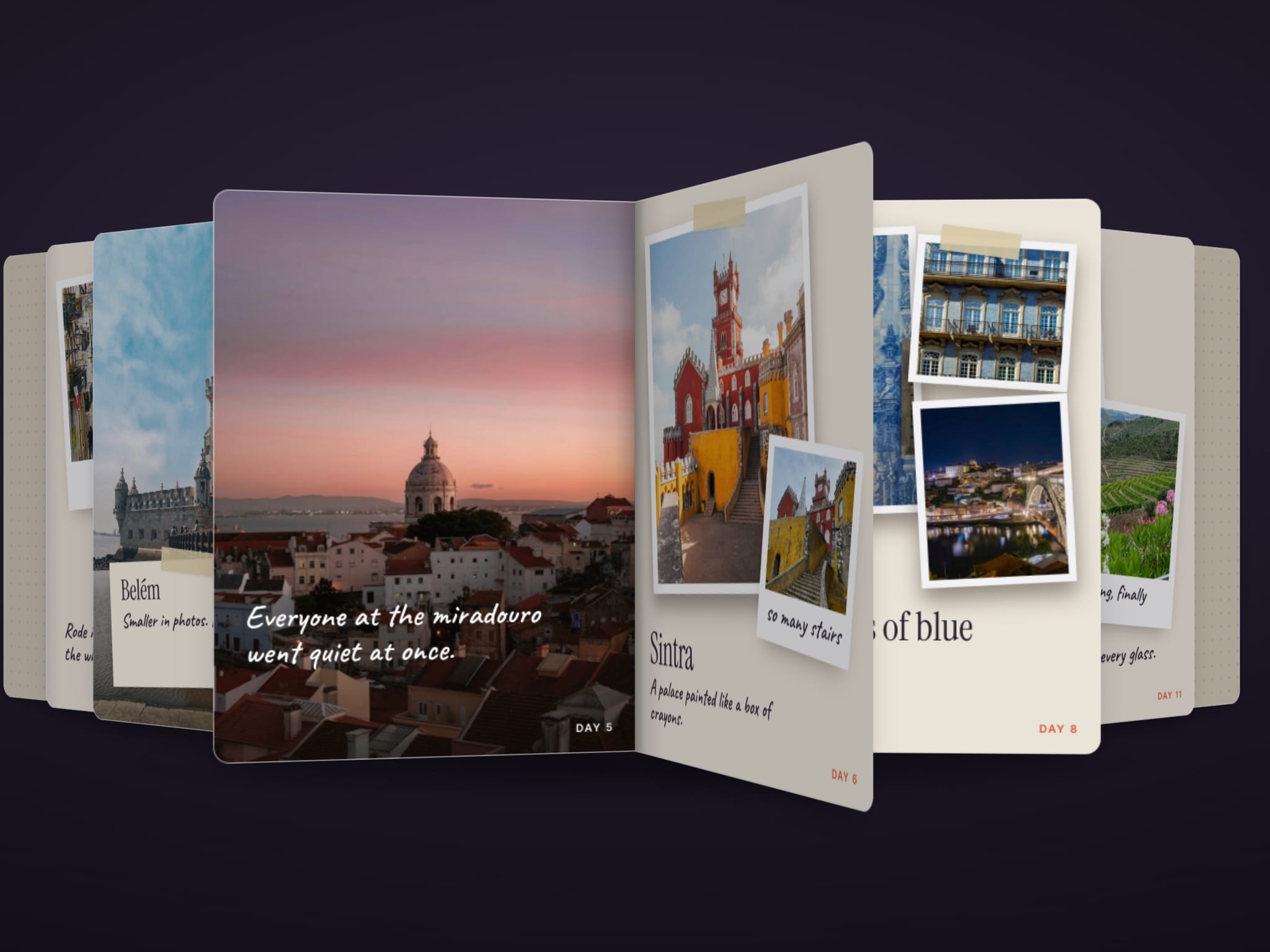
Folio Flow turns a set of pages into an open 3D book. Two pages lie open with a soft fold at the spine. Turn a page and it lifts toward you, swings over the spine and lands on the left, showing the next page on its back. The pages you've read fan out on the left and the rest wait on the right, so the whole book stays in view.
Design your own pages as frames on the canvas and connect them in Content, or use the built-in journal pages with a photo, title, note and date.
Features
• A two-page spread with a fold at the spine and page turns that show both sides
• Read pages fan out on the left and unread pages on the right, in 3D
• Use your own frames as pages. They scale from one design size, so your layout stays intact
• Built-in journal pages that work with no setup
• Turn pages by dragging or flicking, clicking either page, swiping on a trackpad, or with the arrow keys
• A previous and next bar with a page counter, plus optional autoplay
• A two-page book on every screen. On phones the stacks tuck in as a thin edge of pages
• Shows the open book on the canvas, so it's easy to edit
• Respects Reduce Motion and includes screen reader labels
• One code file built on Framer Motion, with no other libraries
Easy to customize
• Up to 40 built-in pages, each with a title, note, date and photo
• Connect any frames as pages, with their own layers and effects
• Set the page size, max height, corner radius and start page
• Shape the book with Fold, Fan Step, Fan Depth, Fan Angle, Stacked and Perspective
• Pick the paper, endpaper, ink, accent and control bar colors
• Choose the turn transition, and turn drag, trackpad swipes and autoplay on or off
Setup
1. Add Folio Flow to a section. Give it a width and a height, or set both to Fill.
2. Edit the built-in pages in the properties panel, or design pages on the canvas at 420 × 560 and connect them in Content.
3. If your pages use another size, set Design Width and Design Height to match.