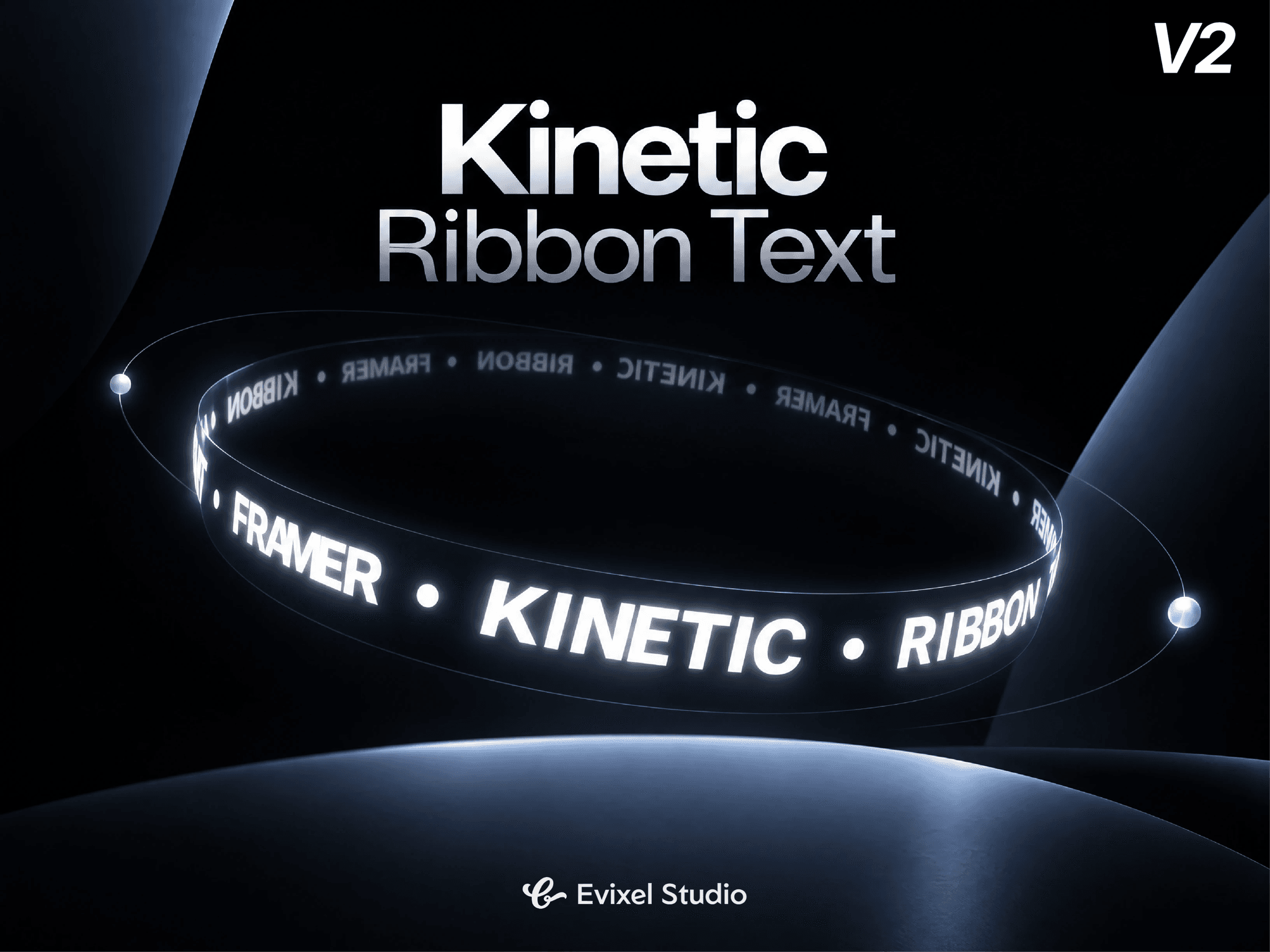
About Kinetic Ribbon Text
Create striking, continuous 3D kinetic typography for hero sections, badges, and headers. Kinetic Ribbon bends live text along a 3D cylindrical ring using CSS 3D transforms and Framer Motion—delivering fluid 60fps rotation, scroll interaction, and momentum drag with zero 3D canvas overhead.
Key Features
True 3D Ring Geometry: Position text in 3D space with 3-axis tilts (X, Y, Z), perspective control, inward/outward facing, sine wave undulation, and Möbius-style ribbon twists.
Dual Motion Drivers: Combine smooth continuous auto-spin with scroll-scrubbed rotation, stabilized by critically damped spring physics.
Interactive Drag & Flick: Grab and spin the ring with touch or mouse, featuring realistic inertia momentum and hover reactions (pause, reverse, or speed up).
Depth Fade & Scaling: Automatically dims and scales background letters as they curve away from the camera for realistic depth without expensive filters.
Smart Auto-Fill: Intelligently calculates glyph counts to wrap the ring radius perfectly, or set manual repeats and density.
Ultra Lightweight: Built with pure CSS transforms and Framer Motion for instant page loads and zero external 3D library dependencies.
Property Controls
Content: Single text string or custom word lists with individual colors, separators, letter casing, and auto/manual density.
Typography: Full web font customization, size, letter spacing, line height, and multi-layer neon glow.
3D Ring: Radius, perspective, 3-axis tilts, facing direction, wave height/cycles, twist, and backface culling.
Animation & Depth: Auto-spin speed, scroll speed factor, spring smoothing, distance-based opacity/scale fade, and in-view triggers.
Interaction: Drag-to-spin toggle, drag sensitivity, inertia friction, and hover states.
Quick Start Guide
Drop the component onto your Framer canvas.
Enter your copy or word list in the Content panel.
Adjust the Radius and Tilt in the 3D Ring settings.
Choose an animation mode (Auto Spin, Scroll, or Both) and preview!