About Proximity Scale
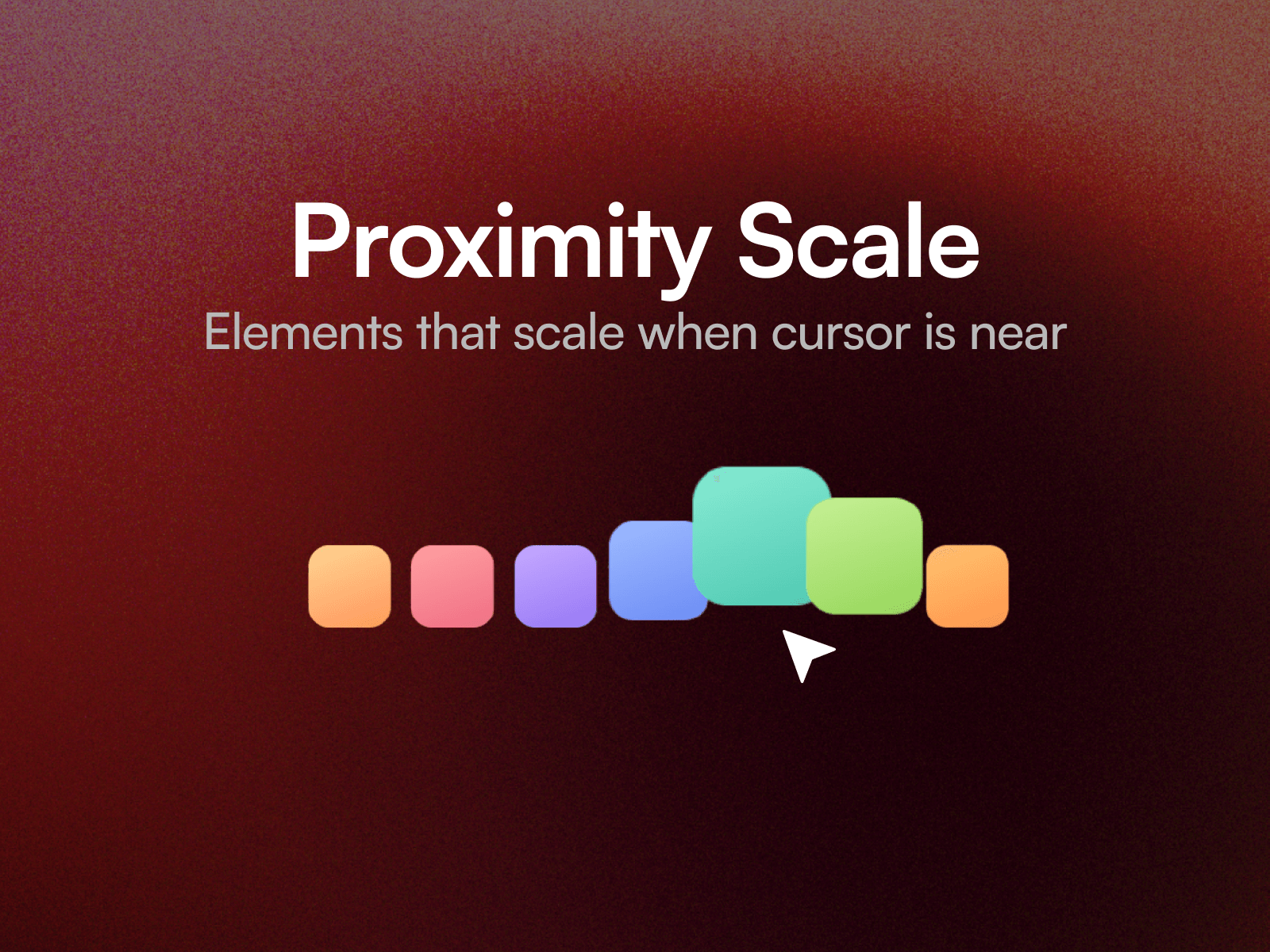
Proximity Scale takes a row or column of layers and scales each one by how close the cursor is to it. Neighbours swell in sequence rather than a single item
snapping on its own, which is what makes a dock feel physical instead of twitchy.
Add any number of layers to the Items slot and tune the curve on the canvas. Twelve property controls cover max scale, influence radius, lift, direction, gap, alignment, growth origin, and follow and return timing.
How it behaves
Each item scales on a smooth bell curve measured from its own centre to the cursor, and lift moves with scale so items rise as they grow. Influence sets how wide that curve spreads: raise it to pull more neighbours in for a soft ripple, lower it for a tighter, more pointed response.
Recommended settings
Dock. Row, gap 16, align End, grow from Bottom, max scale 1.7, influence 150, lift 18.
Even row. Align Center, grow from Center, lift 0, max scale 1.4, influence 120.
Sidebar. Column, grow from Center, lift 10, influence 130.
Setting up
Paste the component link into your Framer project's Insert panel. Nothing to install. The items do not have to be identical, or square. Any layers work.
Good to know
Every layer in the Items slot needs to sit at the top level of your page, alongside the breakpoint frame. That is how Framer slots work, and it applies to each item rather than just the first.
Motion runs on published sites and in preview. On the canvas the component holds still on purpose, so it stays easy to select. It responds to a mouse only, so scrolling on a phone never triggers it.