

About File Upload
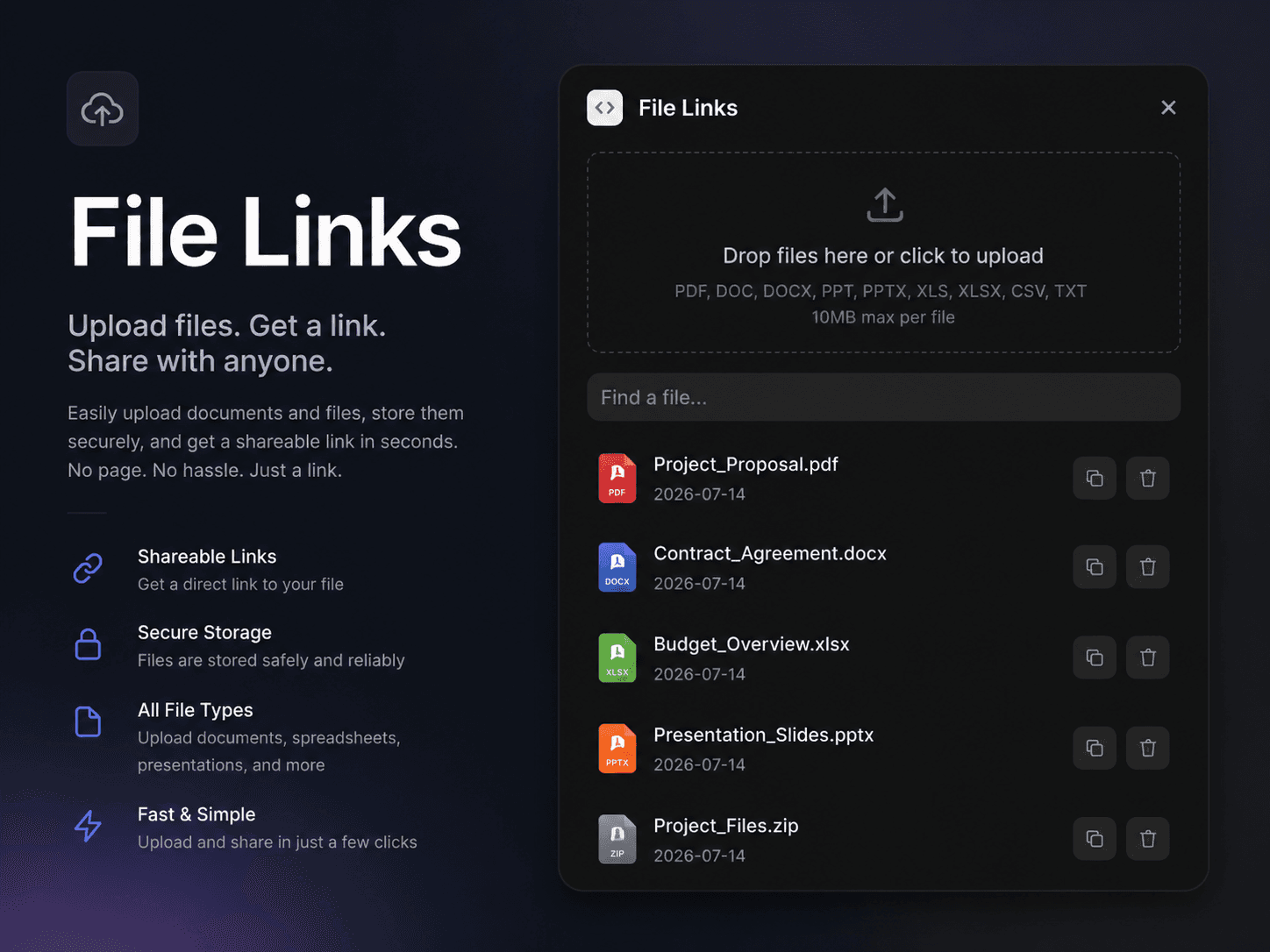
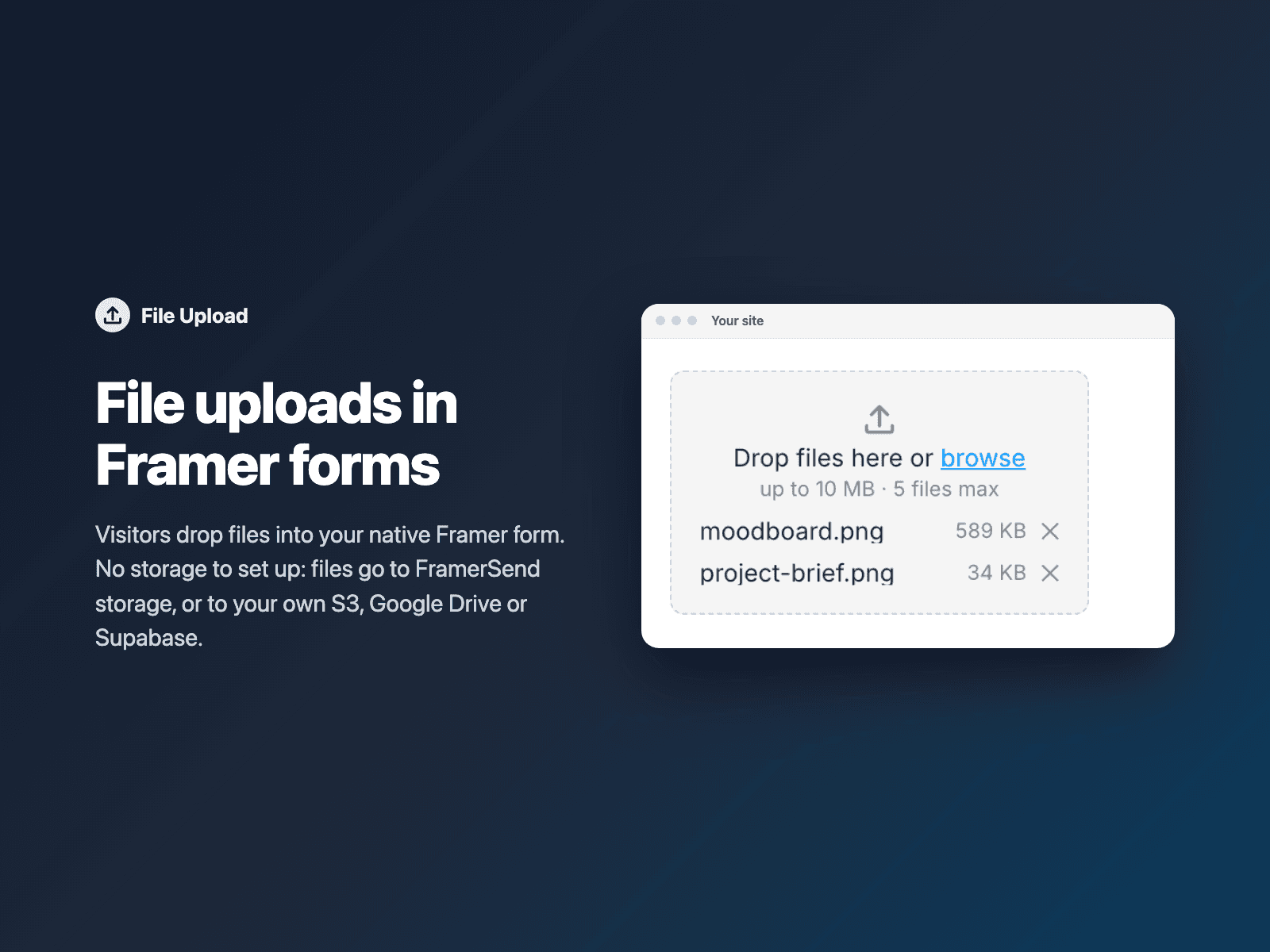
Add a file upload field to your native Framer form.
Visitors drop files onto the field or browse for them, and your form receives the file links under the field name you choose, next to the other fields. No storage setup needed: files go to FramerSend storage (10 MB per file, 1 GB total, kept 90 days, private links). Want bigger files or to keep them in your own storage? Connect AWS S3 (or Cloudflare R2, DigitalOcean Spaces), Google Drive or Supabase Storage to the form; that is optional.
How it works:
1. Select your Form on the Framer canvas, open File Upload, sign in with FramerSend, pick your form and click Insert file upload.
2. In the right panel, set the field name, accepted file types and how many files a visitor may add.
3. Optional: in FramerSend, connect your own storage to the form (as its destination, or as its file storage next to your CRM).
Options: multiple files with a progress bar for each, drag and drop, required, accepted file types, font, colors, radius and padding. With your own storage: up to 100 MB per file (25 MB by default) and private links that expire or public links. Scripts and executables are always blocked.
The field is a code component written into your project. It loads no external scripts; it only talks to framersend.com (to sign each upload) and to the storage URL it signs. Files upload straight from the visitor's browser to storage, never through FramerSend's servers.
Pricing: included in every FramerSend plan. Free for 30 days with no card, then from $5/month. Details at framersend.com/pricing.