
About Multi-Step Form
Turn a native Framer form into a multi-step form.
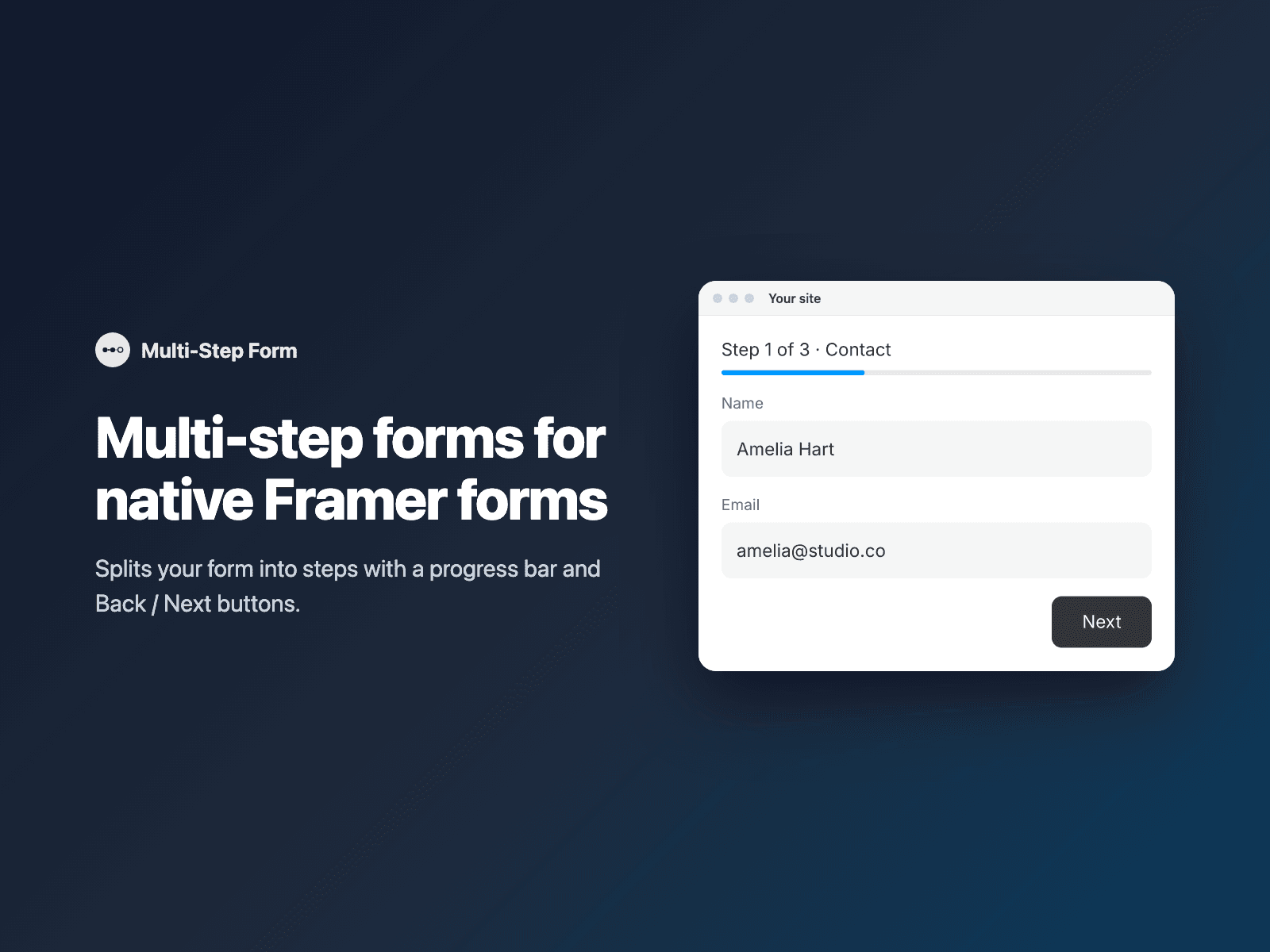
Insert the component at the top of your form. On your published site it groups the form's fields into steps and shows one step at a time, with a progress bar, an optional "Step 1 of 3" label and step titles, and Back and Next buttons. Next checks the fields of the current step before moving on, and the submit button only appears on the last step. Pressing Enter in a field moves to the next step.
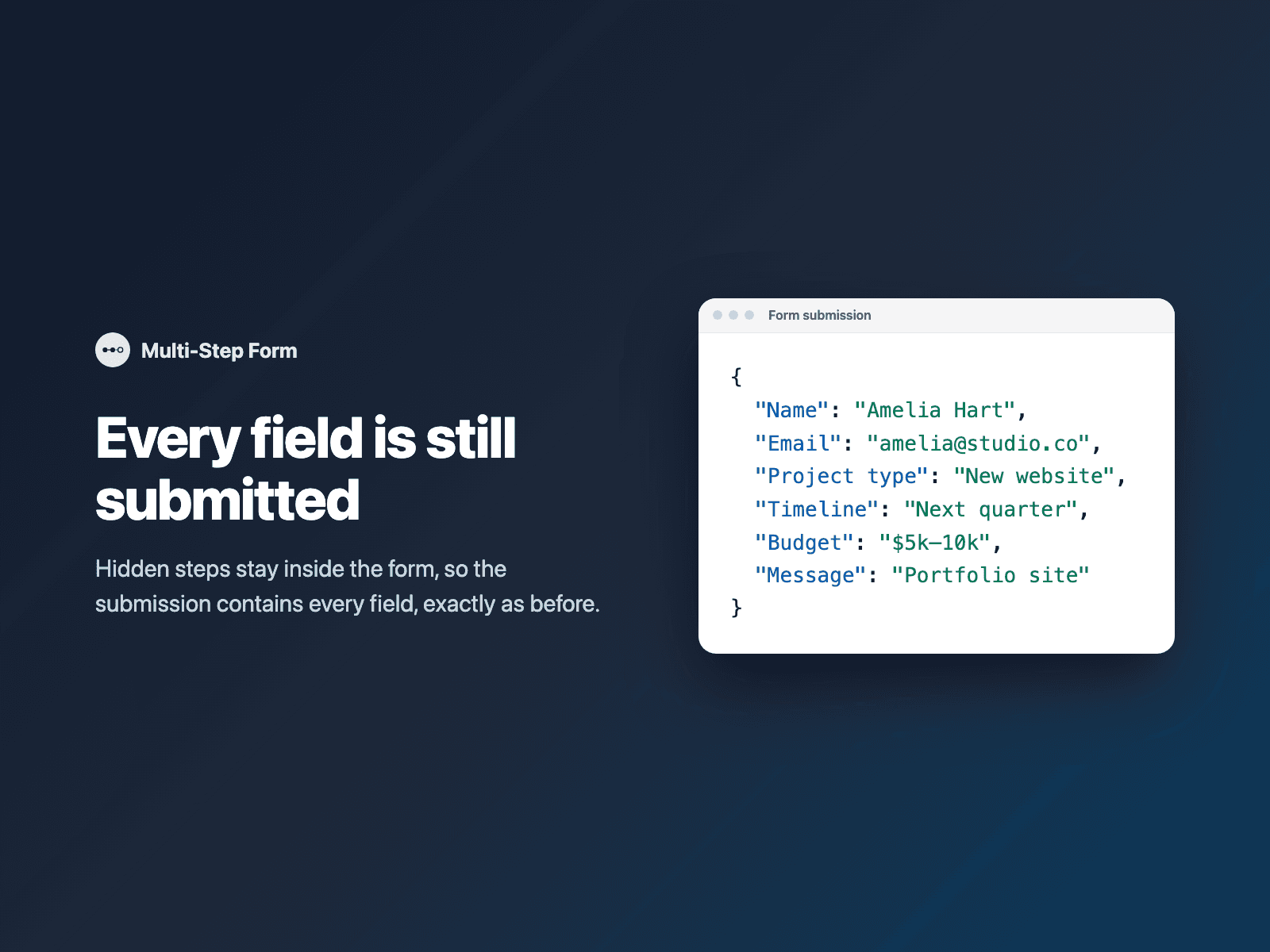
Hidden steps stay inside the form, so the submission contains every field, exactly as before. It works with every form destination: email, Google Sheets, webhooks, or FramerSend.
How it works: select your Form on the canvas, open Multi-Step Form and click Make multi-step. It is added as the first layer of the form. In the right panel, set the number of steps, or how many fields go in each step (for example 2, 2, 1), and the step titles. Publish: the canvas shows a preview of the progress bar; the steps run on the published site.
Options: step count, fields per step, step titles, step count label, progress bar, button labels, scroll to the top of the form between steps, font, colors, radius and padding.
The component is written into your project. It loads no external scripts and makes no network requests on your site.
Pricing: included in every FramerSend plan. Free for 14 days with no card, then from $5/month. Details at framersend.com/pricing.