About Kerning Visualizer
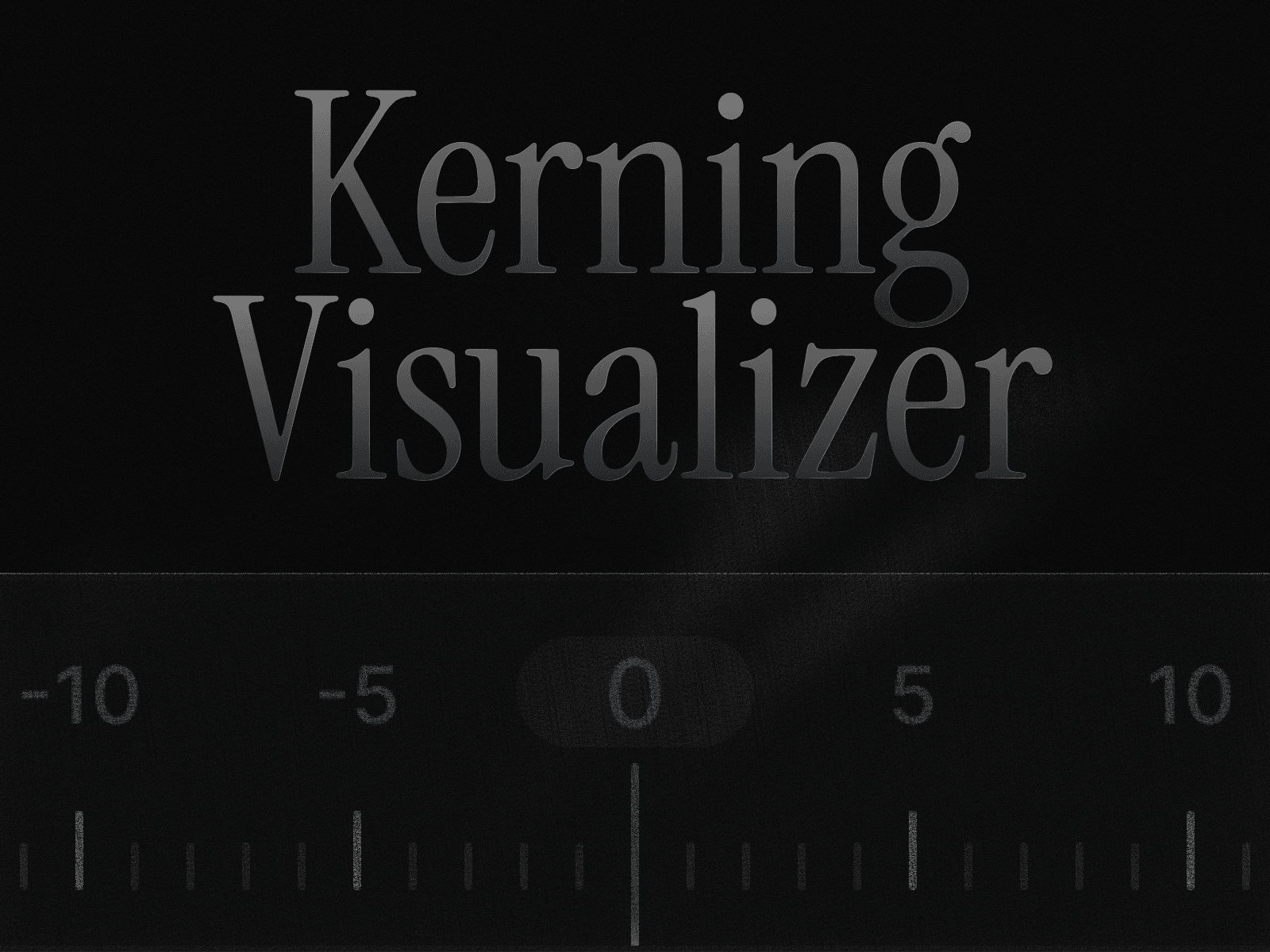
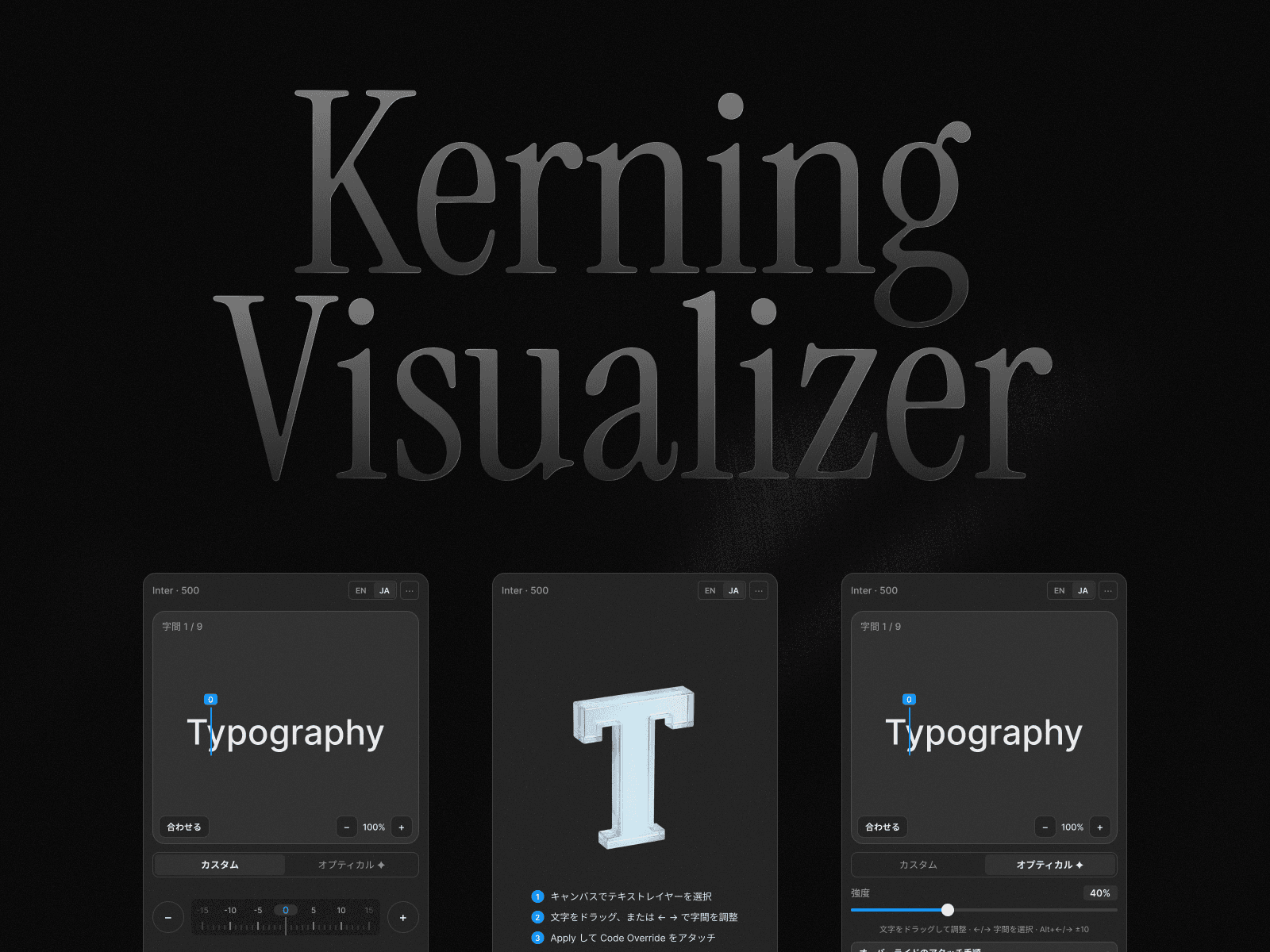
Adjust the space between any two characters visually. Drag letters on a real-font preview, slide the ruler, or let optical kerning compute spacing from the glyph shapes. Apply writes a code override that renders the result in Preview and on your published site.
Features
Drag a letter to adjust the gap before it (Shift snaps to steps of 10)
Ruler slider with a live value — click it to type an exact number
Optical kerning with a 0–200% strength slider; manual tweaks compose on top
Color-coded guides and full keyboard control (1 / 10 / 100 steps, 1/1000em)
Kerning is saved on the text layer and restored when you reopen the plugin
One shared override file keyed by text content, JSON export, EN / JA UI
Quick start
Select a text layer and adjust the spacing.
Click Apply.
Once per layer, choose VisualKerning and withVisualKerning in Code Overrides.
Check the result in Preview or on the published site.
Note: overrides run in Preview and on published sites — the canvas keeps its original spacing. Uploaded custom fonts preview with a fallback font, while the values still apply correctly.
---
文字と文字のあいだを見たまま調整。実フォントのプレビュー上で文字をドラッグ、ルーラーで微調整、または字形から自動計算するオプティカルカーニング。結果は Code Override としてプレビューと公開サイトに反映されます。
機能
文字をドラッグして、その前の字間を調整(Shift で 10 単位スナップ)
ルーラーの現在値をクリックすると数値を直接入力
オプティカルカーニングは強度 0〜200% で連続調整、手動調整と合成
色分けガイドとキーボード操作(1 / 10 / 100 単位、1/1000em)
調整値はテキストレイヤーに保存され、次回開いたときに復元
テキスト内容をキーとする共有オーバーライド、JSON 書き出し、英日 UI
使い方
テキストレイヤーを選択して字間を調整
「反映」をクリック
レイヤーごとに 1 回、Code Overrides で VisualKerning の withVisualKerning を選択
プレビューまたは公開サイトで確認
補足: Override はプレビューと公開サイトで動作し、キャンバスの字間は変わりません。カスタムフォントは代替フォントでプレビューされます(調整値は正しく適用されます)。