Pair a Latin font with a Japanese font and apply them automatically across Preview and the published site — without writing custom CSS.
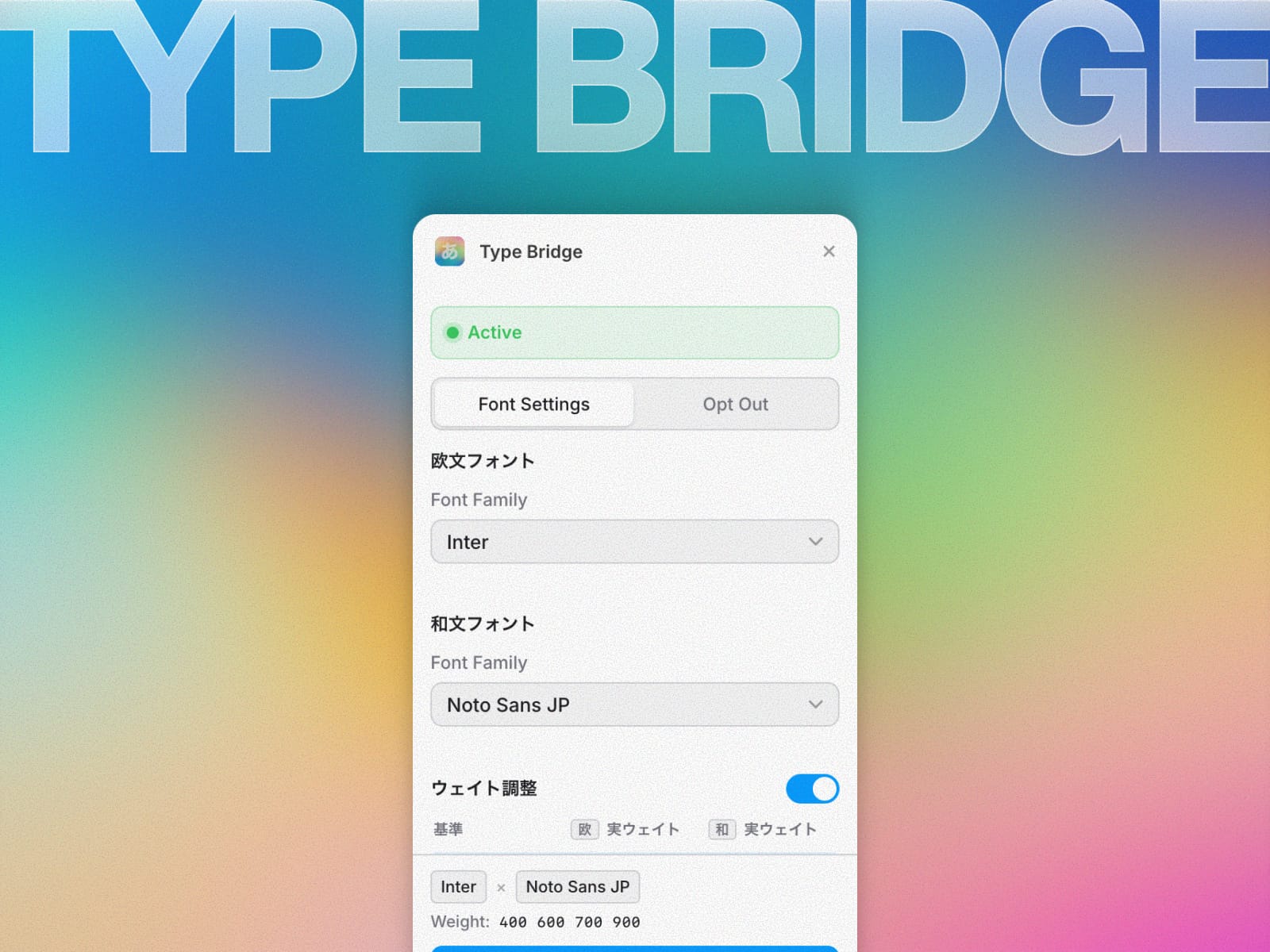
Dual font pairing — Pick a Latin family and a Japanese family independently.
Three font sources — Google Fonts presets, Adobe Fonts (Kit ID + PostScript name), and custom families from Framer uploads.
Auto weight detection — Scans the canvas and only loads weights actually used.
Per-language weight remapping — Remap each declared weight to a different actual weight per language when Latin and Japanese need different weights for visual balance (Google Fonts only).
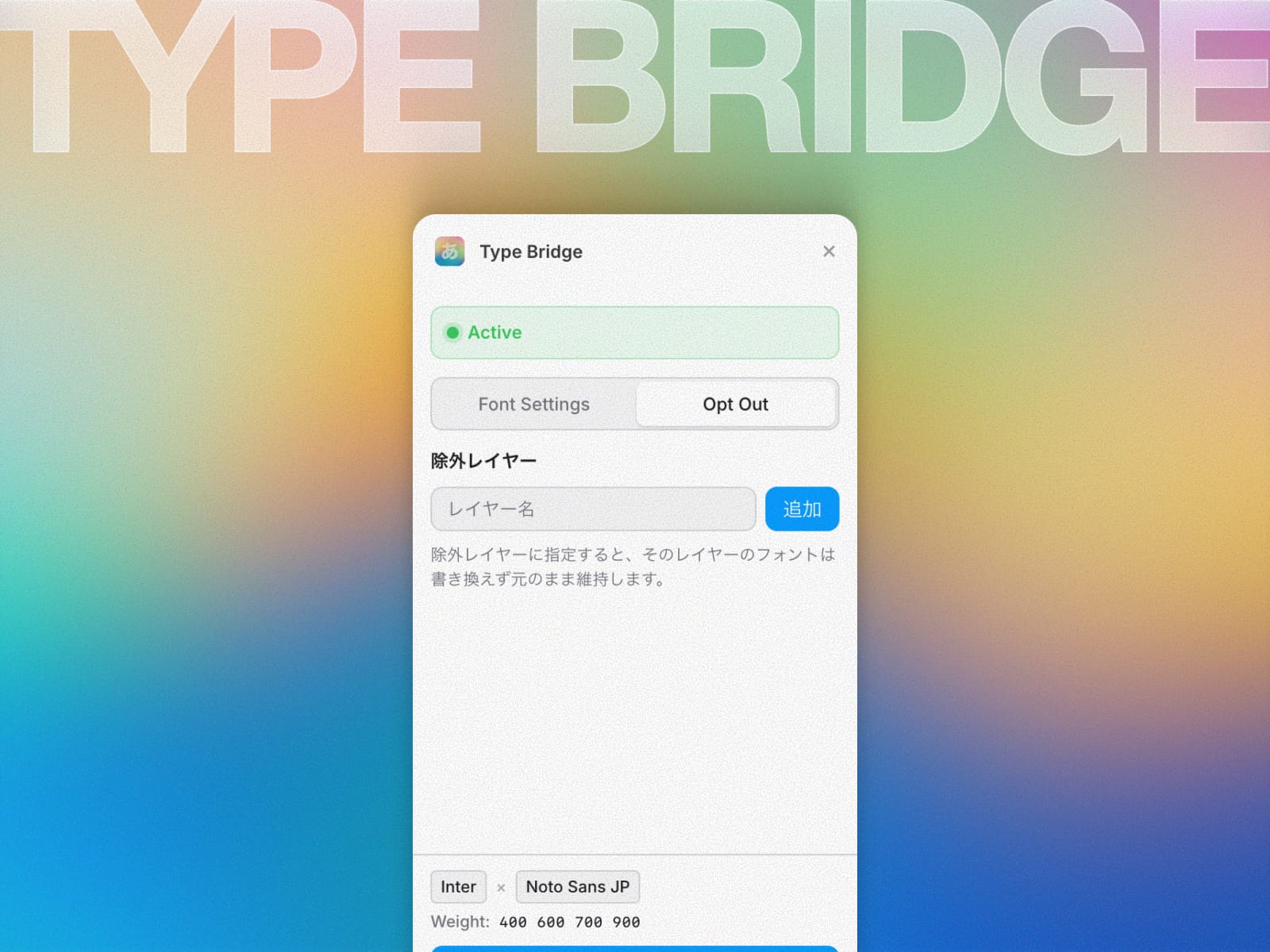
Opt-out layers — Keep specific layers with their original fonts instead of overriding them.
Live summary — The footer shows the currently applied fonts, weights, and opt-out count.
Open the plugin from the plugin menu.
On the Font Settings tab, choose a Latin family and a Japanese family.
(Optional) On the Opt Out tab, add layer names that should keep their original fonts.
(Optional) Toggle Weight adjustment on to remap per-language actual weights.
Click Apply. Once active, the button switches to Update.
Open Preview or publish the site to confirm the result.
Click Remove twice to clear everything the plugin has injected.
Adobe Fonts is supported, but a one-time setup in your Adobe Fonts account is required.
Sign in to fonts.adobe.com, open My Adobe Fonts → Web Projects, and create a new project or open an existing one containing the fonts you need.
Adobe Fonts only serves fonts on domains listed in the Kit. Add your published site's custom domain, the Framer-hosted preview domains you use (copy them from the address bar when Preview is open), and any staging URL.
The Kit ID is shown in the embed code of the Web Project (for example, abc1234). The PostScript name is on the font family page, under the Web tab, next to font-family (for example, adobe-caslon-pro) — lowercase and hyphenated, not the display name.
In Font Settings, open the Font Family dropdown, choose Adobe Fonts, paste the Kit ID and PostScript name. Repeat for the other language if it also uses an Adobe font. Click Apply.
Open DevTools Network tab and confirm the Kit CSS returns 200 and the chosen font file loads. If the font falls back to a system typeface, check the domain whitelist first.
Weight Mapping is not available when either side uses Adobe Fonts. Unpublished Kits will not serve fonts — always publish after editing.
The opt-out feature identifies layers through DOM attributes that only exist on the published site. In Preview, all layers — including opt-outs — will render with the newly applied font pair. Verify opt-out behavior on a published or staging site.
Framer (Web version and desktop app both supported)
For Adobe Fonts: a published Web Project (Kit) with every deploy domain whitelisted
---
欧文フォントと和文フォントを別々に指定し、Preview と公開サイトに自動適用する Framer プラグイン。独自 CSS を書かずに、日英混植のきれいなタイポグラフィを実現します。
デュアル指定 — 欧文と和文を独立して選択可能。
3 種類のフォントソース — Google Fonts プリセット、Adobe Fonts (Kit ID と PostScript 名)、Framer アップロードのカスタムフォントに対応。
ウェイト自動検出 — キャンバス上で実際に使われているウェイトだけを読み込みます。
言語別ウェイトマッピング — 欧文と和文で見栄えのバランスが取れない場合、基準ウェイトに対して言語ごとに別の実ウェイトをマッピング可能(Google Fonts のみ)。
除外レイヤー — 特定レイヤーだけ元のフォントを維持します。
ライブサマリー — 適用中のフォント・ウェイト・除外レイヤー数をフッターに常時表示。
プラグインメニューから Type Bridge を開きます。
Font Settings タブで欧文と和文のファミリーをそれぞれ選びます。
(任意) Opt Out タブで、元フォントを維持したいレイヤー名を追加します。
(任意) ウェイト調整 スイッチを ON にして、言語ごとの実ウェイトをマッピングします。
フッターの 適用 をクリック。反映後はボタンが 更新 に切り替わります。
Preview を開くか、公開サイトで反映を確認します。
削除 を 2 回クリックすると、挿入内容が全てクリーンアップされます。
Adobe Fonts に対応していますが、Adobe Fonts 側での事前準備が必要です。
fonts.adobe.com にサインインし、マイフォント → Web プロジェクト を開きます。新規作成、または使いたいフォントを含む既存プロジェクトを開きます。
Adobe Fonts は Kit に登録されたドメインのみでフォントを配信します。公開用の独自ドメインに加え、Preview を開いたときにブラウザのアドレスバーに表示される Framer のドメイン、およびステージング URL も登録します。
Kit ID は Web プロジェクトの埋め込みコードに表示される値(例: abc1234)。PostScript 名は各フォントファミリーのページの Web タブにある font-family 欄の値(例: adobe-caslon-pro)で、小文字とハイフン構成のため表示名とは異なります。
Font Settings タブで Font Family ドロップダウンから Adobe Fonts を選択し、Kit ID と PostScript 名を貼り付けます。もう一方の言語でも Adobe Fonts を使う場合は同じ手順を繰り返し、適用 をクリックします。
ブラウザの DevTools の Network タブで、Kit CSS が 200 を返し対象のフォントファイルが読み込まれているかを確認します。システムフォントにフォールバックする場合は、まずドメインのホワイトリスト設定を確認してください。
どちらか一方でも Adobe Fonts を使っている場合、ウェイト調整は無効化されます。Kit が非公開状態だとフォントは配信されないため、編集後は必ず公開してください。
除外機能は公開サイト側の DOM 属性を手がかりにレイヤーを識別します。そのため Preview 画面では Opt Out は反映されず、登録済みの除外レイヤーも新しいフォントで描画されます。Opt Out の動作確認は 公開 (Publish) 後または Staging 環境 で行ってください。
Framer (Web 版・デスクトップアプリの両方で動作確認済み)
Adobe Fonts を使う場合: 公開先と Preview 用のドメインをすべて登録した Web プロジェクト (Kit)
v1.0.2 fixes the light-theme issue raised in the previous review.
The earlier release defined theme tokens on :root, where the data-framer-theme attribute is not present, so the fallback dark values were always used. The plugin now binds its tokens under [data-framer-theme="dark"] and [data-framer-theme="light"] selectors following the documentation example, and the UI updates instantly when Framer's app theme is toggled.