About Time Slots
Add time slots to your native Framer form, so visitors can book a call, a demo, a table or an appointment.
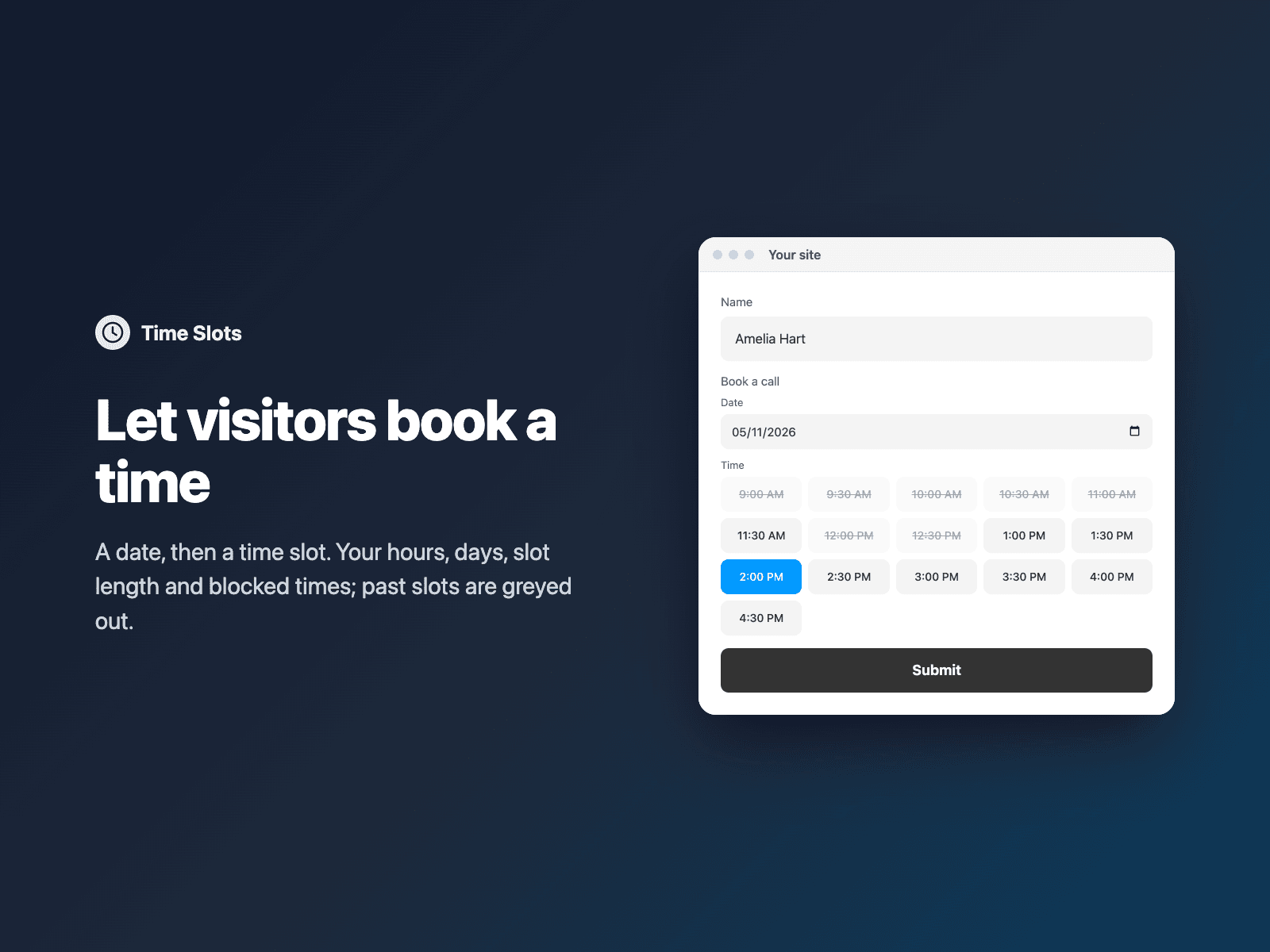
Visitors pick a date with their browser's own date picker, then a time from a grid of buttons. You set the opening hours, the slot length (15 minutes to 2 hours), the days of the week you are available, how much notice you need and how far ahead people can book. Past slots and slots inside the notice period are greyed out, and closed days show your own message.
Block the times you are not available, one per line:
12:00-13:00 (every day, for example lunch)
16:30 (that one slot)
2026-12-24 (a whole day)
2026-12-24 09:00-12:00 (part of a day)
Fri 15:00-17:00 or Sat (a weekday)
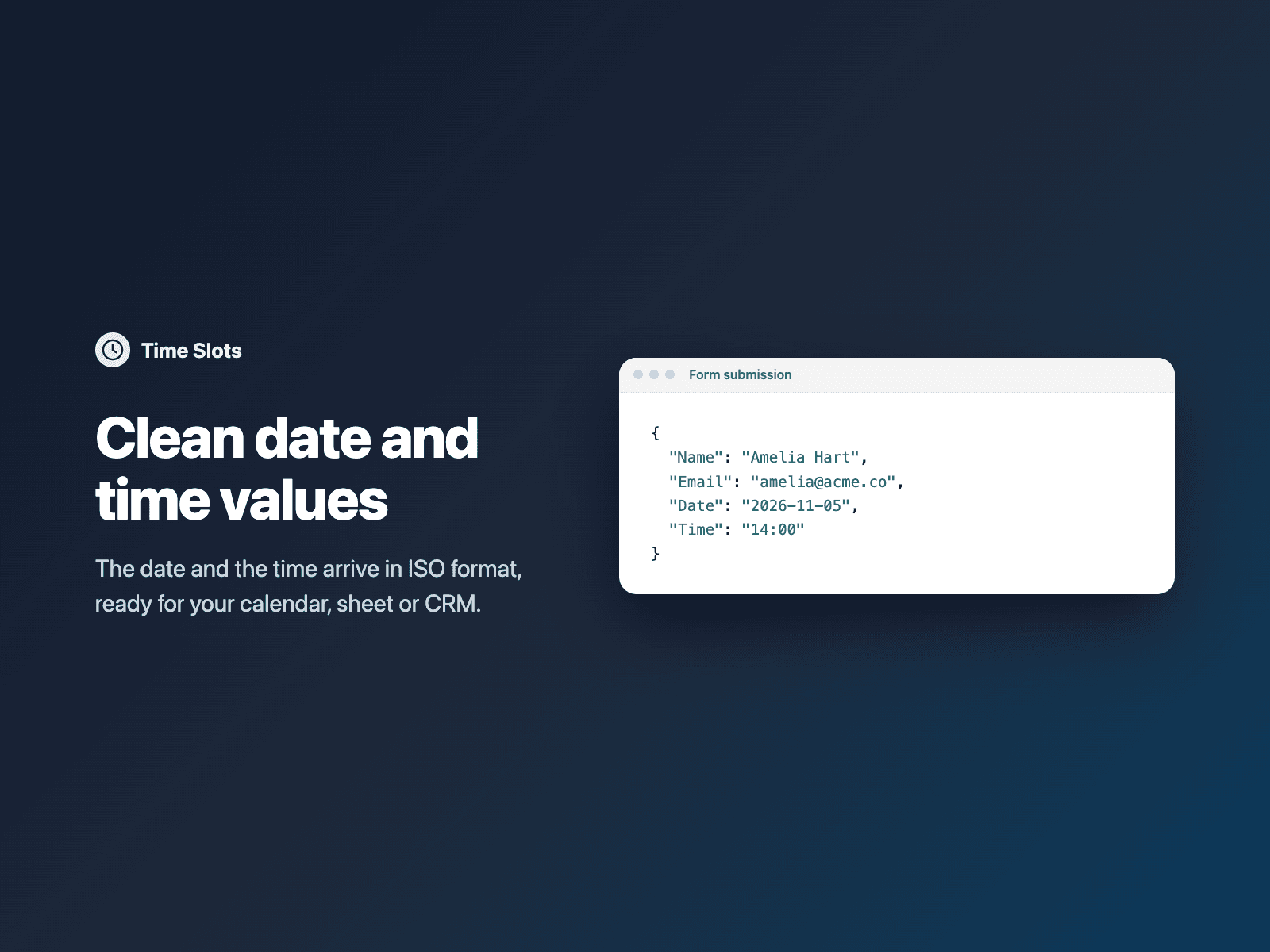
Your form receives the date and the time in ISO format, for example "Date": "2026-11-06" and "Time": "14:30", under the field names you choose. Or send both as one field, "2026-11-06 14:30". Turn the date picker off to collect a preferred time only. It works with every form destination: email, Google Sheets, webhooks, or FramerSend.
How it works:
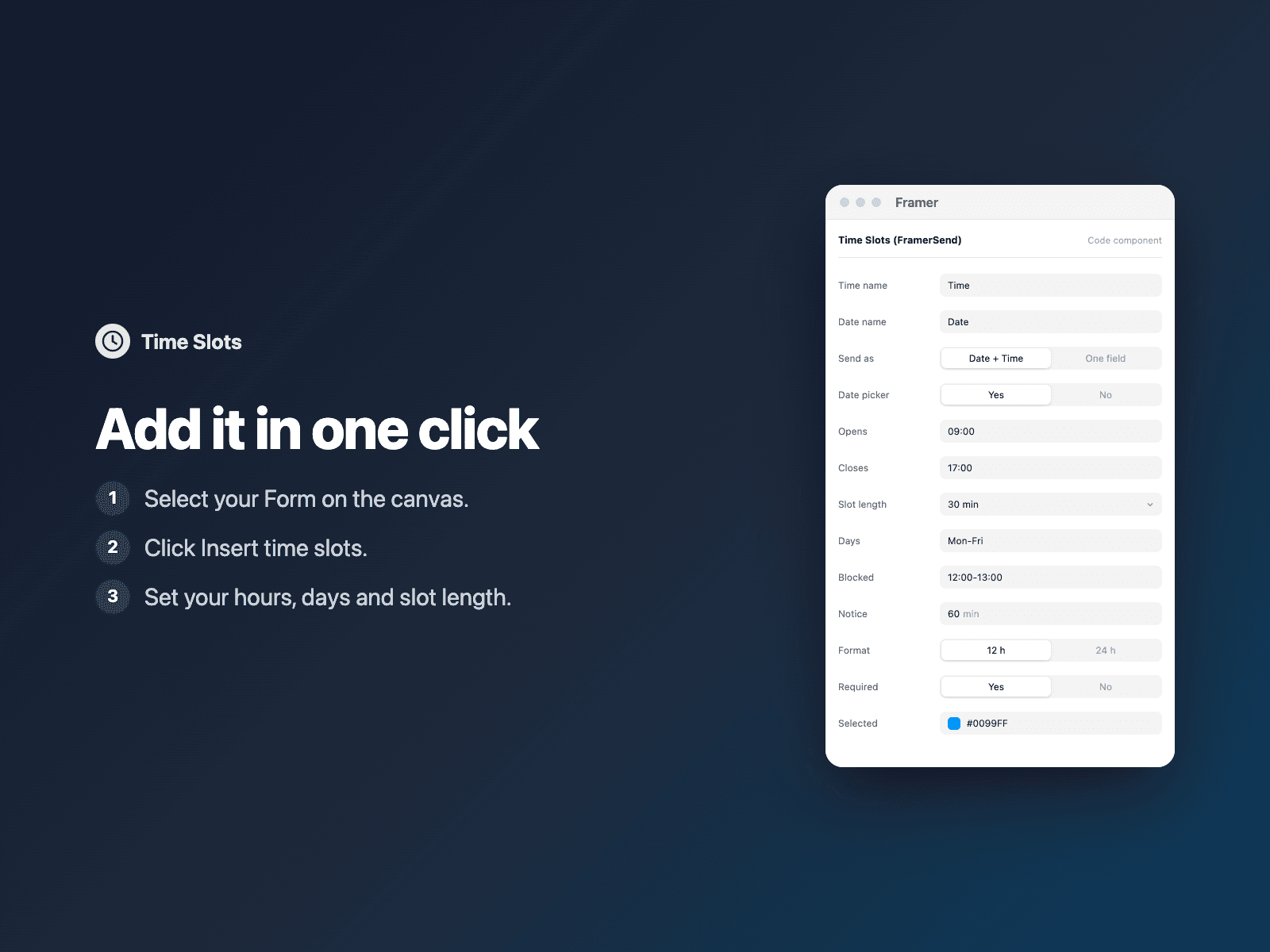
Select your Form on the canvas.
Open Time Slots and click Insert time slots. It is added above the submit button at full width.
In the right panel, set your hours, days and slot length.
Options: field names, one combined field, date picker on or off, hours, slot length, days, blocked times, notice, days ahead, 12 h or 24 h labels, hide unavailable slots, required with your own error text, all labels, sizes, colors and fonts.
Times are the visitor's local time. Pair it with Date Range when you need a start and an end date instead.
Accessible: the slots are a keyboard-friendly radio group. If a required time is missing, the form does not submit and shows your error text.
The field is a code component written into your project. It loads no external scripts and makes no network requests on your site.
Pricing: free forever with a free FramerSend account, no card needed. Plans (from $5/month) add the connectors. Details at framersend.com/pricing.