About Variable (Design token for Framer)
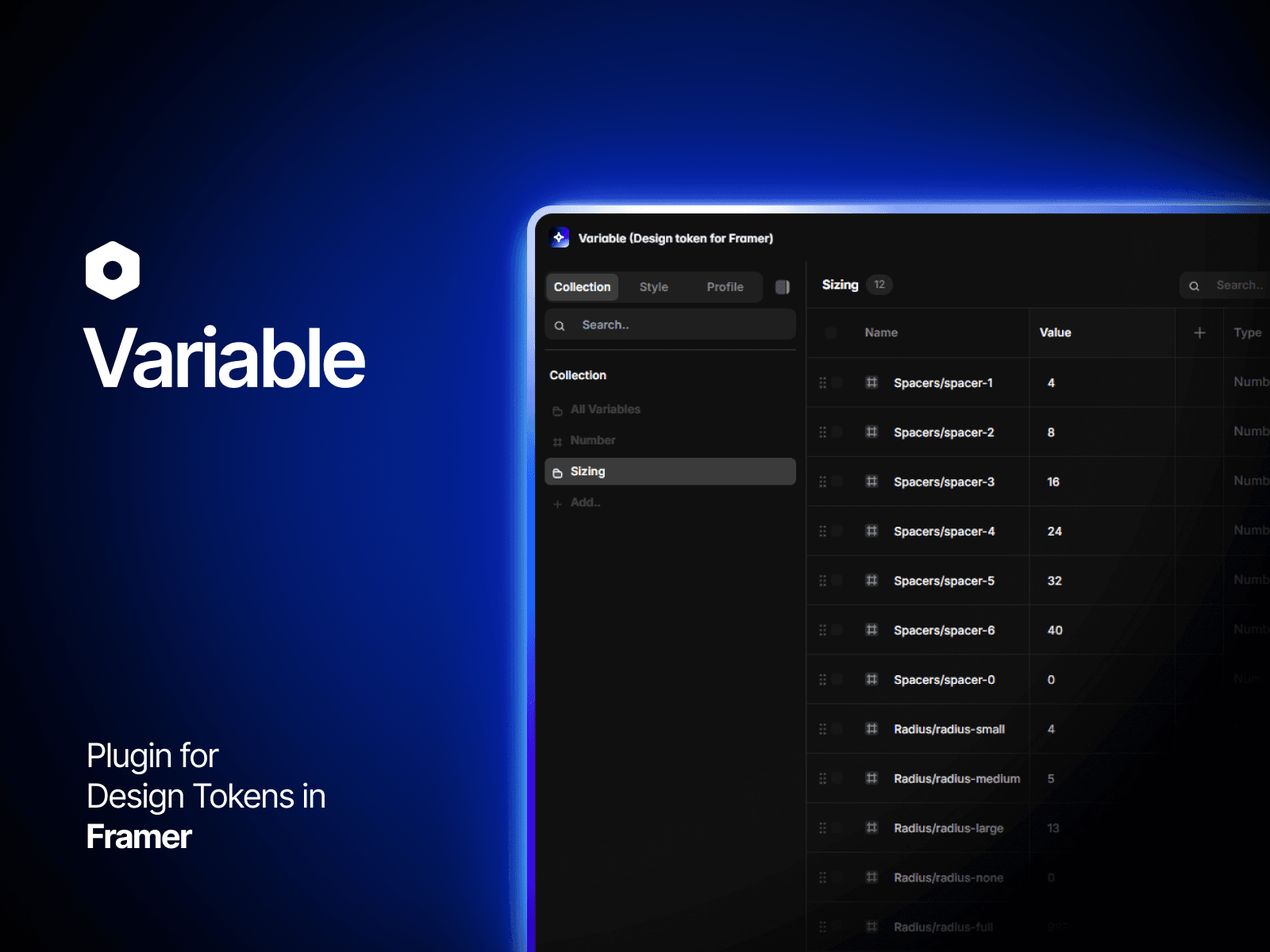
Variable — Design Token for Framer
A Framer plugin to manage design tokens directly from the canvas. Create, organize, and bind tokens to elements with real-time updates.
Key Features
1. Variables & Data Types
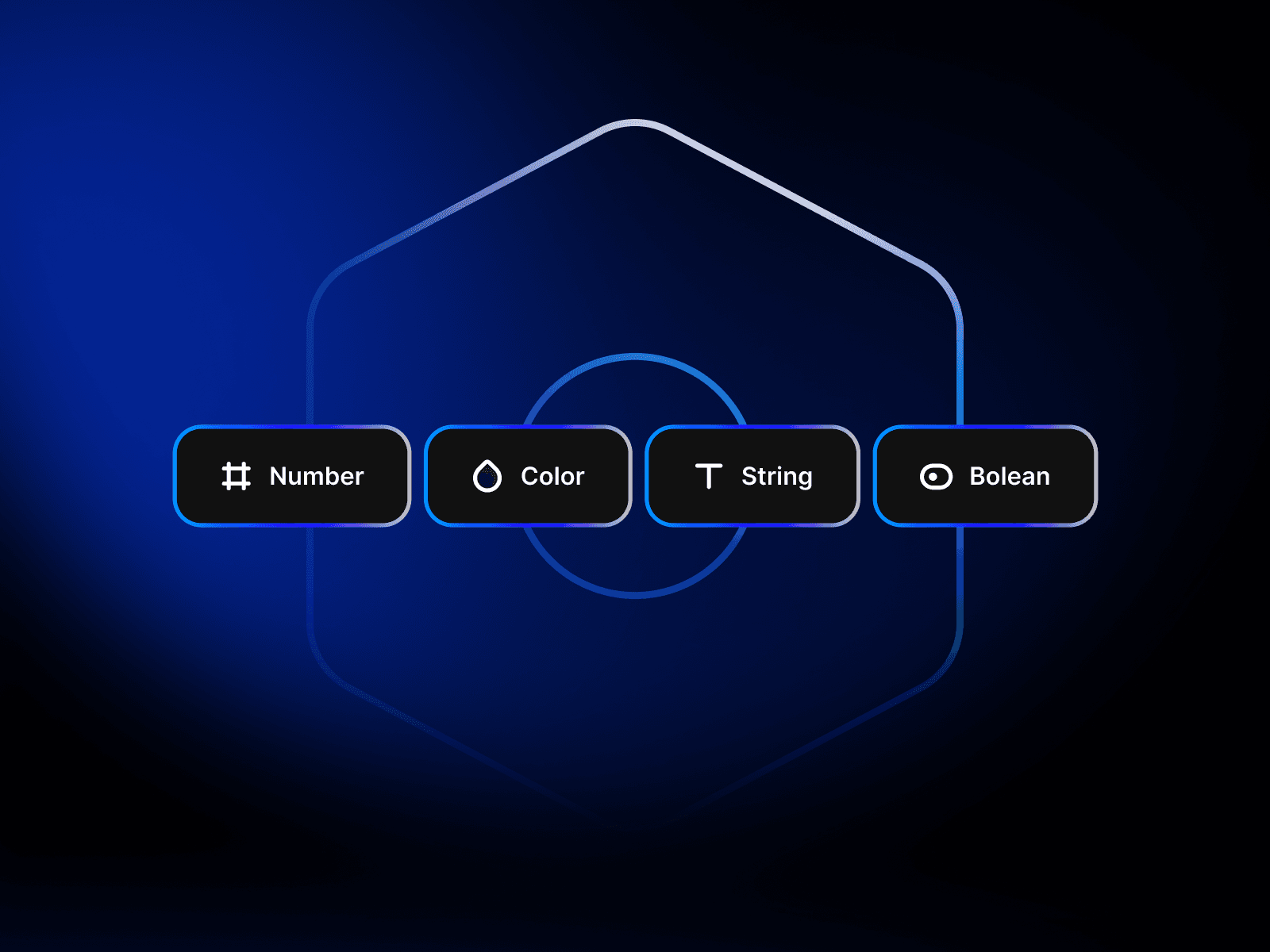
11 Types: Color, Number, String, Boolean, Dropdown, Typography, Spacing, Sizing, Radius, BorderWidth, Opacity.
Aliases & Math: Reference tokens ({path/to/token}) or perform calculations ({spacing/md} * 2).
Scopes: Restrict variables to specific properties.
2. Collections & Multi-Mode
Modes: Support Light/Dark, Desktop/Mobile, etc., with per-mode values.
Breakpoint Auto-Switch: Switches modes automatically based on frame width.
3. Canvas Binding
Bind variables directly to Framer element properties:
Layout & Spacing: Padding, Gap, Grid, Width/Height, Min/Max size, Overflow.
Visual Style: Fill, Border (Width, Color, Radius per-side), Opacity, Z-Index, Visibility, Stack Direction, Wrap.
Typography: Font Family, Size, Weight, Line Height, Letter/Paragraph Spacing, Text Color, Alignment, Truncation, Transform.
4. Import / Export
Import: W3C DTCG (.json), Figma Tokens (.tokens.json), Custom JSON.
Export: JSON, W3C DTCG (.w3c.json), and AI Design System Prompts.
5. Productivity
Multi-Selection & Component Support: Bind multiple elements simultaneously; changes propagate to master components and across all pages.
Workflow Tools: Autocomplete (/), resizable table, and responsive UI.
How to Use
Open Variable Plugin in your Framer project.
Create a Collection: Click + in the Collection sidebar.
Add Variables: Select a type, name it, and set a value.
Bind to Canvas: Select Frames/Text, then click + next to any property in the side panel to bind it.
Update: Modify variable values to update all bound elements instantly.