About Password lock pages
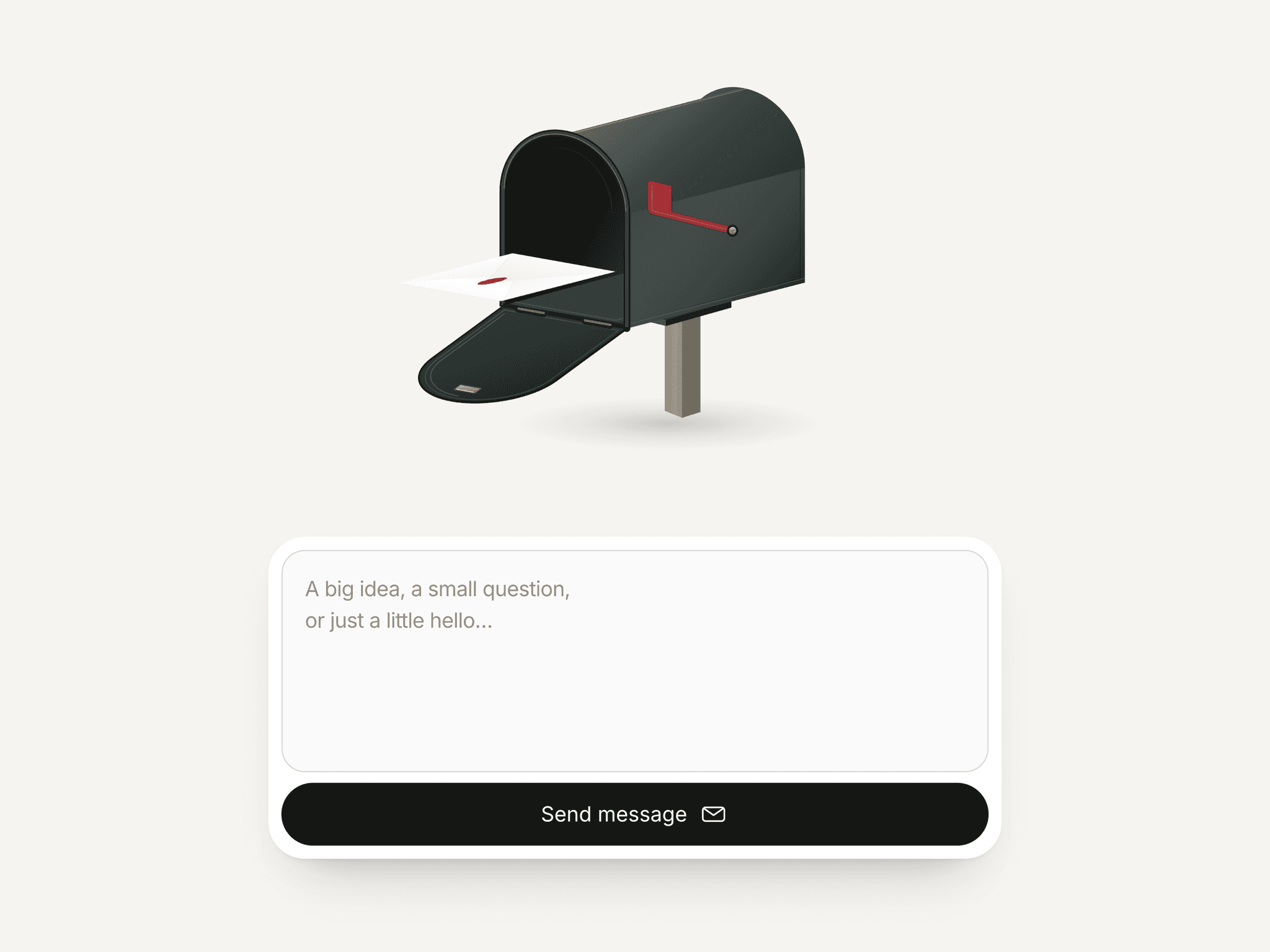
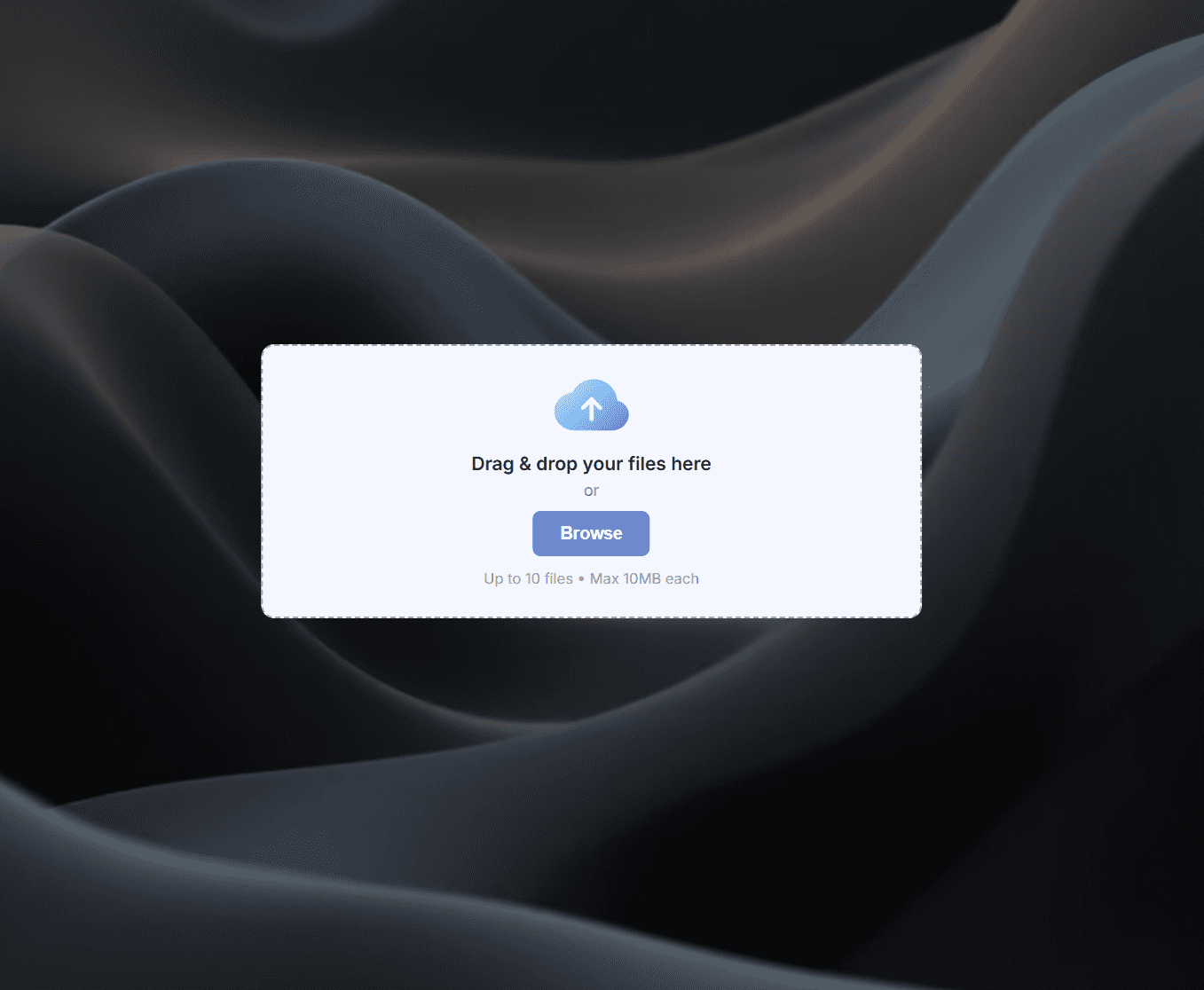
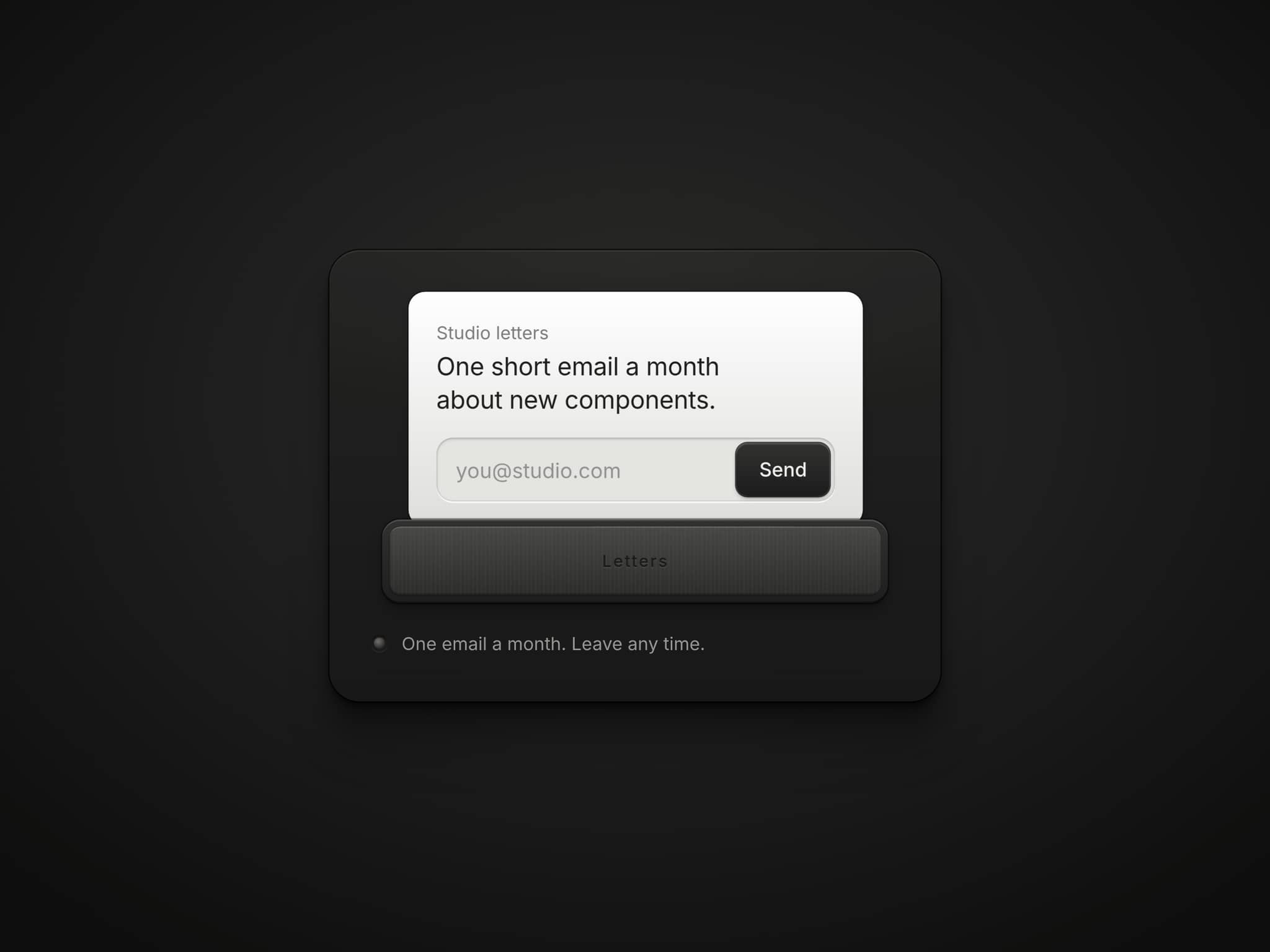
🔒 Turn Any Design Into a Security Gate Standard password gates are boring. Protected Pages allows you to use Framer's native design tools to build high-converting, branded lock screens. Whether it's for client dashboards, gated templates, or private portfolios, your security will finally match your brand.
✨ Key Features
Total Design Control: Use Stacks, Images, and Animations to build your gate.
Fully Responsive: Separate designs for Desktop, Tablet, and Mobile.
Stay Unlocked: Turn on "Remember Unlock" so returning visitors skip the password on refreshes, new tabs, and even future visits — set exactly how many days it lasts.
Instant Setup: Works via Framer IDs — no backend or database needed.
Performance First: Lightweight code that won't slow down your site.
Client-Ready: Perfect for protecting sensitive case studies or "Coming Soon" pages.
🛠 How to Set It Up (60 Seconds)
Design: Create three Stacks for your lock screens.
Assign IDs: Label them
locker-desktop,locker-tablet, andlocker-mobile.Connect: Add a text input (password) and a submit button inside your designs.
Link: Drop this component on your page, set your password, and link the device layouts.
(Optional) Stay Unlocked: Toggle "Remember Unlock" and choose how many days visitors stay in.
Publish: Your page is now securely locked until the correct password is entered.
🧩 Use Cases
Designers: Password-protect client handovers.
Creators: Gate "Member Only" content or premium downloads.
SaaS: Create private beta or early-access preview pages.