About Screening Room
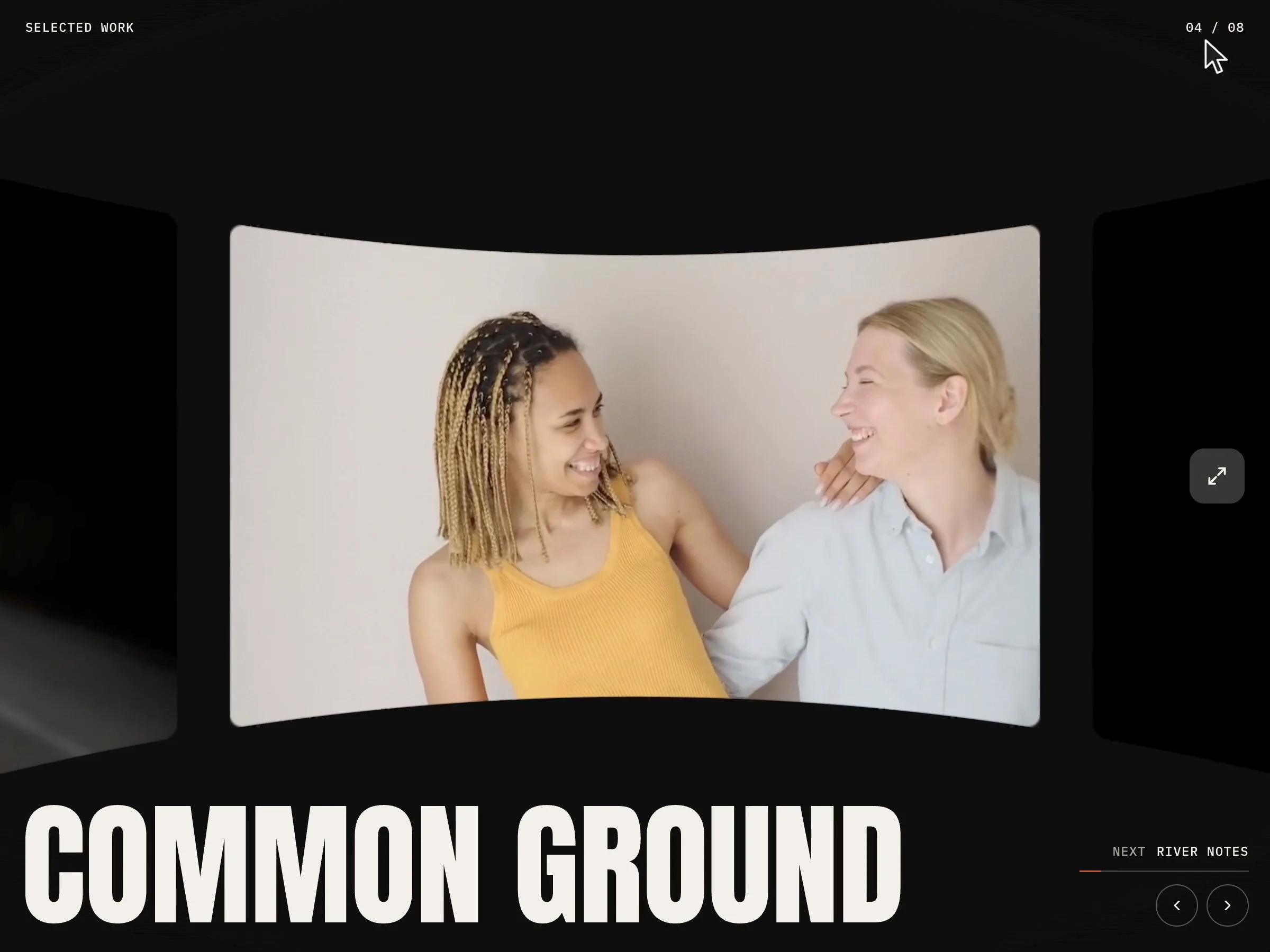
Screening Room is a WebGL carousel for showing films, videos and projects. Your work sits on a curved wall in a dark room. Drag, scroll or swipe and the wall turns. While it moves, the camera pulls back and the panels bend away. When it stops, the camera pushes in and the name of the panel in front rolls up in huge type.
Each panel can hold a video or a picture. Only the panel in front plays its clip, with the sound off. Open it, and the wall straightens into a calm detail view with a short line and a link.
Features
• A curved 3D wall built with three.js, with side blur, shade, film grain and a slight color split while moving
• Video or picture on every panel. Only the front clip plays, and each clip loads only when its panel is near the front
• A big title that rolls to the next name, plus a counter, next name and progress line
• Drag, sideways scroll, swipe, arrow buttons, arrow keys and autoplay
• Open view for every panel with a title, short text and link
• Respects reduced motion
• Pauses when off screen and shows a still frame on the Framer canvas
• Works on desktop, tablet and phone
Easy to customize
• Up to 16 panels, each with a video, picture, title, text and link
• Panel shape (16:9, 4:3, 1:1, 3:4), panel size, curve, edge bow, gap and radius
• Side blur, side shade, grain, color split and pull back
• Move time, autoplay and interval, scroll wheel and first panel
• Show or hide the open view, counter, next name and arrows
Setup
1. Add Screening Room to your page. Set its width to fill and its height to 100vh (or any fixed height of 600px or more).
2. Add your work in the Panels list. For a video panel, add the video and also a picture, so there is something to show while the clip loads. The first frame of the clip works well.
3. Keep clips short, muted and compressed. About 10 seconds at 1280 px wide is plenty.
4. Pick your fonts. A tall condensed font for titles suits the design.
5. Check it in Preview. The canvas shows a still frame.