About Conditional Fields
Add conditional logic to your native Framer form.
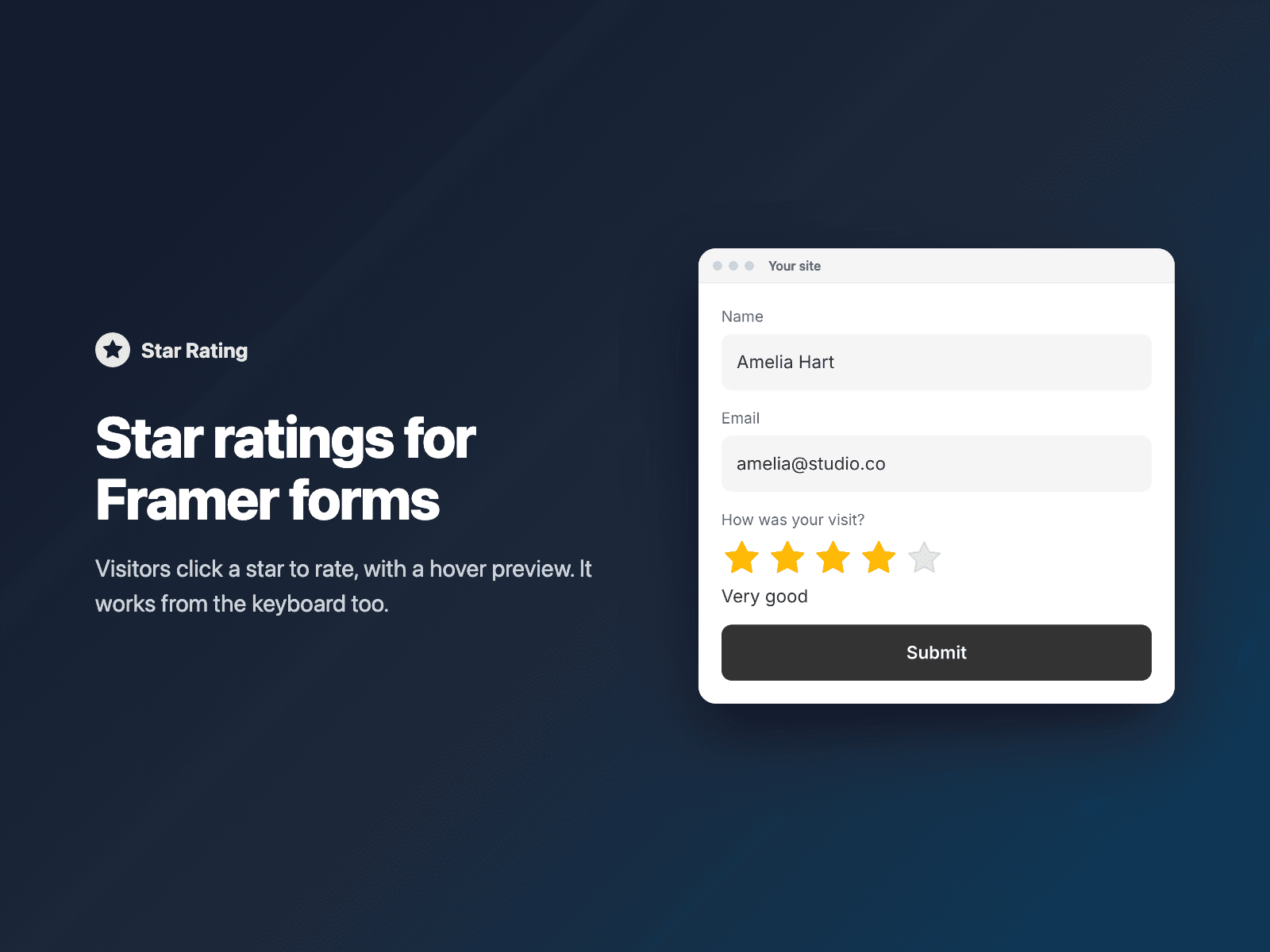
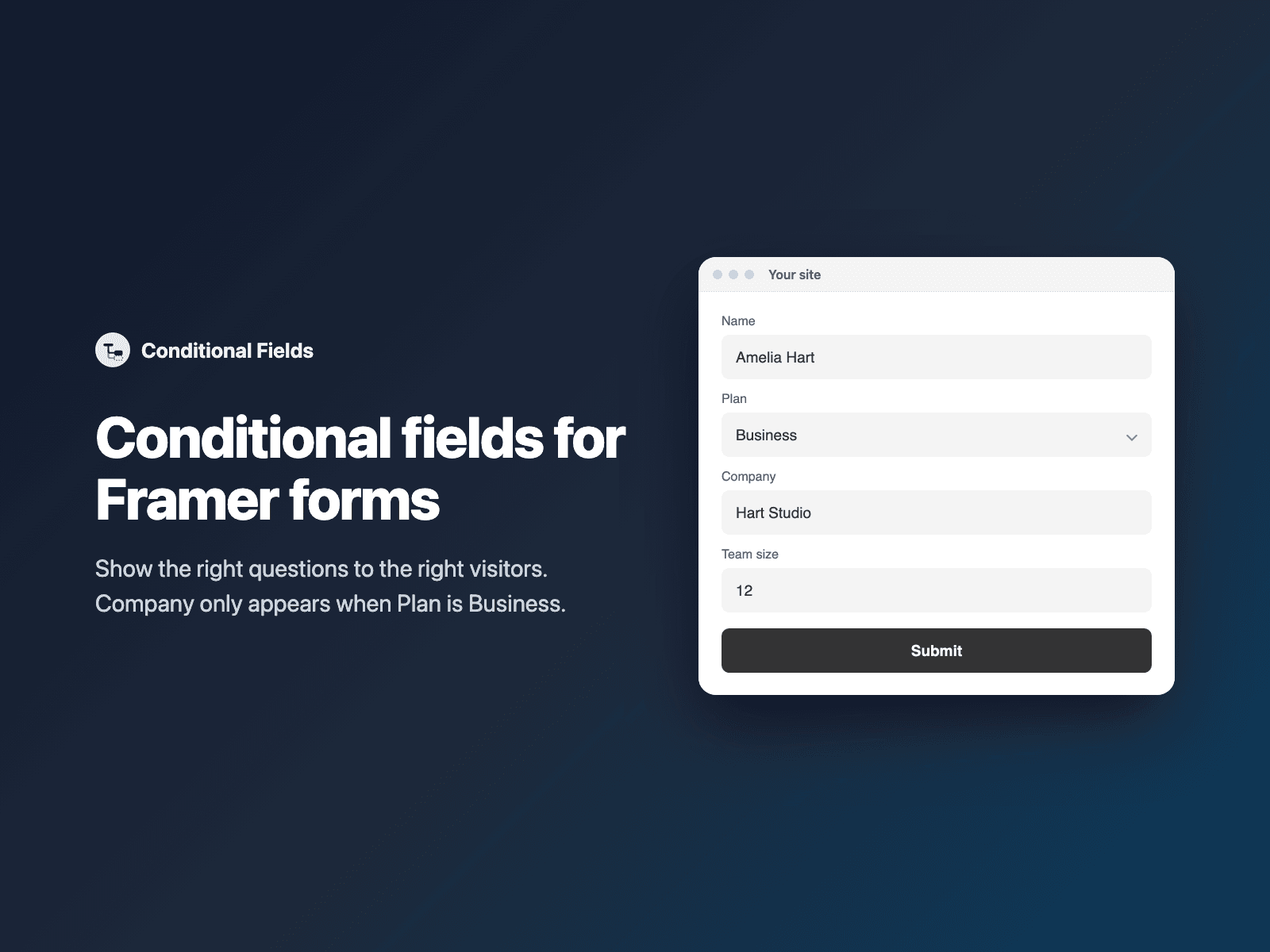
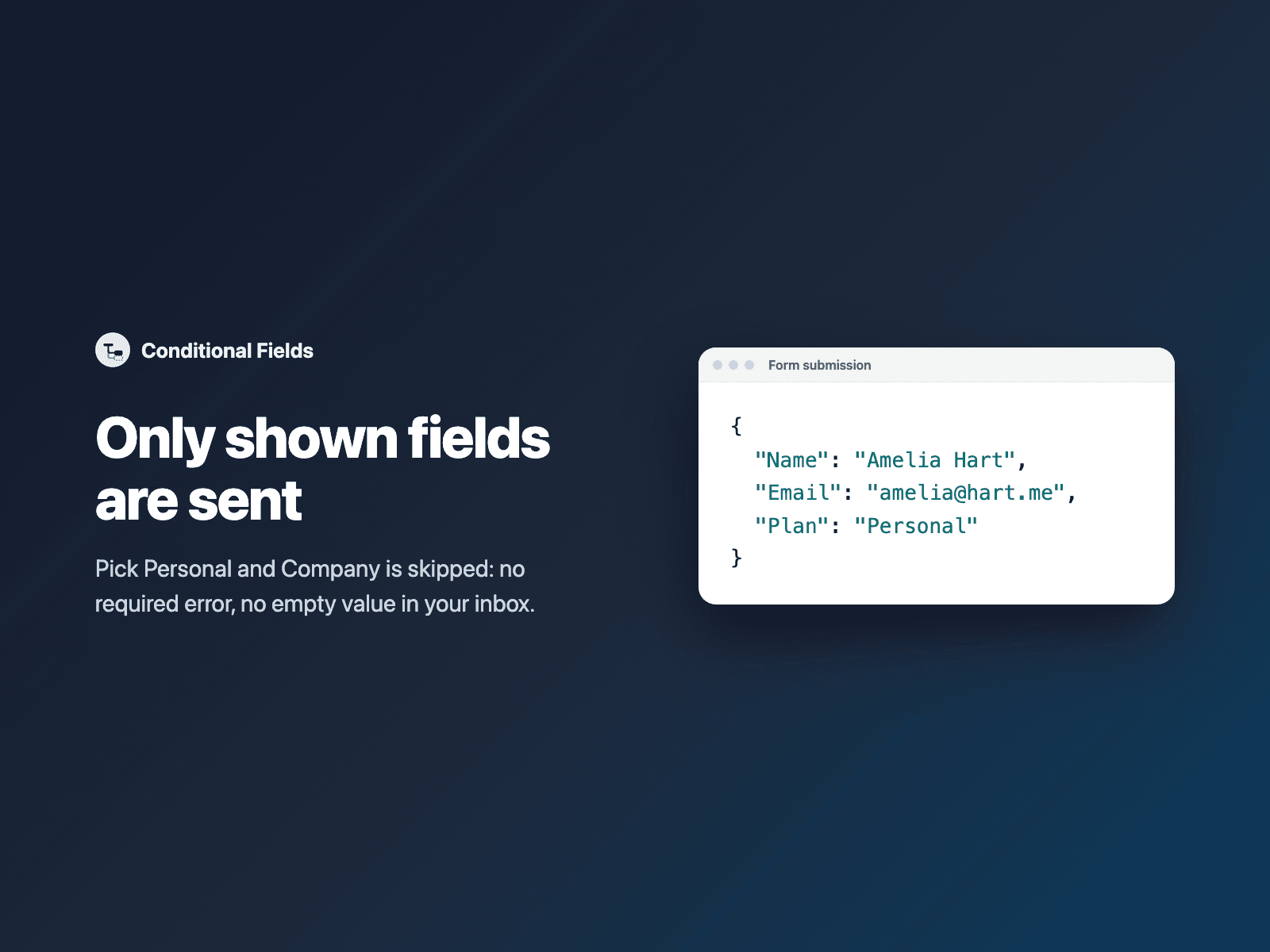
Show a field only when another field has a certain answer: Company only when Plan is Business, Topics only when the newsletter box is checked, a follow-up question only when a rating was given. Hidden fields are skipped by validation and are not submitted, so a required field never blocks the form while it is hidden. When shown, it comes back exactly as you set it up, or becomes required if you turn on "Required when shown".
How it works:
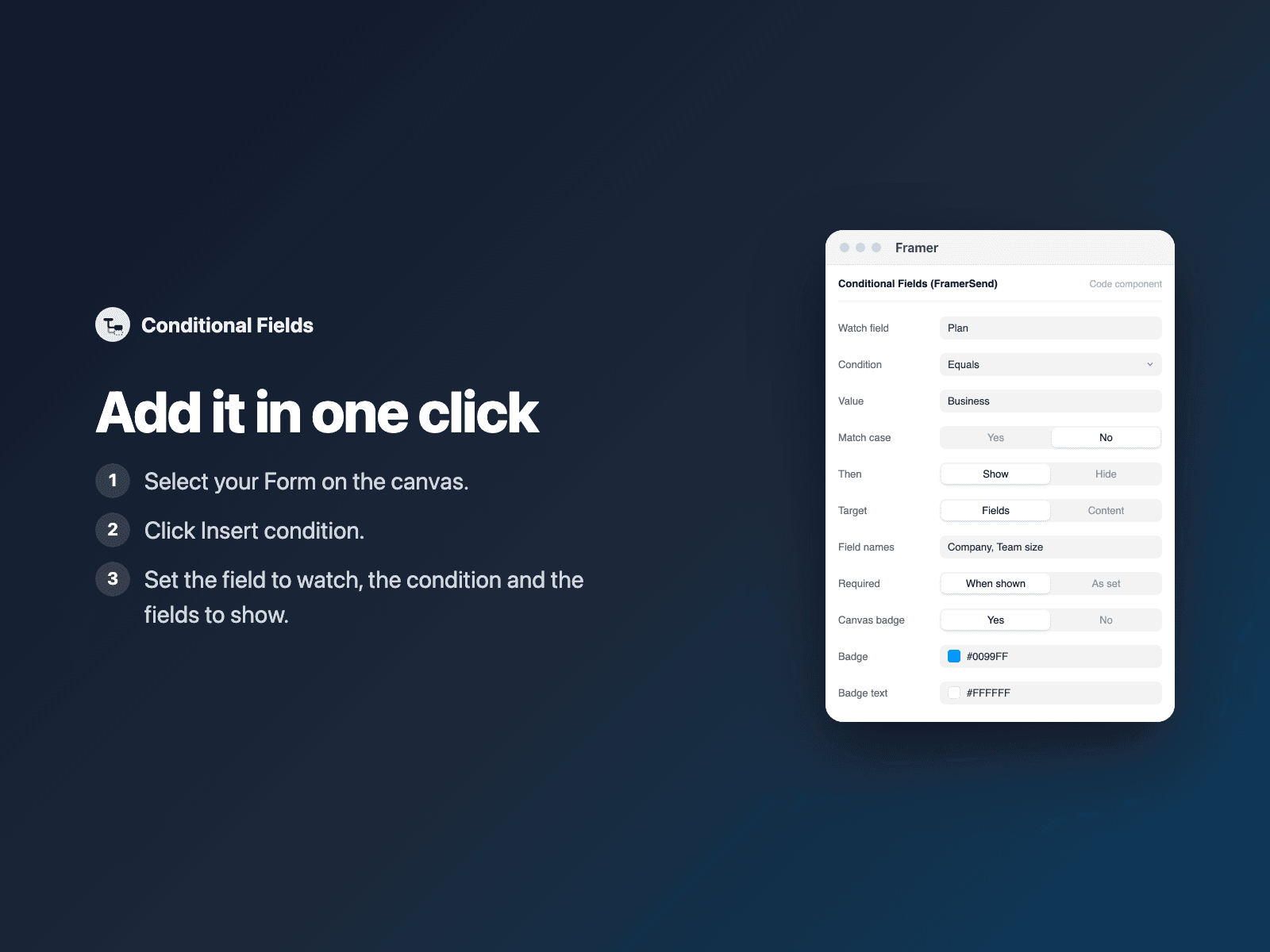
1. Select your Form on the canvas.
2. Open Conditional Fields and click Insert condition.
3. In the right panel, set the field to watch, the condition and the names of the fields to show.
Conditions: equals, does not equal, contains, does not contain, is empty, is not empty, is checked, is not checked. Works with text fields, dropdowns, radio buttons, checkboxes and code-component fields such as star ratings or image choices. Show or hide, match case, and several fields at once (comma separated). Instead of fields by name, you can also connect frames to the component and show or hide those. Add one condition per rule; conditions can depend on each other.
On the canvas every field stays visible and the condition shows a small badge, so you can keep designing. The logic runs in preview and on the published site.
The condition is a code component written into your project. It loads no external scripts and makes no network requests on your site.
Pricing: included in every FramerSend plan. Free for 14 days with no card, then from $5/month. Details at framersend.com/pricing.