About Signature
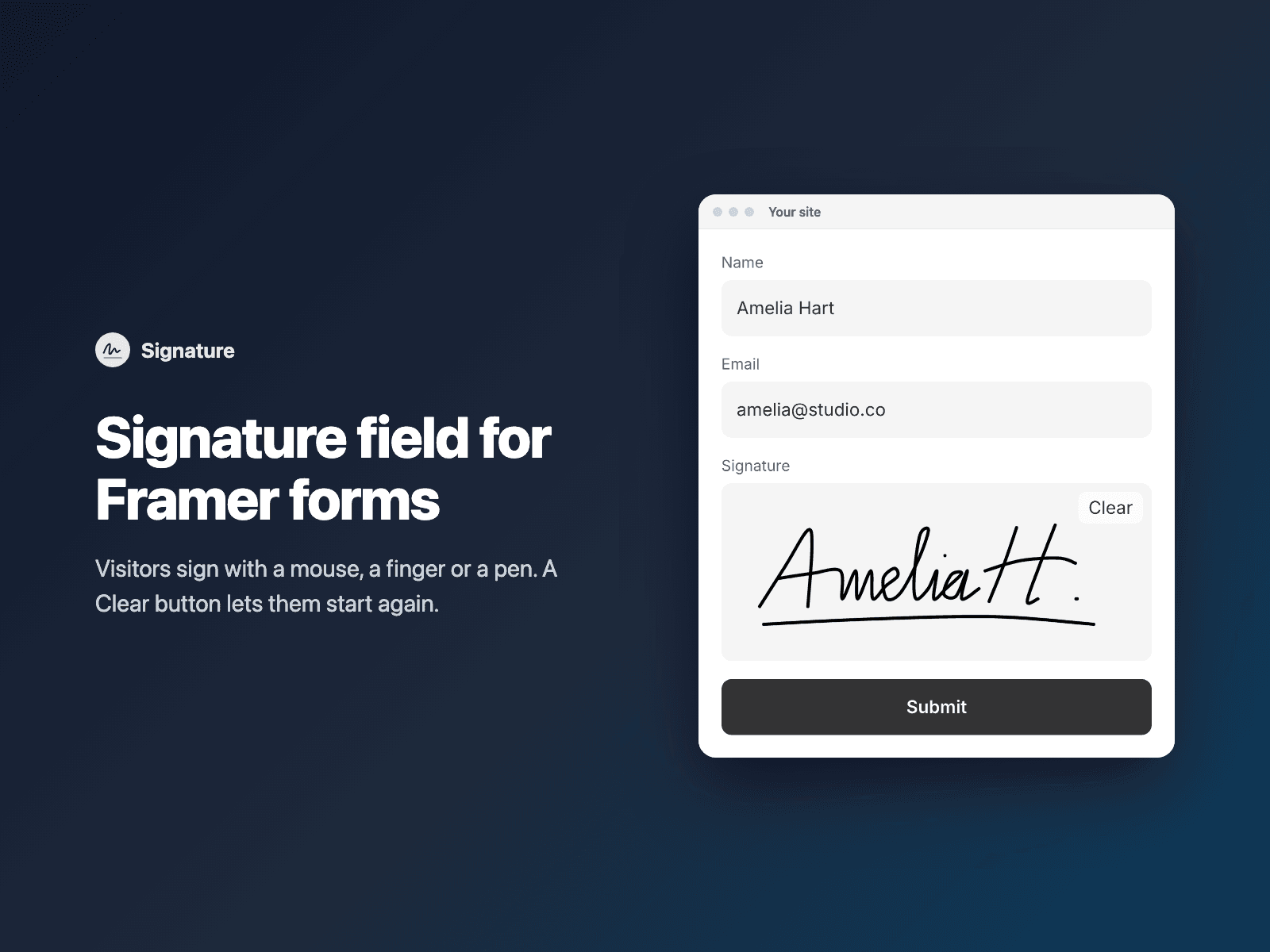
Add a signature field to your native Framer form.
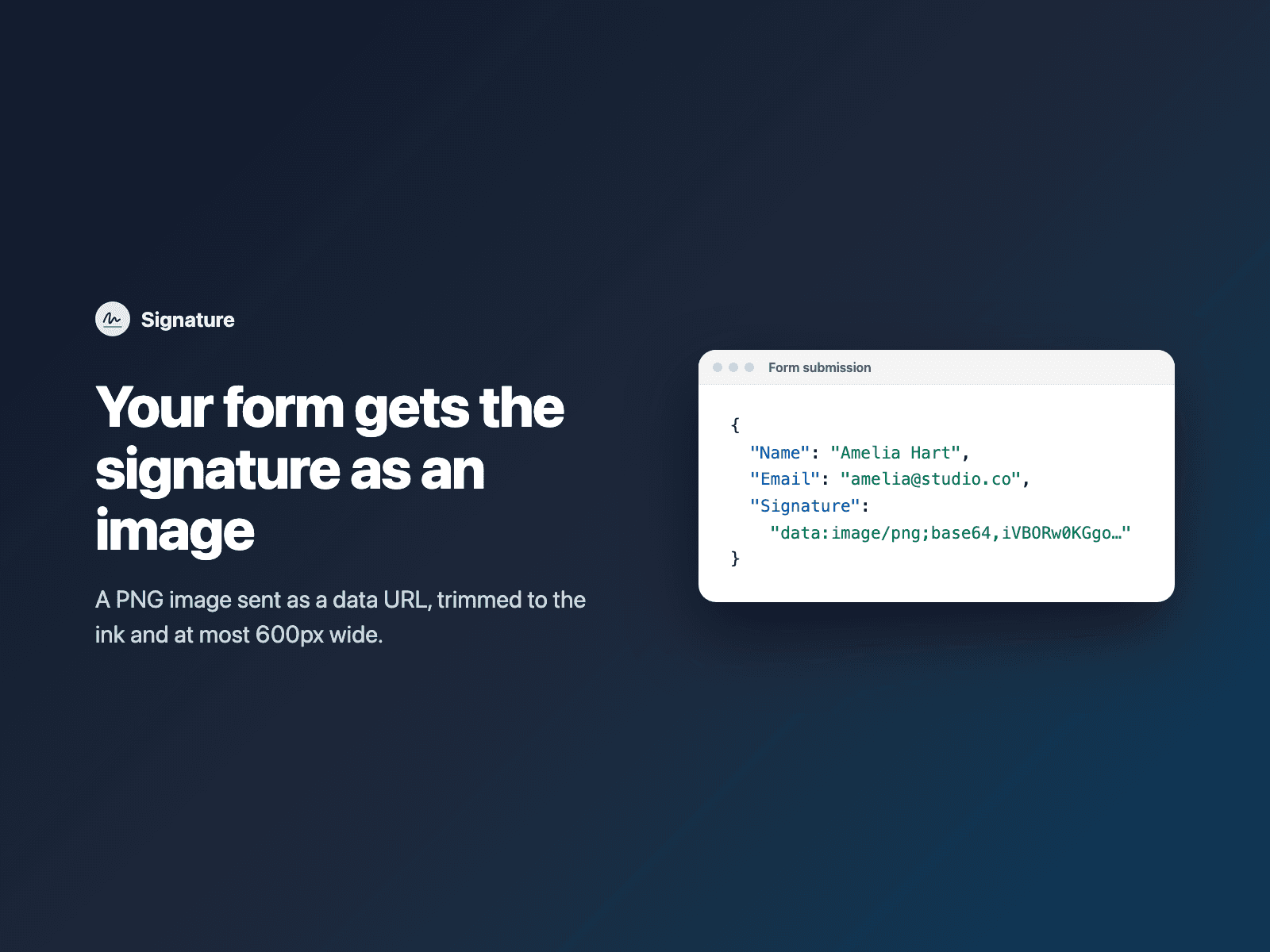
Visitors sign with a mouse, a finger or a pen. A Clear button lets them start again. When they finish a stroke, the signature is saved as a PNG image, trimmed to the ink and at most 600px wide. Your form receives the image as a data URL (text that starts with data:image/png;base64) under the field name you choose.
With FramerSend, the signature is saved as a PNG file and your connected tools receive a private link to the image instead of the long text. With other form destinations the image arrives as text, so use one that accepts long values, such as a webhook. Some destinations, for example Google Sheets cells, may cut long text.
How it works:
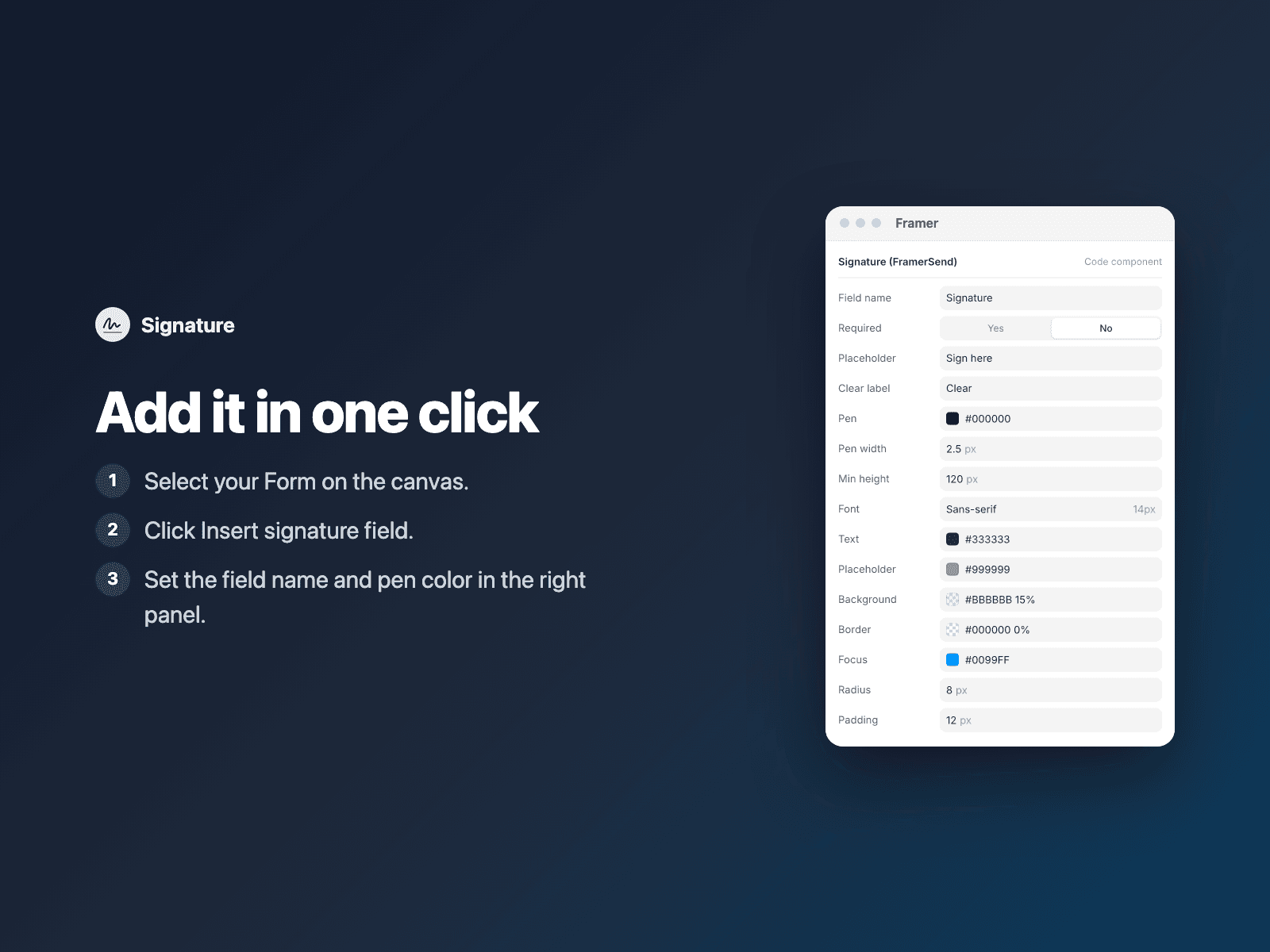
Select your Form on the canvas.
Open Signature and click Insert signature field. It is added above the submit button at full width.
In the right panel, set the field name and pen color.
Options: required with your own error text, placeholder text, Clear button label, pen color and width, minimum height, font, colors, radius and padding.
The field is a code component written into your project. It loads no external scripts and makes no network requests on your site.
Pricing: included in every FramerSend plan. Free for 14 days with no card, then from $5/month. Details at framersend.com/pricing.