About Multi-Column Text
Multi-Column Text
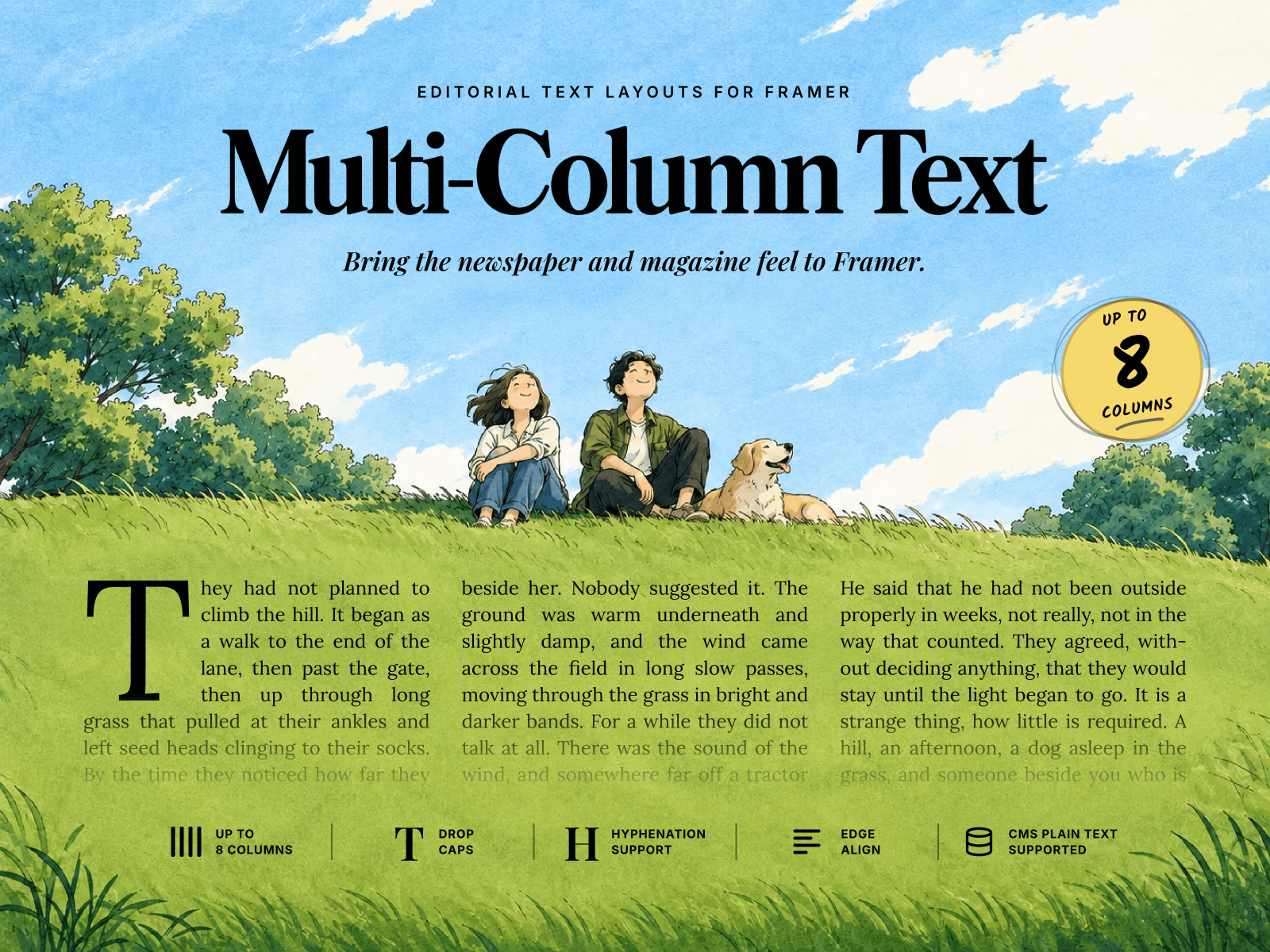
Multi-Column Text brings newspaper and magazine-style typography to Framer.
Add a block of text, choose the number of columns, and the component automatically flows the content across them while keeping the column heights visually balanced.
Settings
Columns - Choose between 1 and 8 columns to automatically distribute text across.
Gap - Control the spacing between columns.
Balance - Choose how the text is distributed vertically across your columns.
Flush - keeps every column except the final column at the same number of lines. The last column contains whatever text remains, creating the familiar newspaper and editorial layouts.
Even - distributes the text as evenly as possible across every column.
Equal Span - Align left and right edges of each column.
Hyphenation - Allows longer words to break naturally across lines. The feature significantly reduces excessive spacing in justified columns.
Language - Choose the language used for hyphenation. Because different languages use different hyphenation rules. Some languages may not be supported.
Drop Cap - Add a traditional editorial Drop Cap to the opening letter of your text.
Cap Lines - Choose how tall the Drop Cap should be, from 2 to 5 lines.
Edge Align - Turns the ragged edges of the outer columns away from the centre while the columns between them retain their regular treatment.
Align - When using a single column with Equal Span turned off, choose between left, centre, or right alignment from font control settings.
Framer CMS - Multi-Column Text can also connect directly to a Plain Text field in Framer CMS. Formatted or Rich Text fields are not supported yet, so inline headings, links, bold text, and other rich-text formatting cannot be used within the passage.
A few things worth knowing:
The component's height is automatically determined by the amount of text and the way it flows across the selected columns, so its height is set to Fit rather than manually controlled.