Building Blocks AI - generate custom Framer components from simple text prompts.
1. Open the plugin from the Framer canvas.
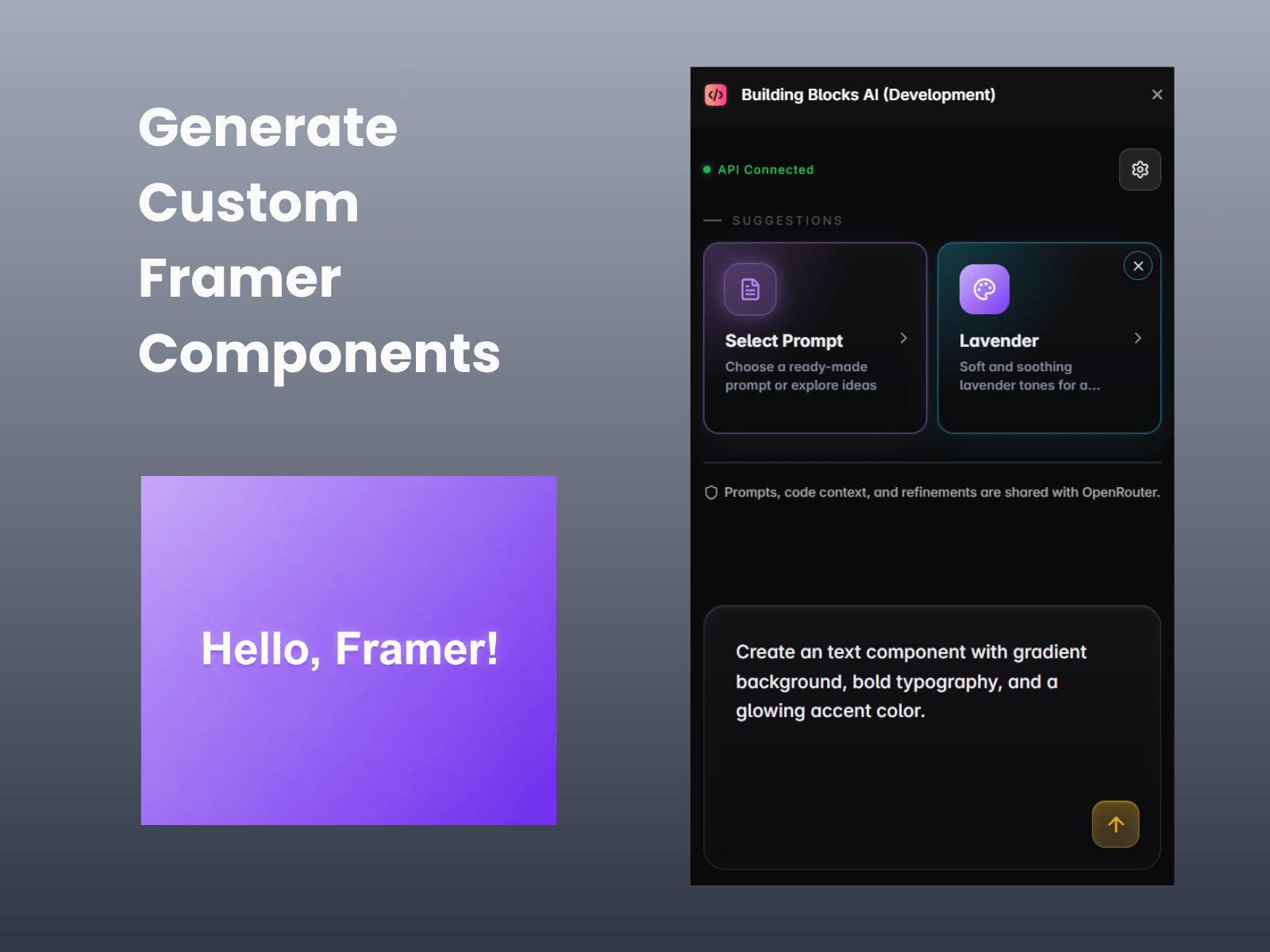
2. Go to the settings (gear icon, top right). Enter your OpenRouter API key. You can generate one from: https://openrouter.ai/keys. Once connected, you'll see the green "API Connected" status at the top.
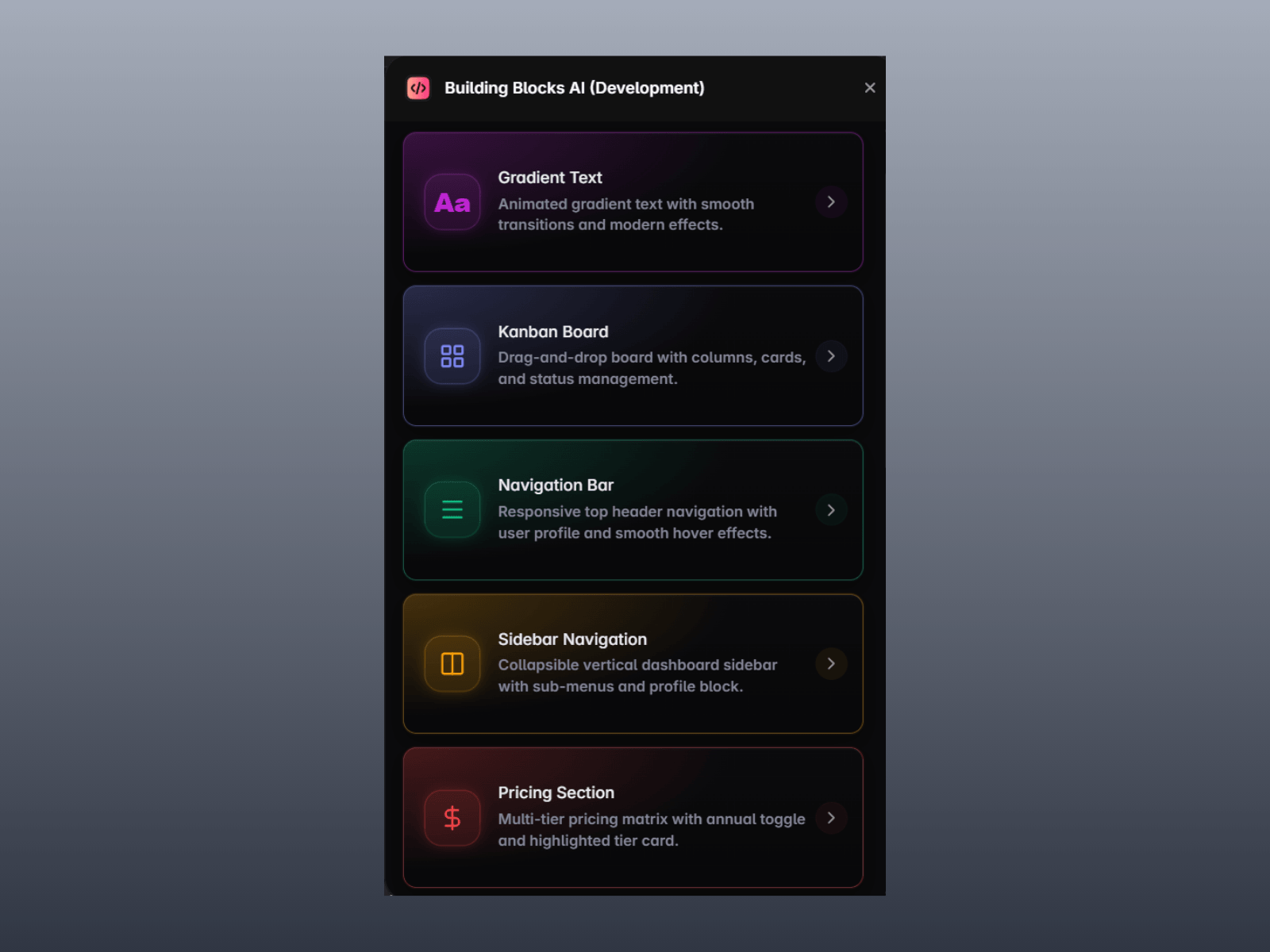
3. Click the "Select Prompt" card and choose a ready-made prompt from the list, or explore the suggested ideas if you're not sure what to build.
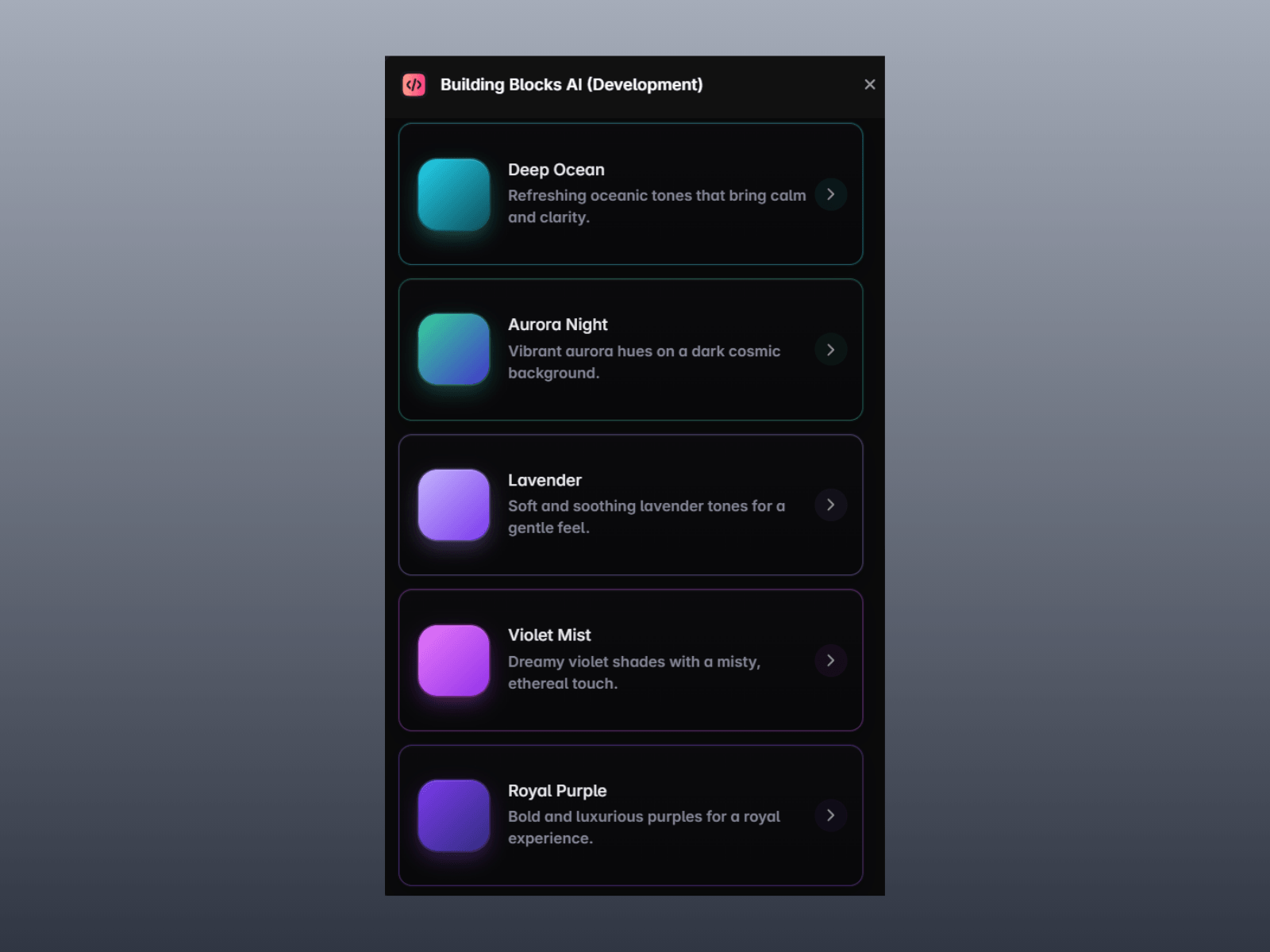
4. Click the "Select Theme" card and pick a style (e.g. "Midnight Blue") to guide the visual direction of the component. If you change your mind, click the small × badge on the corner of the card to clear the selected theme.
5. In the text box at the bottom ("Describe a component…"), type what you want to build — e.g. "a pricing card with a headline, subheading, and tags."
6. Click the up-arrow/send button. The plugin will generate a working Framer component (TSX) based on your prompt, theme, and description.
7. Take an action on the result
• Copy Code — copies the generated component code to your clipboard.
• Add to Canvas — drops the component directly onto your Framer canvas.
• Generate another — discards this result and generates a fresh variation.
8. Use the "Ask for changes…" input at the bottom of the result screen to request edits in plain language — e.g. "make it red" or "add a hover effect" — and the plugin will update the component accordingly without starting over.
9. You can find the generated TSX component in Assets → Code.

Building Blocks AI - generate custom Framer components from simple text prompts.
1. Open the plugin from the Framer canvas.
2. Go to the settings (gear icon, top right). Enter your OpenRouter API key. You can generate one from: https://openrouter.ai/keys. Once connected, you'll see the green "API Connected" status at the top.
3. Click the "Select Prompt" card and choose a ready-made prompt from the list, or explore the suggested ideas if you're not sure what to build.
4. Click the "Select Theme" card and pick a style (e.g. "Midnight Blue") to guide the visual direction of the component. If you change your mind, click the small × badge on the corner of the card to clear the selected theme.
5. In the text box at the bottom ("Describe a component…"), type what you want to build — e.g. "a pricing card with a headline, subheading, and tags."
6. Click the up-arrow/send button. The plugin will generate a working Framer component (TSX) based on your prompt, theme, and description.
7. Take an action on the result
• Copy Code — copies the generated component code to your clipboard.
• Add to Canvas — drops the component directly onto your Framer canvas.
• Generate another — discards this result and generates a fresh variation.
8. Use the "Ask for changes…" input at the bottom of the result screen to request edits in plain language — e.g. "make it red" or "add a hover effect" — and the plugin will update the component accordingly without starting over.
9. You can find the generated TSX component in Assets → Code.