About Keycap Matrix
Showcase: keycap-matrix.framer.website
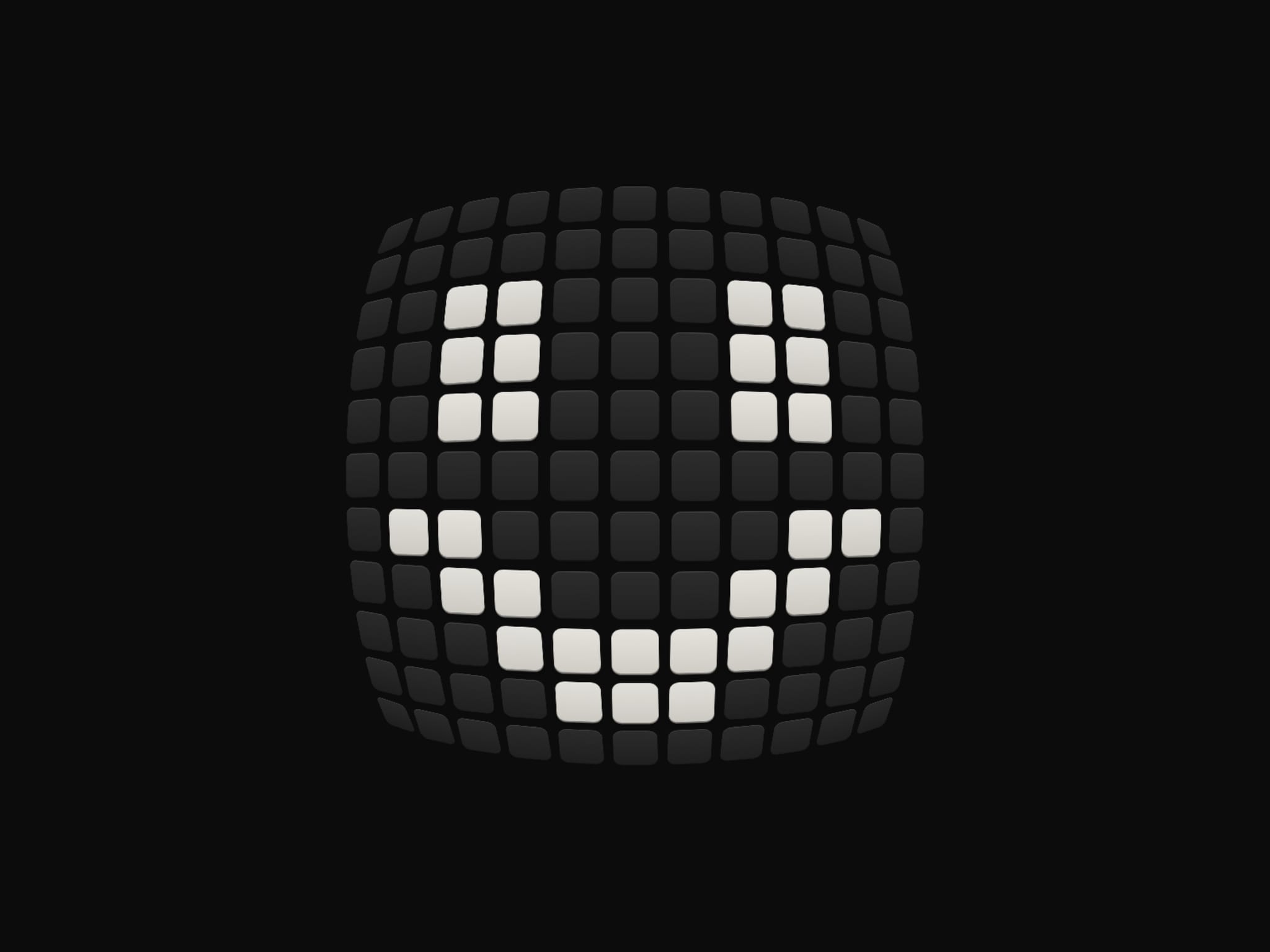
An 11 by 11 matrix of small keys under a soft lens. Glyph keys stand higher and carry the colour. Move over it and the lens follows the pointer; click and the keys flip in a wave from the centre to the next of 24 glyphs.
What you can set
Glyph: 24 to choose from, including Smile, Heart, Star, Bolt, Arrow, Play, Check, Moon, House, Lock and Warning
Theme: Dark, Light or Auto, with key and glyph colours for each; colour styles work too
Shadow: colour and strength, so it sits well on any background
Bulge: how strongly the lens swells the middle keys
Behaviour: a lens that follows or stays put, click for the next glyph, and the wave flip on or off
Built to behave well
Drawn on one canvas; it only animates while something moves and pauses when off-screen
Works with mouse, touch and keyboard, with a visible focus ring; Enter or Space shows the next glyph
Screen readers hear the current glyph
Respects reduced motion
Fills any frame you give it, and arrives at 400 by 400 when pasted
Getting started
Paste Keycap Matrix onto your canvas and give it a size; square frames look best
Pick a glyph and a theme, then set your own key and glyph colours
To show a glyph from your own buttons or tabs, turn Click off and change Glyph in component variants