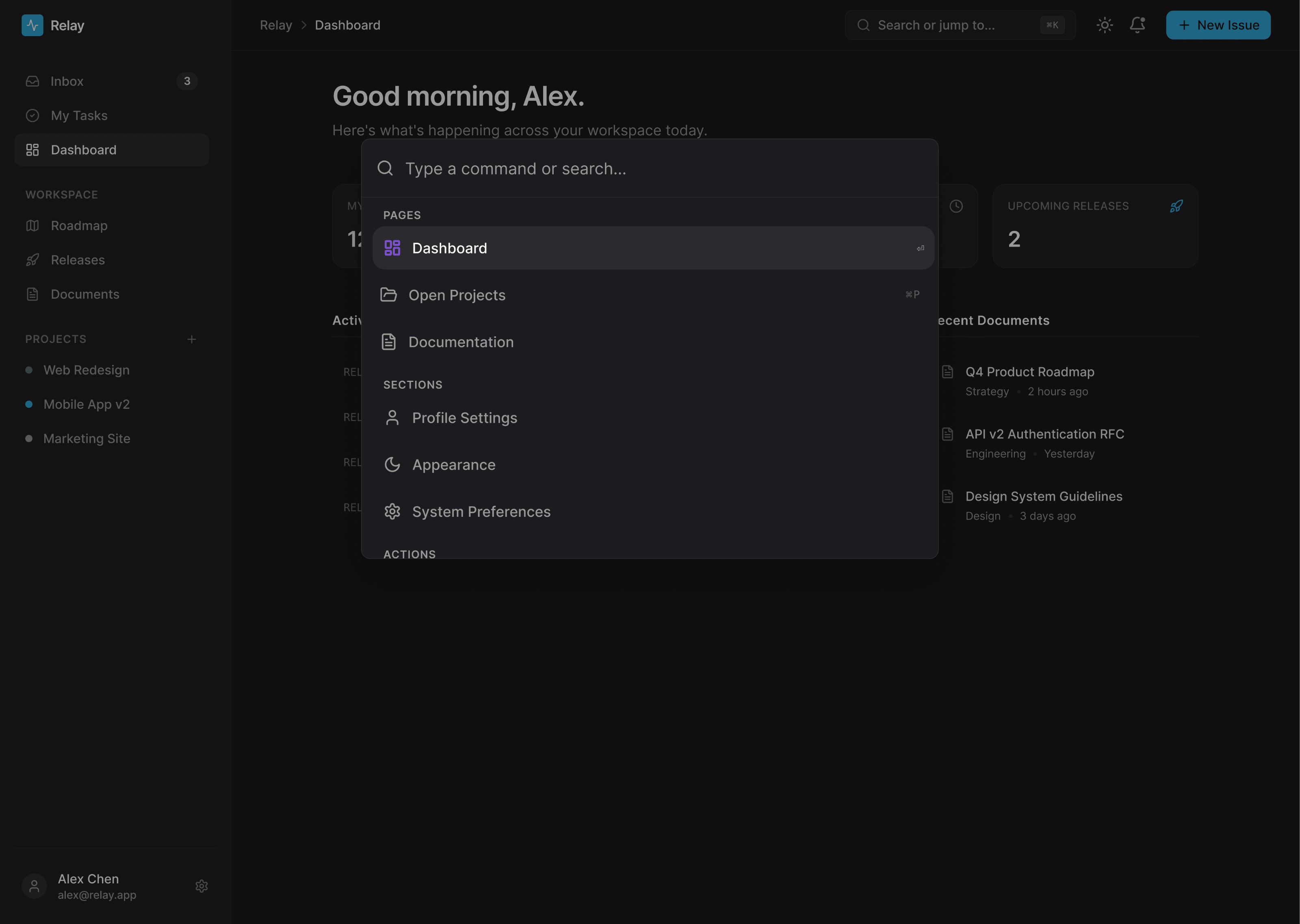
A polished ⌘K command palette for Framer sites. Let visitors quickly search your site, jump to sections, or open pages and external links, using the keyboard or an optional on-page trigger.
CommandK filters commands as visitors type, prioritizes matches that begin with their search, and organizes results into customizable groups. Every command can scroll to a section or open a Framer page, anchor, or supported URL.
Highlights:
• Open with ⌘K, Ctrl+K, or the optional trigger • Live search with prefix-priority matching • Section scrolling and page or external links • Custom command groups and shortcut hints • Built-in icons, uploaded image icons, or text-only mode • Five presets: Paper, Carbon, Adaptive, Sharp, and Midnight Glass • Custom colors, glass, blur, radius, typography, width, and height • Light, dark, and system-adaptive appearance • Open/closed Canvas Preview for easier setup • Responsive behavior for desktop, tablet, and mobile • Keyboard navigation, focus management, ARIA support, and reduced motion • Static-render safeguards for Framer previews and thumbnails
Setup is handled directly in the Framer sidebar. Add your commands, choose Scroll or Page for each item, connect the destination, and customize the appearance.
Custom icon tip: For the sharpest uploaded icons, use an SVG image asset or export a transparent PNG at 4× its intended display size. For example: 96×96 px for a 24 px icon.

A polished ⌘K command palette for Framer sites. Let visitors quickly search your site, jump to sections, or open pages and external links, using the keyboard or an optional on-page trigger.
CommandK filters commands as visitors type, prioritizes matches that begin with their search, and organizes results into customizable groups. Every command can scroll to a section or open a Framer page, anchor, or supported URL.
Highlights:
• Open with ⌘K, Ctrl+K, or the optional trigger • Live search with prefix-priority matching • Section scrolling and page or external links • Custom command groups and shortcut hints • Built-in icons, uploaded image icons, or text-only mode • Five presets: Paper, Carbon, Adaptive, Sharp, and Midnight Glass • Custom colors, glass, blur, radius, typography, width, and height • Light, dark, and system-adaptive appearance • Open/closed Canvas Preview for easier setup • Responsive behavior for desktop, tablet, and mobile • Keyboard navigation, focus management, ARIA support, and reduced motion • Static-render safeguards for Framer previews and thumbnails
Setup is handled directly in the Framer sidebar. Add your commands, choose Scroll or Page for each item, connect the destination, and customize the appearance.
Custom icon tip: For the sharpest uploaded icons, use an SVG image asset or export a transparent PNG at 4× its intended display size. For example: 96×96 px for a 24 px icon.