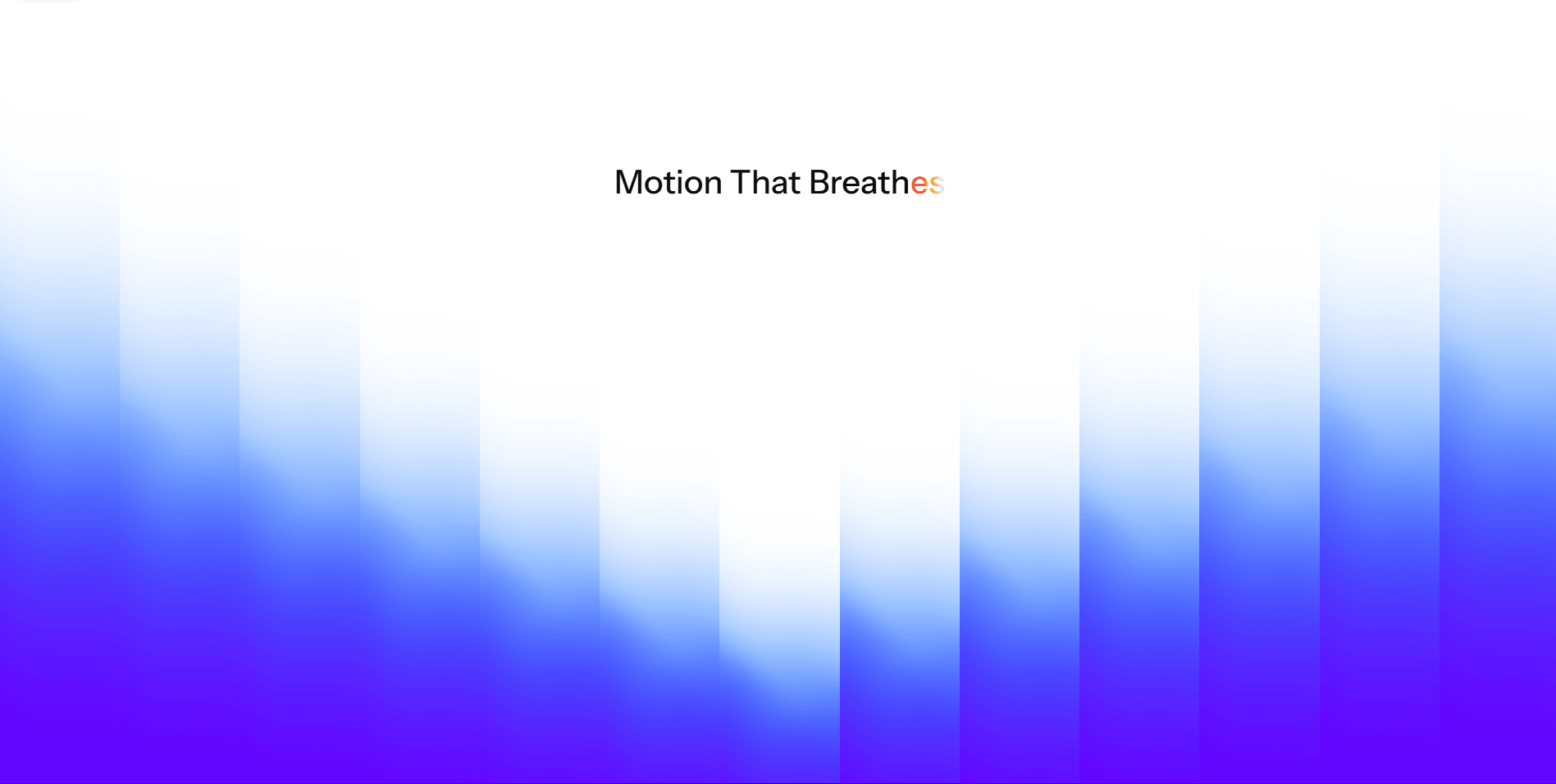
The Smart Text Highlight component revolutionizes how you structure typography in Framer. Instead of manually splitting paragraphs into multiple text boxes to change a single word's color or font, you can write your text naturally and define smart rules to style specific words dynamically.
Whether you want to emphasize key features with a vibrant brand color, apply a unique font weight to a specific term, add marker-style backgrounds, or turn inline words into interactive hyperlinks, this component handles it seamlessly. It even includes advanced occurrence targeting, allowing you to highlight only the first or second time a word appears in a paragraph.
Functions (Key Features):
🎯 Targeted Highlighting: Automatically find and style specific words using smart text parsing and regex logic.
🎨 Custom Typography: Apply completely different fonts, weights, colors, and text decorations to individual words.
🔗 Interactive Links: Turn any highlighted word into a clickable hyperlink that opens safely in a new tab.
🔢 Occurrence Control: Choose exactly which instance of a word to highlight (e.g., target only the 1st and 3rd appearance).
✨ Hover Effects: Add smooth hover scaling to make your emphasized keywords feel interactive and tactile.
How to Use:
Copy & Paste: Copy the component from the Layers panel and paste it directly onto your Framer canvas.
Write Text: Enter your full paragraph or sentence into the main Text property.
Set Default Style: Choose the base font and color for the regular, unhighlighted text using the default settings.
Add Highlights: In the Highlight Words array, add a new item and type the exact word you want to style.
Customize Keyword: Adjust the specific font, color, background, and link for that keyword. Use the Occurrences field (e.g., type "1") if you only want to target specific repetitions.

The Smart Text Highlight component revolutionizes how you structure typography in Framer. Instead of manually splitting paragraphs into multiple text boxes to change a single word's color or font, you can write your text naturally and define smart rules to style specific words dynamically.
Whether you want to emphasize key features with a vibrant brand color, apply a unique font weight to a specific term, add marker-style backgrounds, or turn inline words into interactive hyperlinks, this component handles it seamlessly. It even includes advanced occurrence targeting, allowing you to highlight only the first or second time a word appears in a paragraph.
Functions (Key Features):
🎯 Targeted Highlighting: Automatically find and style specific words using smart text parsing and regex logic.
🎨 Custom Typography: Apply completely different fonts, weights, colors, and text decorations to individual words.
🔗 Interactive Links: Turn any highlighted word into a clickable hyperlink that opens safely in a new tab.
🔢 Occurrence Control: Choose exactly which instance of a word to highlight (e.g., target only the 1st and 3rd appearance).
✨ Hover Effects: Add smooth hover scaling to make your emphasized keywords feel interactive and tactile.
How to Use:
Copy & Paste: Copy the component from the Layers panel and paste it directly onto your Framer canvas.
Write Text: Enter your full paragraph or sentence into the main Text property.
Set Default Style: Choose the base font and color for the regular, unhighlighted text using the default settings.
Add Highlights: In the Highlight Words array, add a new item and type the exact word you want to style.
Customize Keyword: Adjust the specific font, color, background, and link for that keyword. Use the Occurrences field (e.g., type "1") if you only want to target specific repetitions.