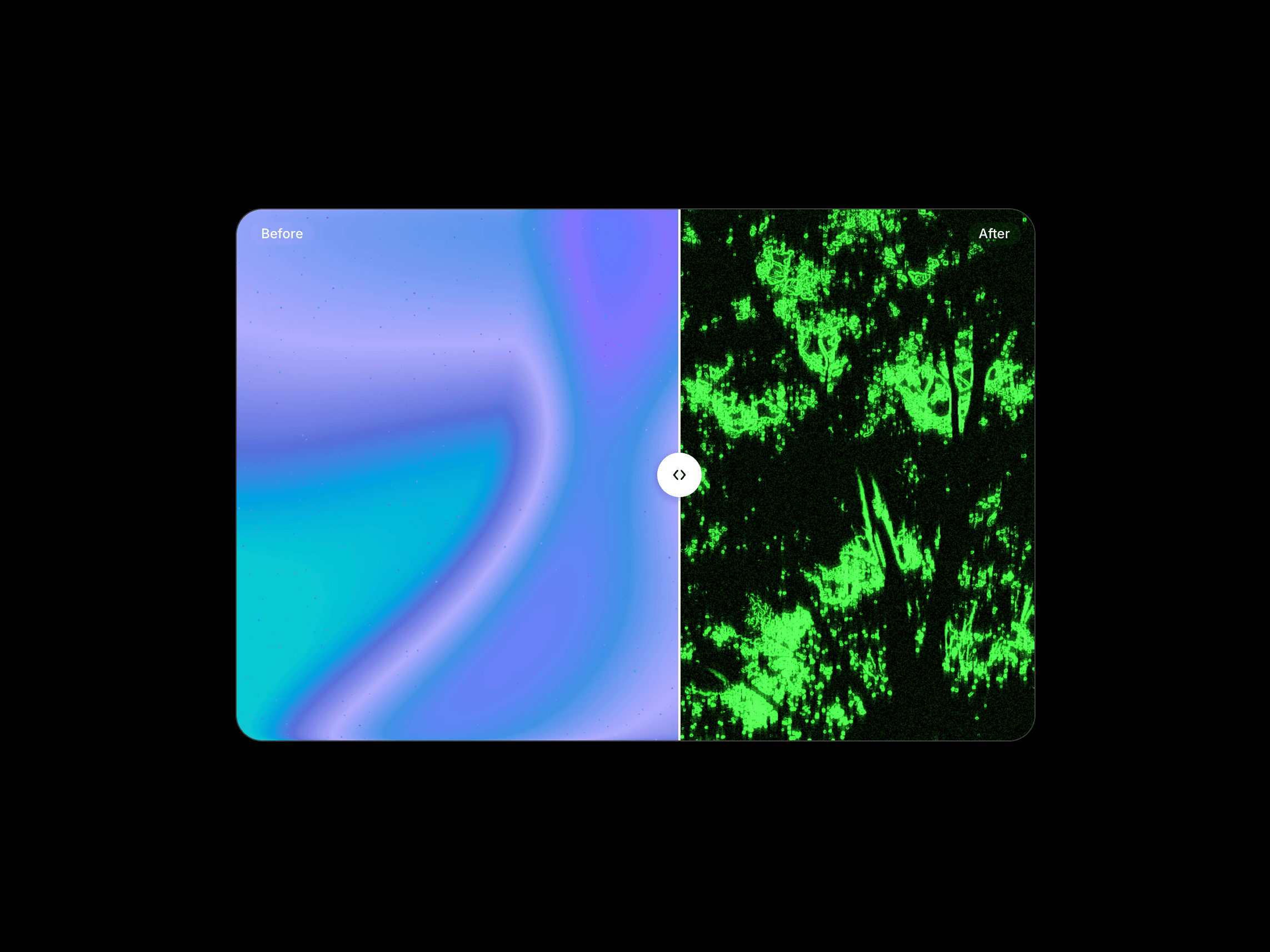
Image Outline is a Framer code component for adding soft, directional shadow edges around transparent image assets. It works especially well with PNG cutouts, stickers, product renders, and illustrations that need a little more depth without editing the source file.
Use Cases
- Product cutouts on landing pages
- Floating illustrations and sticker-style graphics
- Hero visuals that need subtle depth
- Transparent assets in marketing sections
Properties
- Image: Set the source, alt text, and fit behavior
- Shadow Mode: Choose Full, Horizontal, Vertical, or Custom
- Color: Set the outline shadow color
- Density: Control shadow opacity
- Blur: Soften or sharpen the outline edge
- Spread: Push the shadow outward from the image
- Offset X / Y: Shift the shadow position
- Custom Edges: Enable top, right, bottom, and left edges individually in Custom mode
Customization
Start by uploading a transparent image, then adjust the shadow settings to match the style of your composition. Keep blur low for a crisp outline look, or raise it for a softer glow-like effect. Custom mode is useful when you want directional emphasis on only one or two sides.
License
Single Use License — Use in one client project with full commercial rights. No redistribution. 1 license = 1 client.
Refund Policy
Due to the nature of our digital products, we are unable to offer refunds, but we're here to assist you with any questions or concerns!
Version
1.0.0

Image Outline is a Framer code component for adding soft, directional shadow edges around transparent image assets. It works especially well with PNG cutouts, stickers, product renders, and illustrations that need a little more depth without editing the source file.
Use Cases
- Product cutouts on landing pages
- Floating illustrations and sticker-style graphics
- Hero visuals that need subtle depth
- Transparent assets in marketing sections
Properties
- Image: Set the source, alt text, and fit behavior
- Shadow Mode: Choose Full, Horizontal, Vertical, or Custom
- Color: Set the outline shadow color
- Density: Control shadow opacity
- Blur: Soften or sharpen the outline edge
- Spread: Push the shadow outward from the image
- Offset X / Y: Shift the shadow position
- Custom Edges: Enable top, right, bottom, and left edges individually in Custom mode
Customization
Start by uploading a transparent image, then adjust the shadow settings to match the style of your composition. Keep blur low for a crisp outline look, or raise it for a softer glow-like effect. Custom mode is useful when you want directional emphasis on only one or two sides.
License
Single Use License — Use in one client project with full commercial rights. No redistribution. 1 license = 1 client.
Refund Policy
Due to the nature of our digital products, we are unable to offer refunds, but we're here to assist you with any questions or concerns!
Version
1.0.0
 EvolveHub