SearchFuel Publisher

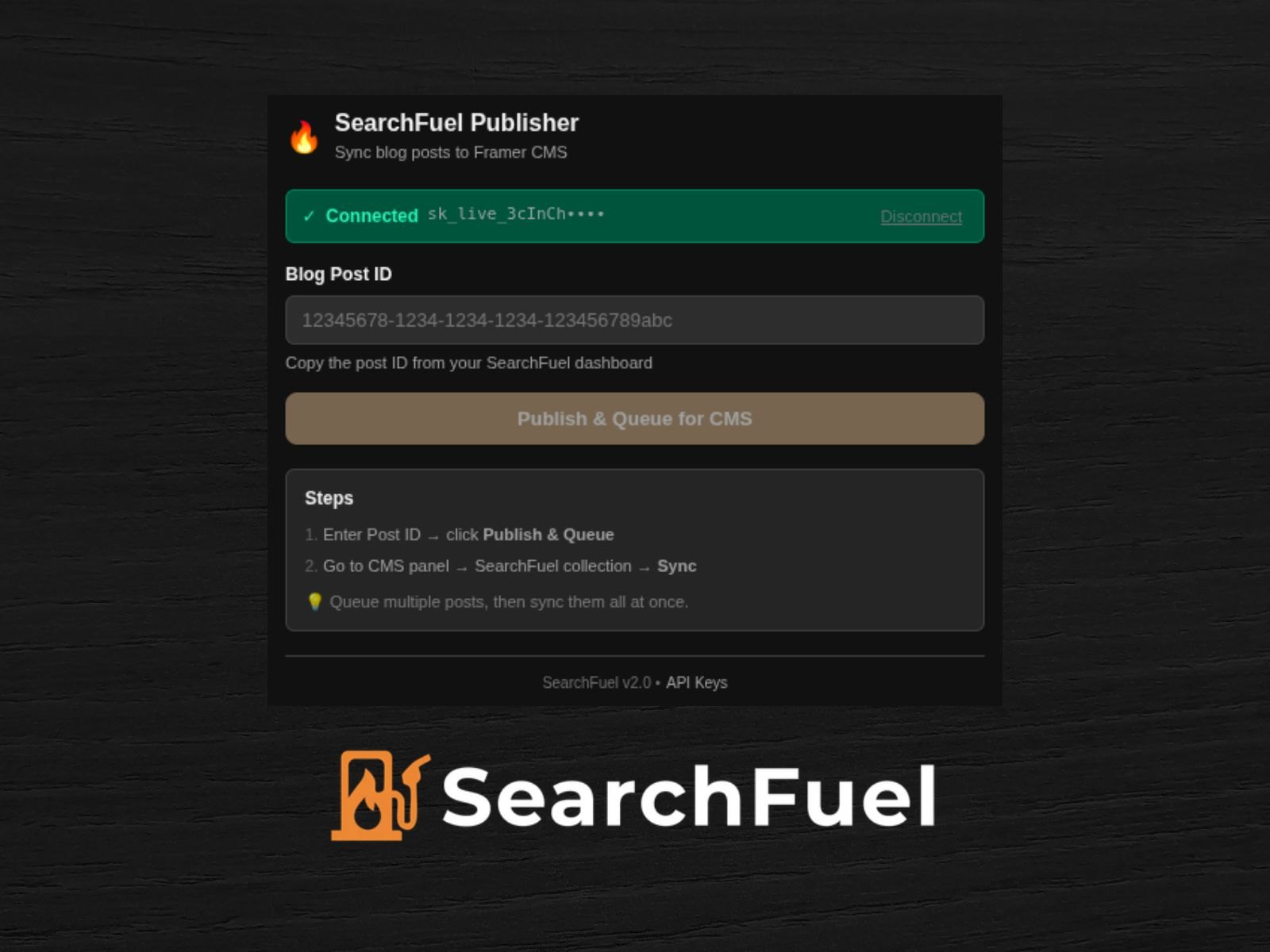
Sync your SearchFuel blog posts into Framer CMS with one click. Automatically creates CMS items with title, content, images, SEO metadata, and more. Just connect your API key, publish, and sync.
About this Plugin
SearchFuel Publisher for Framer
Publish your SEO-optimized blog posts from SearchFuel directly into Framer's CMS.
What gets synced
• Title, slug, and excerpt
• Full article content (auto-converted to HTML)
• Featured image
• Meta title and meta description
• Author, category, and tags
• Published date
• Content score and article type
How to set up
Step 1 — Generate your API key
Go to app.trysearchfuel.com → Settings → API Keys → click "Generate New Key" → select "Publish Only" permissions → copy the key (it won't be shown again).
Step 2 — Connect the plugin
Open SearchFuel Publisher in Framer → paste your API key → click "Connect to SearchFuel" → wait for verification.
Step 3 — Create your CMS collection
In Framer, go to the CMS panel → click "Add Collection" → select "SearchFuel Publisher" as the source. This creates a managed collection with all 14 fields pre-configured.
Step 4 — Publish a post
In the plugin, enter your Blog Post ID (from your SearchFuel dashboard) → click "Publish & Queue for CMS". You can queue multiple posts before syncing.
Step 5 — Sync to CMS
Go to CMS panel → click your SearchFuel collection → click the "Sync" button. The plugin fetches your posts from SearchFuel, converts the content to HTML, and creates the CMS items automatically.
Features
• One-click sync from SearchFuel to Framer CMS
• 14 fields mapped automatically
• Batch publishing — queue multiple posts, sync them all at once
• Markdown automatically converted to HTML for rich text fields
• Works in light and dark mode
• Secure API key authentication with scoped permissions
Support
• Website: trysearchfuel.com
• Email: support@trysearchfuel.com
Changelog
Sync SearchFuel blog posts directly into Framer CMS
14 CMS fields: title, slug, content, image, SEO meta, author, tags & more
One-click sync from the CMS panel
Details
 Mahmoud Elmaandi