

Benjamin
4:01
Create an autoplaying slideshow in Framer
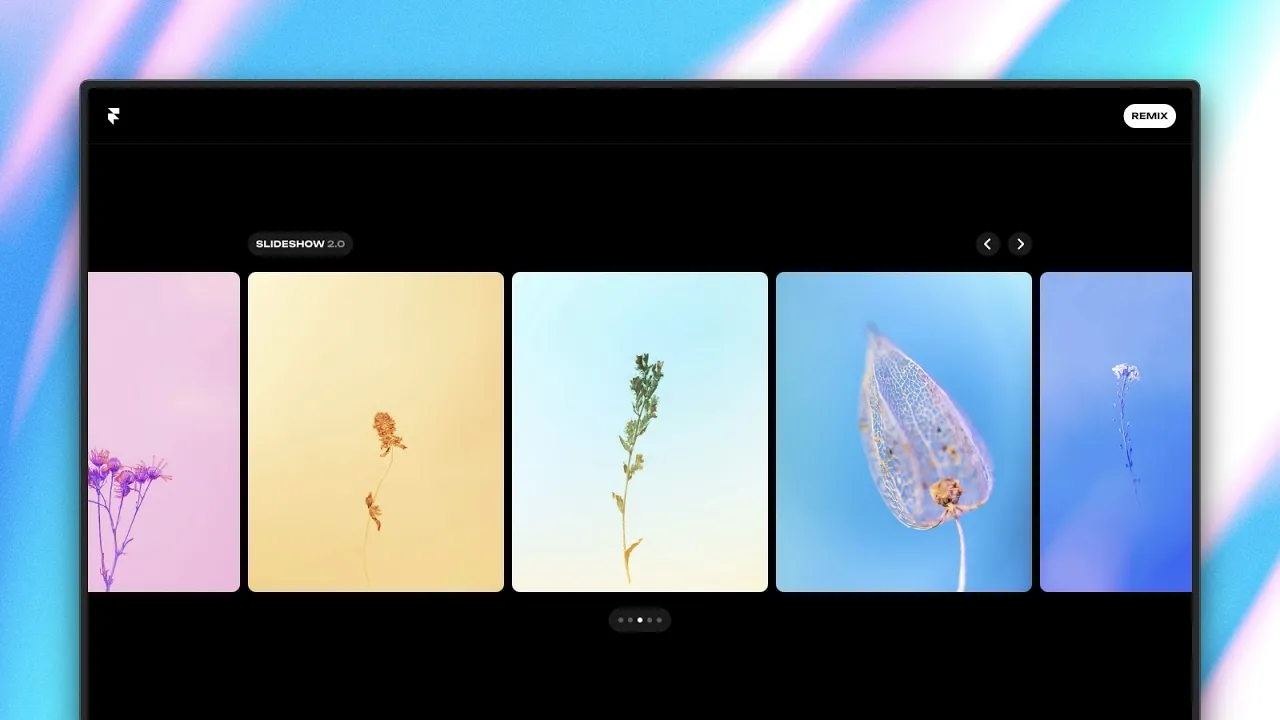
Create a Framer slideshow that autoplays, loops, and supports dragging. This lesson shows how to add or update the Slideshow Component, choose its direction and controls, and style active and inactive slides with custom effects. You can tune the spring transition and preview the interaction before publishing your site in Framer.
Lesson details
In this Framer tutorial, you will learn Create auto playing and infinitely looping slideshows.. We explain a practical workflow, highlight the key settings that affect the result, and show how to apply the technique on real pages for cleaner UX and better site performance.
Frequently asked questions
How do I add a slideshow in Framer?
Insert the Slideshow Component from the Assets or Insert panel, add your slides, and choose the layout and navigation settings. Preview the page to test the order, transition, and controls.
Can a Framer slideshow autoplay and loop?
Yes. Enable autoplay and infinite looping in the Slideshow Component settings. Adjust the interval and transition so visitors have enough time to view each slide.
Can visitors drag the slideshow?
Yes. The updated Slideshow Component supports dragging. You can keep drag alongside autoplay and other navigation controls, then test how the interaction feels with a mouse and touch input.
How can I style inactive slides?
Use the component’s effects and layout controls to change properties such as opacity and scale for inactive slides. This can make the active slide clearer without rebuilding each state manually.
How do I update an older Slideshow Component?
Open the Assets panel and use the update option next to the Slideshow Component when an update is available. Review the existing settings after updating because new controls can change the available behavior.