How to set up a favicon
Learn how to add a favicon to your Framer site and troubleshoot common issues with browser and search engine updates.
A favicon is the small icon displayed next to your page title in browser tabs, bookmarks, and search results. Adding a favicon helps reinforce your brand and makes your site easier to recognize.
Set up a favicon
To add a favicon to your site:
Open Site Settings.
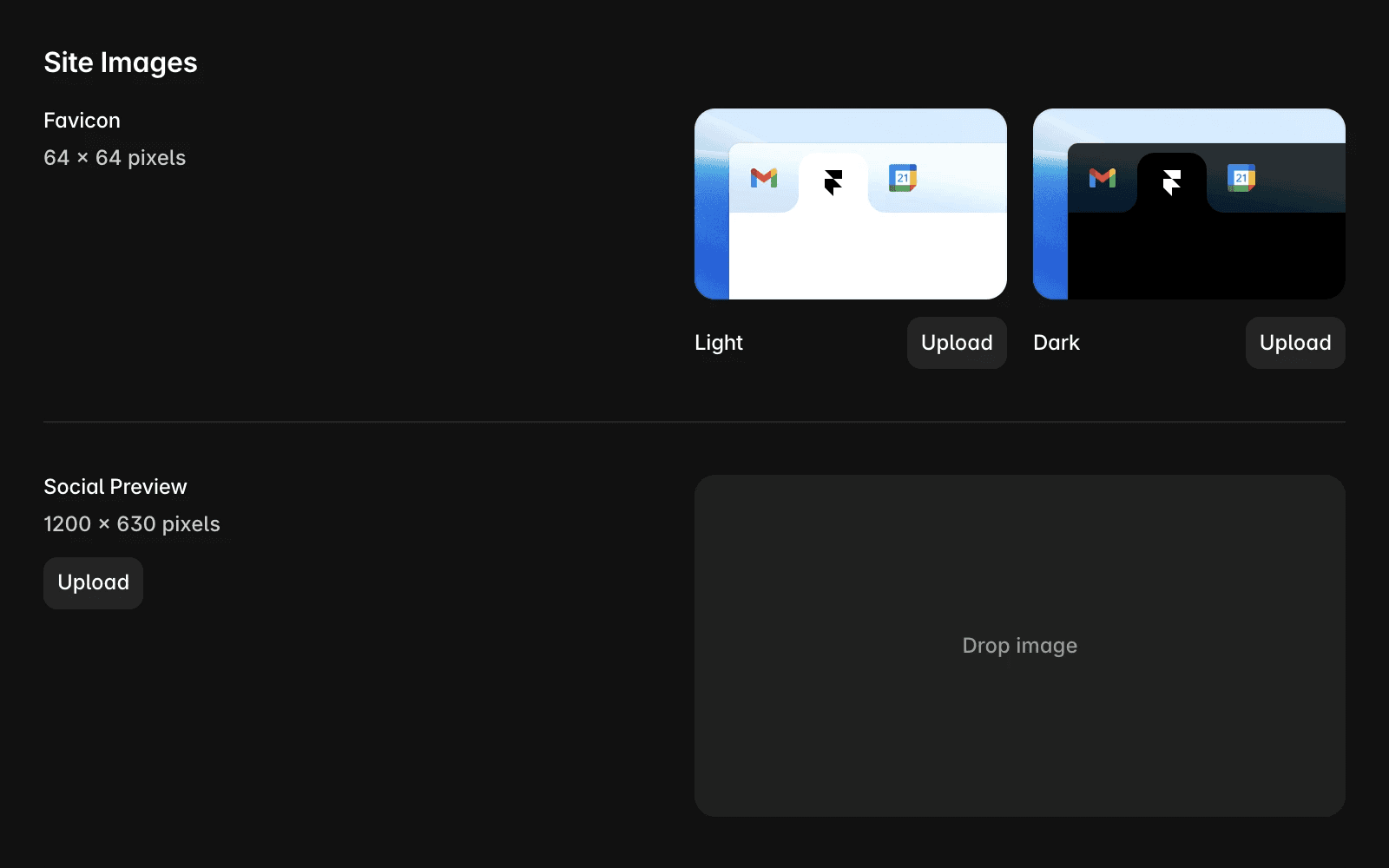
Under General, locate the Favicon settings.
Upload a favicon for Light Mode and Dark Mode, if needed.
Publish your site.
For best results, use a 64 × 64 pixel PNG image.
Favicon not appearing on your published site
After uploading a favicon and publishing your site, it may not appear immediately in every browser.
Browsers often cache favicons aggressively, which can delay updates. If you do not see the new favicon:
Refresh the page
Clear your browser cache
Open the site in a private browsing window
Wait for the browser to refresh its cached assets
Favicon not updating in Google Search
Google updates favicons independently and does not provide a fixed timeline for when changes will appear in search results.
In most cases, updates take several days, but they can take several weeks or longer. To improve the chances of a successful update, make sure your favicon follows Google’s favicon guidelines.
Favicon not appearing in Safari
Safari may continue displaying an older favicon due to browser caching.
If you’re experiencing issues specifically in Safari, refer to the dedicated Safari favicon troubleshooting article for additional steps.
FAQ
What size should my favicon be?
For best results, use a 64 × 64 pixel PNG image. This size provides good compatibility across browsers and platforms.
Why isn’t my new favicon appearing in Google Search?
Google updates favicons on its own schedule. It can take several weeks or longer for changes to appear in search results.
What should I do if my favicon is not displaying in Safari?
Yes. Framer allows you to upload separate favicons for light and dark modes through Site Settings.
Updated
