Adding HubSpot forms to your site
Drag and drop your HubSpot lead forms into your Framer site to collect leads and send submissions directly to your HubSpot account.
First, you'll need two unique identifiers from HubSpot: your portalId and formId. These connect your form in HubSpot with the form component in Framer.
Go to the HubSpot website and open an existing form or create a new one in your marketing dashboard.
Click the Embed button in the top-right corner of the form editor.
A modal will appear showing the embed code. Within this code, copy your
portalIdandformId.
Add the HubSpot component
With your form IDs ready, switch over to your Framer project to add the HubSpot component. This component allows you to visually place and manage the form on your site.
Open your project in Framer.
In the Insert panel on the left side of the editor, scroll down to the Forms section.
Select HubSpot, then drag and drop the component onto any page in your canvas.
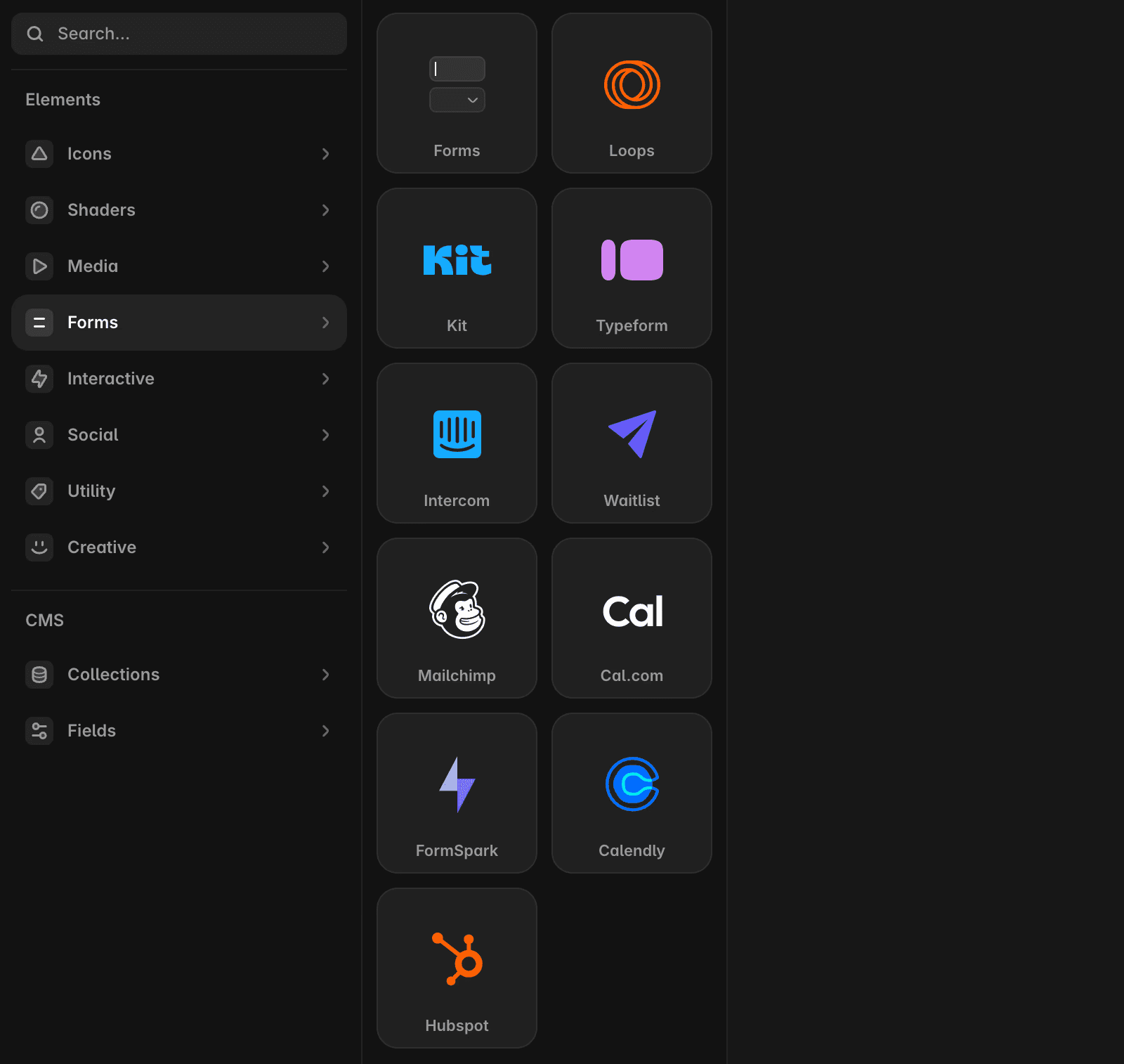
Now that the component is in place, you’ll need to link it to your HubSpot form using the IDs you copied earlier.
Select the HubSpot component on your page.
In the Properties panel on the right, you’ll see fields for
portalIdandformId.Paste your values into the corresponding fields to connect the form.
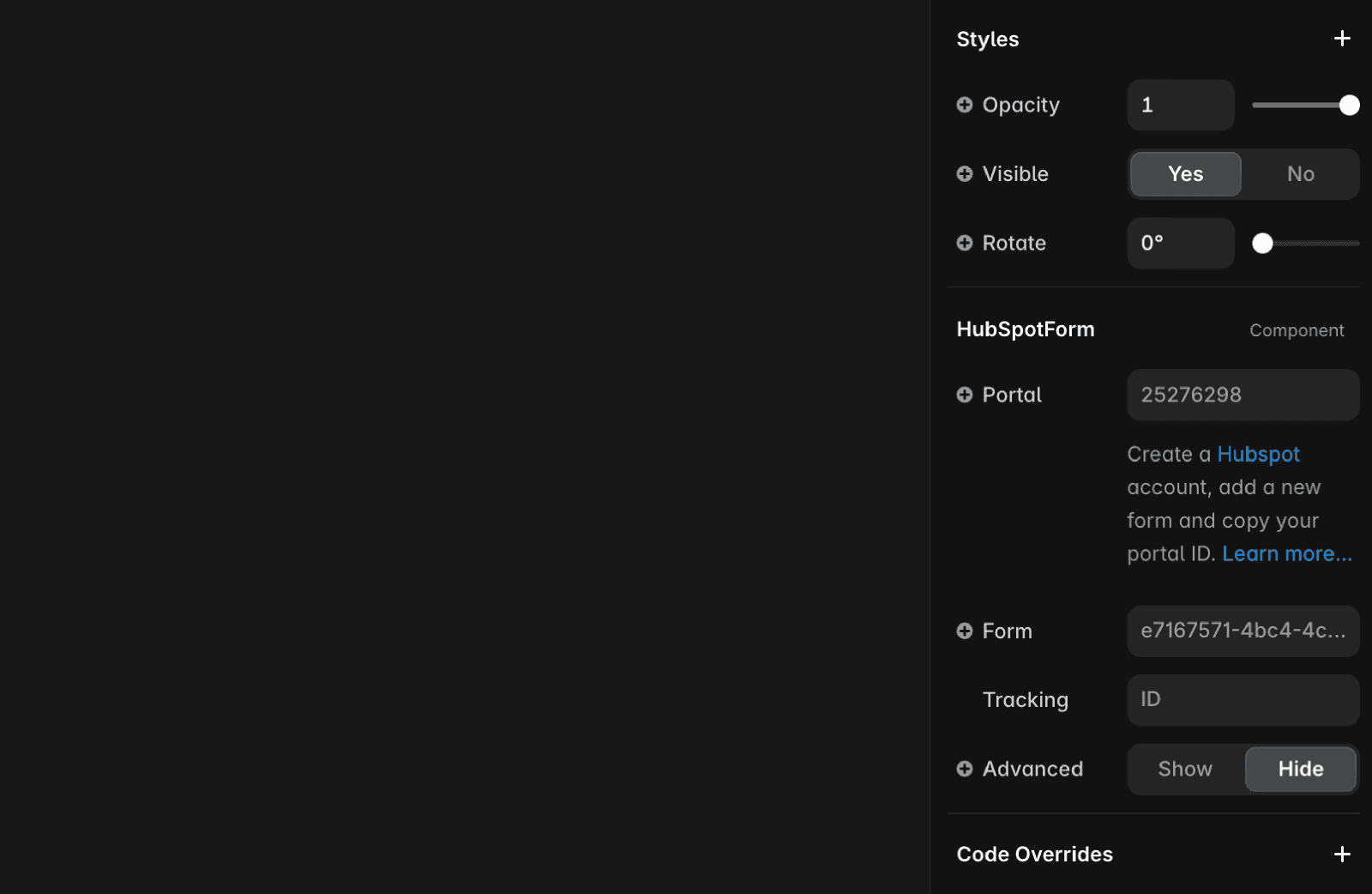
Customize the form in HubSpot
Although you can place the form in Framer, all visual and functional customizations must be made within HubSpot. Use HubSpot’s form editor to adjust fields, styles, and behavior. This ensures the form looks and feels aligned with your brand.
After you've added the form and linked it to HubSpot, it's time to check your work. Make sure everything looks and functions correctly before going live.
To complete the setup:
Use Framer’s Preview mode to test the form’s layout and functionality.
Once you’re satisfied, click Publish to push the updated site live and begin collecting submissions.
Use Framer’s native form solution
If you’d rather not use HubSpot, Framer also provides a powerful built-in form system. These forms are highly customizable and come with several integration and security features out of the box.
With Framer’s native forms, you can:
Create flexible forms with over 10 input types to suit different use cases.
Design interactive form states (e.g., success, error, loading) to improve UX.
Choose how data is submitted—via email, Google Sheets, or custom webhooks.
Enable built-in spam protection and rate limiting for better security.
For detailed steps on setting up native forms, check out this article.
Common use cases for using HubSpot in Framer
Integrating HubSpot forms with your Framer site can help you streamline communication, gather insights, and organize data more effectively. Here are some of the most popular use cases:
Contact forms: Let users get in touch with your team by embedding a “Contact Us” form. Placeholder text can help guide visitors to provide relevant details.
Support requests: Centralize and manage incoming support issues by routing them through a structured HubSpot form.
Feedback collection: Understand your users better by capturing thoughts and ideas about your product, then use those insights to prioritize new features or changes.
If you run into any issues during setup or need further assistance, feel free to reach out to us through our contact page.
FAQ
How do I add a HubSpot form to my Framer site?
First, you'll need two unique identifiers from HubSpot: your portalId and formId. Go to the HubSpot website and open an existing form or create a new one in your marketing dashboard. Click the Embed button in the top-right corner of the form editor. A modal will appear showing the embed code—copy your portalId and formId. Then, open your project in Framer, go to the Insert panel, scroll to the Forms section, and select HubSpot. Drag and drop the component onto your page. Select the HubSpot component, and in the Properties panel on the right, paste your portalId and formId into the corresponding fields to connect the form.
Can I customize the appearance and behavior of my HubSpot form directly in Framer?
All visual and functional customizations for HubSpot forms must be made within HubSpot. Use HubSpot’s form editor to adjust fields, styles, and behavior. This ensures the form looks and feels aligned with your brand. In Framer, you can place and manage the form on your site, but customization is handled in HubSpot.
What should I do after adding and connecting my HubSpot form in Framer?
After you've added the form and linked it to HubSpot, use Framer’s Preview mode to test the form’s layout and functionality. Once you’re satisfied, click Publish to push the updated site live and begin collecting submissions. Make sure everything looks and functions correctly before going live.
Updated
