Using pages
Learn how to create and manage web pages, CMS pages, and design pages in Framer.
Pages help organize your project and define the structure of your website. Framer supports multiple page types for publishing websites, creating dynamic CMS content, and designing assets or mockups.
Create a page
Every new project starts with a Home page. This page serves as the entry point for your website and cannot be deleted.
Framer uses a desktop-first workflow, with a default desktop width of 1200 pixels.
Content placed inside the page is visible on your published website. The surrounding Canvas is not published and can be used for exploration, experimentation, or storing design assets.
To create a new page:
Open the Pages panel.
Click the + button.
Select the type of page you want to create.
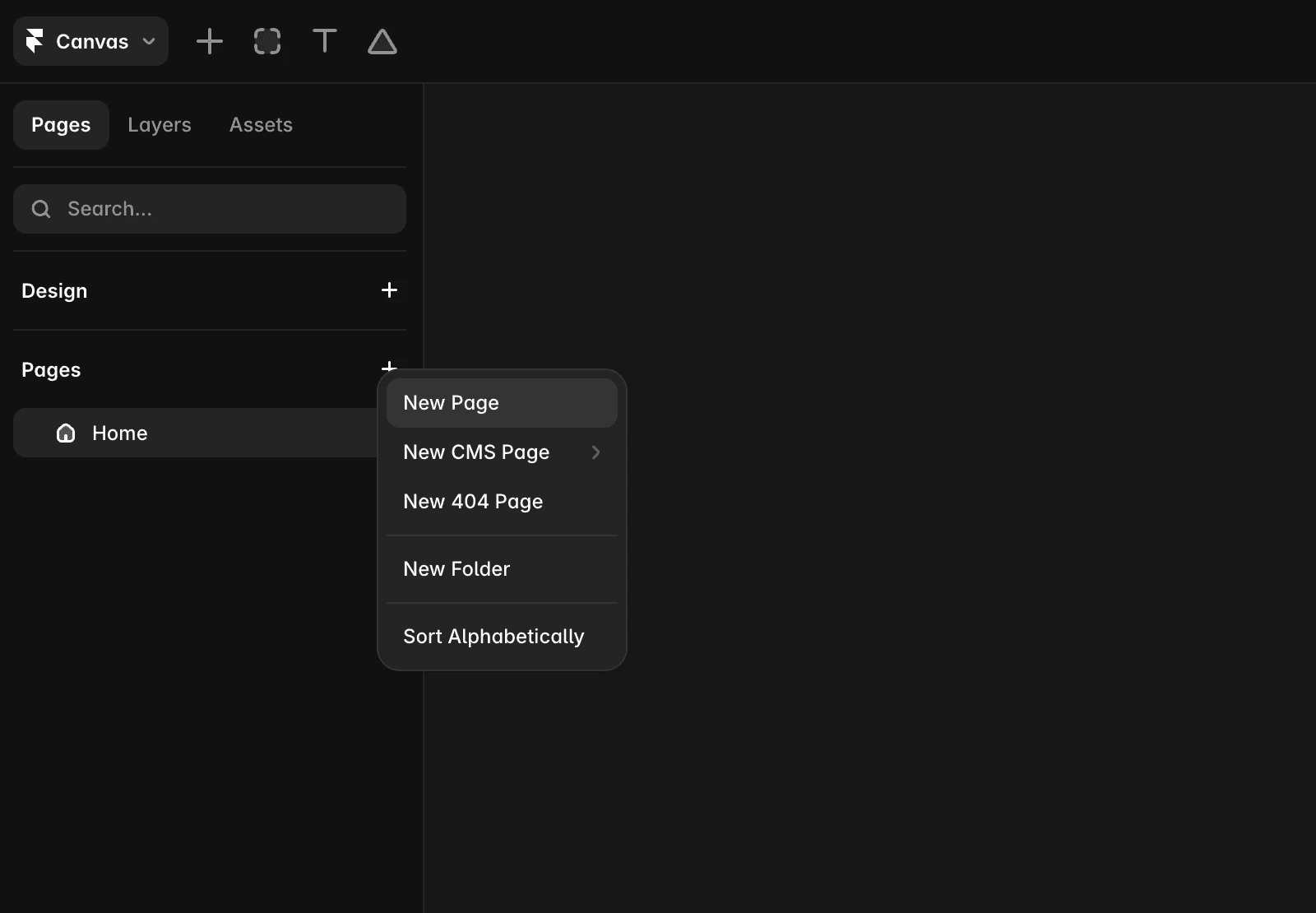
Manage page options
Each page includes additional management options.
To access them:
Hover over a page in the Pages panel.
Click the three-dot icon menu, or right-click the page.
Available options include:
Customize the page URL
Duplicate the page and its content
Delete the page
To rename a page:
Double-click the page name.
Enter a new name.
Framer automatically converts page names into valid URL paths, so you do not need to manually add a forward slash.
Page types
Framer offers three page types to help you organize your project, publish content, and create supporting assets.
Page type | Purpose | Common use case |
|---|---|---|
Web pages | Build and publish web pages with responsive layouts, navigation, effects, and custom breakpoints. | Home pages, About pages, Services pages, Contact pages |
CMS Pages | Generate dynamic pages from CMS collections using a shared template. | Blog posts, news articles, product pages, case studies |
Design Pages | Create private canvases for design work that isn’t published to your website. | Mockups, social media graphics, reusable assets, design explorations |
Web Pages form your site’s sitemap and structure. CMS Pages are automatically generated from collection content, while Design Pages provide a flexible workspace for creating assets and experimenting with layouts.
FAQ
Can I delete the Home page?
No. The Home page is the primary page of your project and cannot be deleted.
What’s the difference between a Web Page and a Design Page?
Web Pages are published as part of your website. Design Pages are private canvases used for mockups, assets, and experimentation.
How do CMS pages work?
CMS pages are generated from CMS collections. A single page template is used to display each item in the collection, such as individual blog posts or articles.
Updated
