How to add hidden fields to forms for tracking
Learn how to include invisible data in form submissions for tracking and attribution.
Hidden fields let you include additional data in a form without users seeing or interacting with it. They’re useful when you want more context about a submission without changing the form’s appearance.
When hidden fields are useful
Hidden fields work well for tracking where submissions come from.
For example, if you have multiple landing pages with forms that all send data to the same webhook or Google Sheet, you can add a hidden text field with values like page-1 or page-2. This makes it easy to see which page generates the most submissions.
Note: Hidden fields in Framer don’t automatically bind to UTM parameters. UTM tracking for form submissions is available on Scale and Enterprise plans. You can also use a code override to pass UTM parameters into hidden fields if needed.
How to add hidden fields
Follow these steps to add a hidden input field that will be included in form submissions without being visible to users.
Select your Form component on the canvas.
Add an Input field to the form.
Select the input field, then open the right-hand panel.
Enable the “Hidden” property.
Set a Name for the input field. This name is what appears in the form submission.
Remove the label, if present, to keep the field fully invisible.
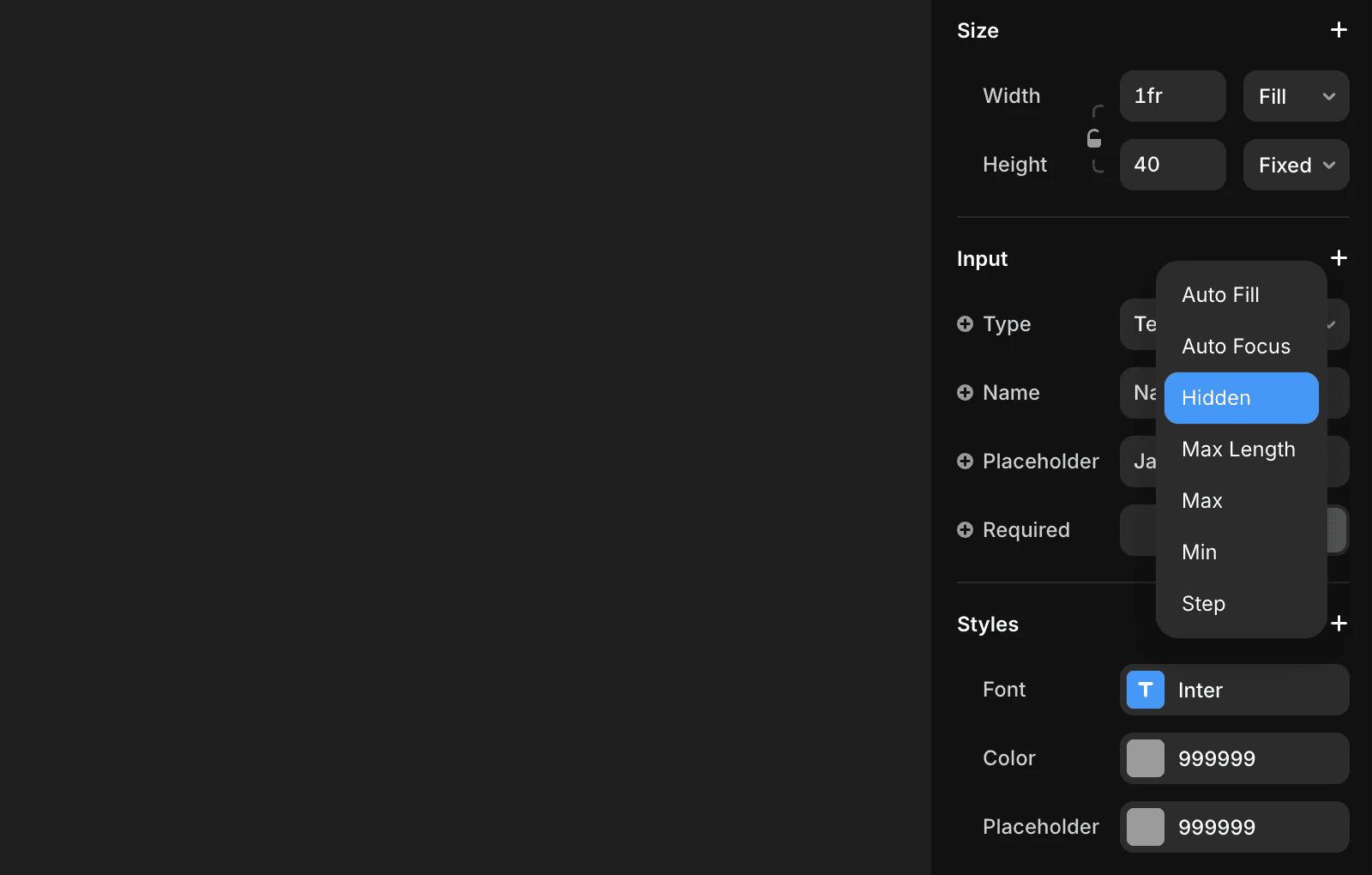
Note: Don’t hide the input using the Visible property. Invisible inputs are excluded from form submissions entirely. Always use the “Hidden” setting to ensure the field is included in the submitted data.
When should I use hidden fields in Framer forms?
Hidden fields are useful for tracking where user submissions come from. For example, if you have multiple landing pages with forms that send data to the same Webhook or Google Sheet, you can track which page gets the most submissions by adding a hidden text field with values like “page 1” and “page 2.”
How do I add a hidden field to a form in Framer?
To add a hidden field in Framer, select your Form component, add an Input field to the form, select that input, then enable the Hidden property in the right-hand panel. Set a Name for the input field (this is what appears in submissions), and remove the label if present. Don’t hide it with the Visible property; use Hidden so the value is still included in submissions.
Can I use hidden fields in Framer to track UTM parameters automatically?
Hidden fields in Framer do not automatically bind to UTM parameters. UTM tracking for form submissions is available on Scale and Enterprise plans. You can also use a code override to pass UTM parameters into hidden fields.
Updated